Inspiring
November 14, 2016
Answered

Shading a single column within a table

  • November 14, 2016
  • 2 replies
  • 395 views

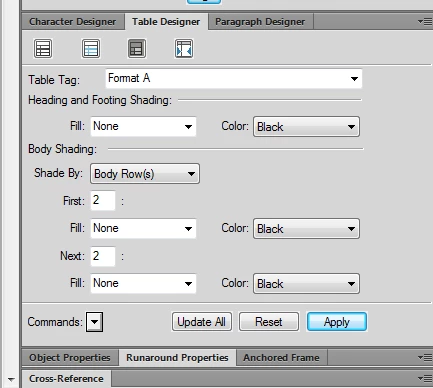
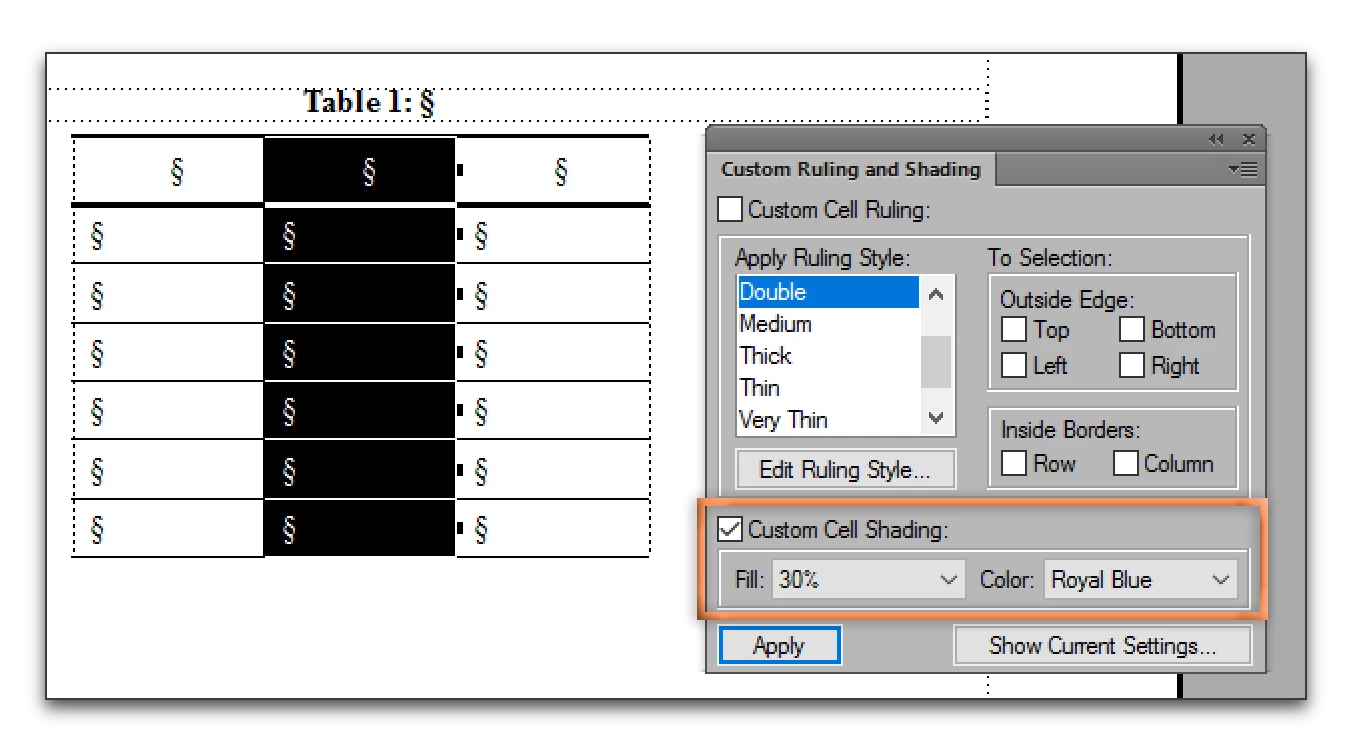
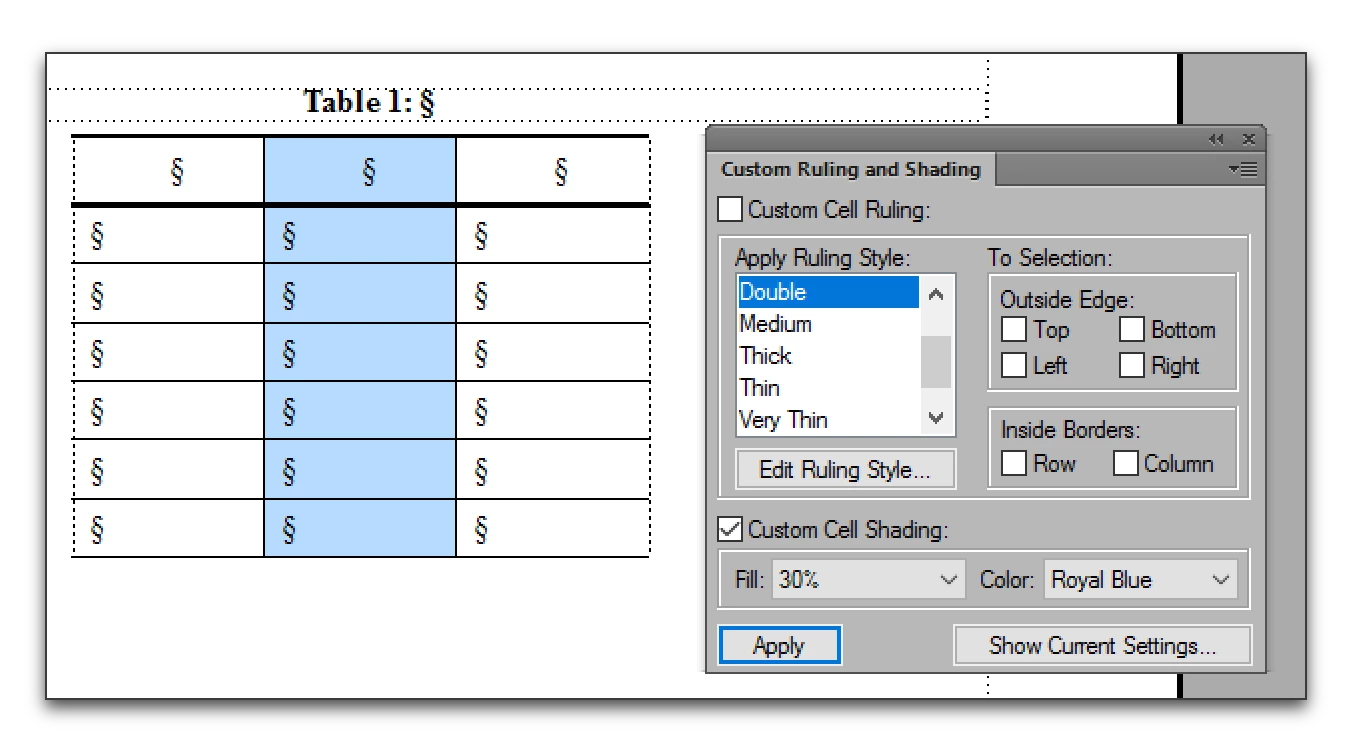
I am having trouble shading a single column within a three (3) column table.  I'd like to shade the middle column to provide a visual separator between the columns with entries. Can someone please advise on this seemingly simple task?

I've attached some screen shots as an aide.

Thanks,

MB

    This topic has been closed for replies.
    Correct answer Barb Binder

    Table Designer shades using a repeating pattern. If all your tables look exactly like the one shown, you could shade by Body Columns and set the 1st 1 to None, Next 1 to the desired shading. The repeating pattern for a 3 column table would be none, shade, none. This would not work for four or more columns—in that case you would need to use Custom Ruling and Shading.

    1. Select the Column
    2. Table > Format > Custom Ruling and Shading
    3. Disable the checkmarks for all ruling properties
    4. Enable the checkmark for shading and set the shading as desired.
    5. Click Apply

    2 replies

    Inspiring
    November 15, 2016

    Thank you very much.  this forum has been very useful to me so far.

    regards,

    matt.bardelli

    Barb Binder
    Community Expert
    Community Expert
    November 15, 2016

    Glad we can help, Matt.

    ~Barb at Rocky Mountain Training
    Barb Binder
    Community Expert
    Barb BinderCommunity ExpertCorrect answer
    Community Expert
    November 14, 2016

    Table Designer shades using a repeating pattern. If all your tables look exactly like the one shown, you could shade by Body Columns and set the 1st 1 to None, Next 1 to the desired shading. The repeating pattern for a 3 column table would be none, shade, none. This would not work for four or more columns—in that case you would need to use Custom Ruling and Shading.

    1. Select the Column
    2. Table > Format > Custom Ruling and Shading
    3. Disable the checkmarks for all ruling properties
    4. Enable the checkmark for shading and set the shading as desired.
    5. Click Apply

    ~Barb at Rocky Mountain Training