
jbarkerhill
Inspiring
February 17, 2022
Question

Single Line is missing—how do I get it back?

  • February 17, 2022
  • 3 replies
  • 841 views

Hi, 


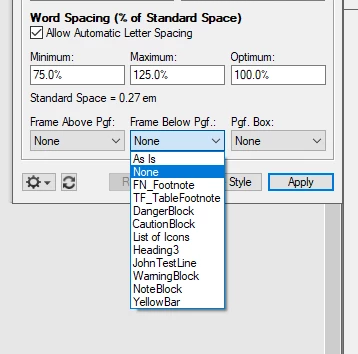
I am trying to use the Frame Below Pgf function to add a border line beneath a header. I'm using a custom template provided to me by another writer on my team. I don't see an option for Single Line. In a blank FrameMaker document I do see that option. 


Any suggestions? 

Thanks 


    This topic has been closed for replies.

    3 replies

    Barb Binder
    Community Expert
    Community Expert
    February 18, 2022

    Ah. Yes. FrameMaker alerts us to overset text (text that doesn't fit into a frame and doesn't appear anywhere else in the file) with a black line at the bottom of the frame.


    Sounds like you have this all sorted out for now. Come back when you have other questions—we are always happy to help. It's usually best to ask one question per thread to make it easy for others to find the answer. (Supporting questions on the same topic are fine in the same thread.)


    ~Barb

    ~Barb at Rocky Mountain Training
    Barb Binder
    Community Expert
    Community Expert
    February 18, 2022

    Hi @jbarkerhill:


    I moved this to a new thread because that question was solved, and this is going in a different direction.


    The first dialog box indicates that you are naming the frame—so it must be there somewhere, perhaps hidden under something else. You can see in my recording that the process works.


    The second dialog box is of no consequence—FrameMaker deletes the undo history after certain tasks. It's just letting you know that's about to happen. Personally, I always disable that dialog box because I don't want to have to see it. 


    Your solution is great. Creating it from scratch was the other option. 


    The double line is problematic, and goes back to my first thought—overlapping frames or perhaps, a frame in a frame? Hard to say without seeing your reference page. Please show borders, select the Single line frame and then grab a screen shot that shows the entire reference page, and the status bar at the bottom.


    ~Barb

    ~Barb at Rocky Mountain Training
    jbarkerhill
    Inspiring
    February 18, 2022

    I think the double line was a glitch caused because the footer was being pushed off the page. 

    Once I increased the size of the footer frame, upwards, the Frame Above Pgf: Single Line worked. 

    This is a much more laborious process to get border lines vs. MS Word (single Borders button you press). But I guess there's a different style with FrameMaker vs. Word. As long as it works eventually then it's fine. 

    I'm still learning FrameMaker, so I'm sure I'll appreciate its benefits as use it more. 

    Barb Binder
    Community Expert
    Community Expert
    February 18, 2022

    Hi @jbarkerhill:


    The list of Frame Above Pgf and Frame Below Pgf options depends on the Reference page set up in your particular document. Since Single Line is a default and part of all new FrameMaker documents, an easy approach would be to create a brand new FrameMaker file. Portrait, landscape, custom it doesn't matter. Then go to the first reference page in that new file and select the frame around the single line. Copy it, return to this document navigate to the reference page with these other frames, and paste that frame into the new document.


    The label above is a courtesy but it's not required. You can leave it off, add it with the Text Line tool or copy/paste it from the other file.


    Once you have pasted the Single Line frame into this document, you'll be able to access it from these menus.


    ~Barb

    ~Barb at Rocky Mountain Training
    jbarkerhill
    Inspiring
    February 18, 2022

    Hi Barb,


    Thanks for the advice 🙂 . I did discover the Reference Page as the source of the Frame Above Pgf and Frame Below Pgf options. 

    I tried copying the Single Line frame from a blank document Reference Page to the Reference Page on the custom document, but for some reason it doesn't paste correctly. 

    I'll do more testing and report back. 


    I also saw a video about using a combination of tables and Reference Pages to create formatting for Notes, Caution, Warning, etc. That seems useful.

    Barb Binder
    Community Expert
    Community Expert
    February 18, 2022

    Hi @jbarkerhill:


    It does work, but here are two potential stumbling blocks:

    • Be sure to select the frame and not the line within the frame and choose Edit > Copy
    • Be sure to click on the reference page in file you are pasting into, before choosing File > Paste. 


    If you do both of these, the Frame Name dialog box will open after you paste. Give it a logical name and the named frame will appear in the two lists.


    ~Barb

    ~Barb at Rocky Mountain Training