


Michael314
Inspiring
September 9, 2013
Question

Strange change to color palette

  • September 9, 2013
  • 9 replies
  • 1760 views

Hi,

I have had a few blue screens recently on my old Windows XP system with Frame 7.2 and 3 GB RAM.

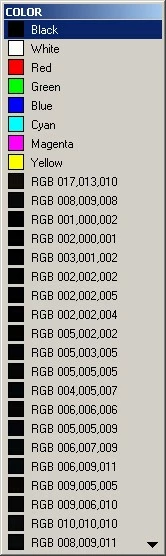
Now I see that my color palette is scrambled in one large manual. Only the basic colors are there and a long list of entries like RGB 017,013,010 are inthe palette. They don't do anything and I can't delete them via View > Color > Definitions.

The manual is 482 pages, 52 MB, with scores of graphics and photos imported by reference.

As a workaround, I copies the contents into a new file and that fixed the problem, but a few hours

later, the color palette is corrupted again.

Has anyone seen this before and is there a more sure workaround?

Yours,

Michael F
This topic has been closed for replies.

9 replies

Arnis Gubins
Inspiring
September 9, 2013

The RGB colours come frrom importewd graphics that use Indexed colours, typically PNGs or GIFs. You should convert these to use 24-bit colours. You can delete the  RGB colours more easily in a MIF file. The colours will be re-created by FM whenever you import one of these indexed-colour files, so no "corruption" is taking place.

You might want to have a look at Silicon Prairie's ColorTools (http://www.siliconprairiesoftware.com/Products.html) if this is a persistent problem and/or you have a lot of these problematic images.

Michael314
Inspiring
September 10, 2013

Arnis,

Thank you for the suggestions. I'm relieved that my manual is not corrupted.

Let me see if I understand you.

1. "Convert graphics to use 24-bit colours."

In Photoshop I can see under Image -> Mode that each photo is set to Indexed Color. If I change it to RGB Color or CMYK Color, then I can choose only 8 bits/channel or 16 bits/channel from the menu. I don't know how to get 24-bits.

BTW, a graphics co-worker has recommended that I set photos to RGB color rather than CMYK color since they are primarily used in PDF files. Does that sound right?

2. "Delete the RGB colours more easily in a MIF file."

What do I look for in the MIF file and what exactly do I delete? Are the colors all in one place or part of each image?

Should I fix the color mode of all the graphics first and then edit the MIF file and remove the odd color names?

Yours,

Michael F

========

Bob_Niland
Community Expert
Community Expert
September 10, 2013

>... I can choose only 8 bits/channel or 16 bits/channel from the menu. I don't know how to get 24-bits.

8 bits/channel is 24 bits (8 bits each for R, G and B), aka contone.

> BTW, a graphics co-worker has recommended that I set photos to RGB

> color rather than CMYK color since they are primarily used in PDF files.

> Does that sound right?

Usually. We use sRGB as our color space for this reason.

>> 2. "Delete the RGB colours more easily in a MIF file."

Even once you eliminate all the indexed color imports, it may take some effort to delete all those RGB definitions. Doing it in MIF is trivial (well, as trivial as MIF mucking ever gets, anyway).

Bob_Niland
Community Expert
Community Expert
September 9, 2013

See: How do I remove colors from the Tools Palette

In a nutshell, you can't.

You need to find the indexed color import causing it, and fix that (convert it to vector, contone or bitmap).