

Cagataytech
Known Participant
March 10, 2022
Question

Table cells inside a landscape oriented text frame become unselectable

  • March 10, 2022
  • 4 replies
  • 488 views

I'm not sure if the title clarifies my problem. I'll try to explain what I did until this point and then ask for some guidance from the community.


This is the original page on Indesign.
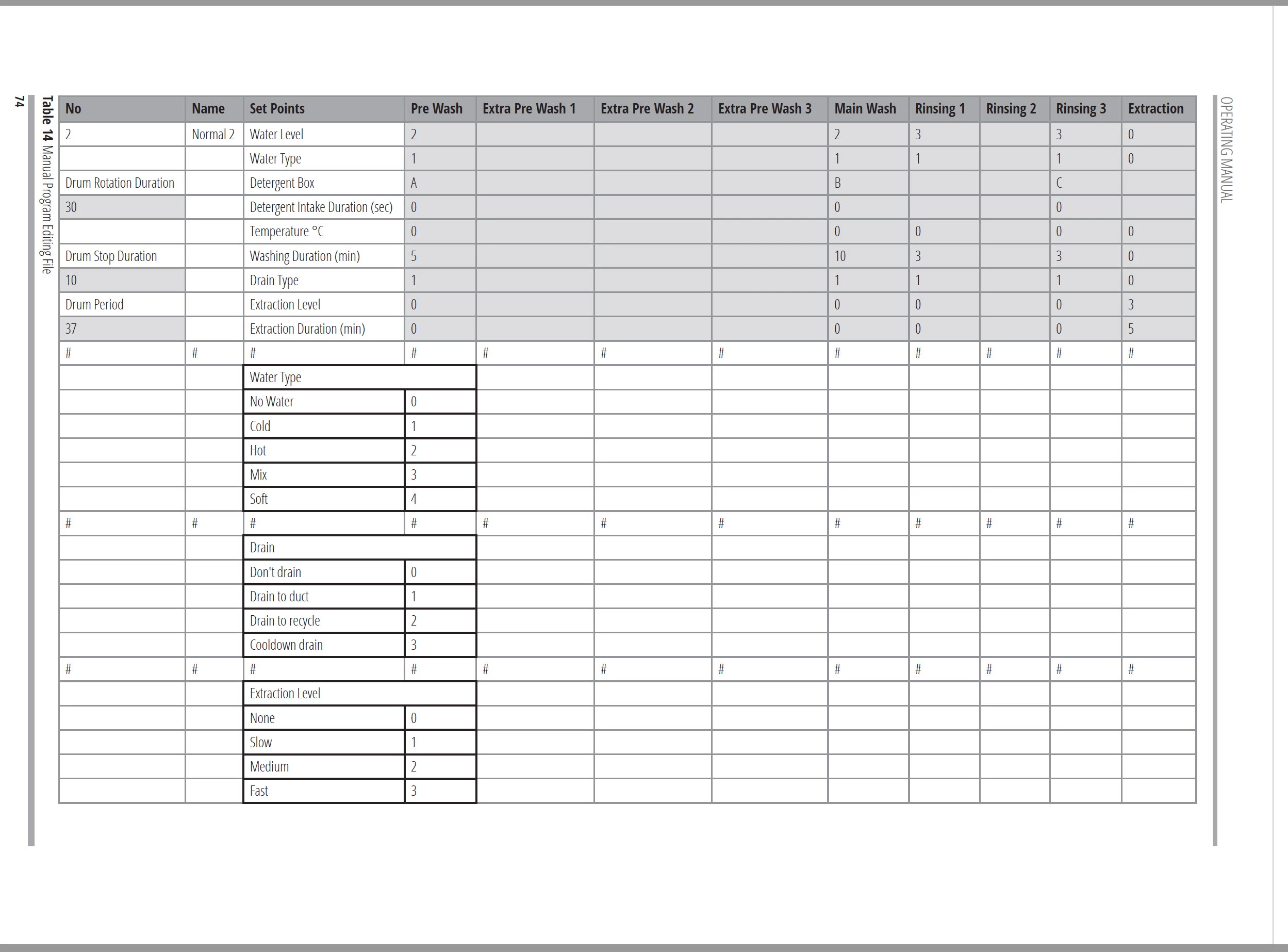


This is what I've done to incorporate the same structure on Framemaker.
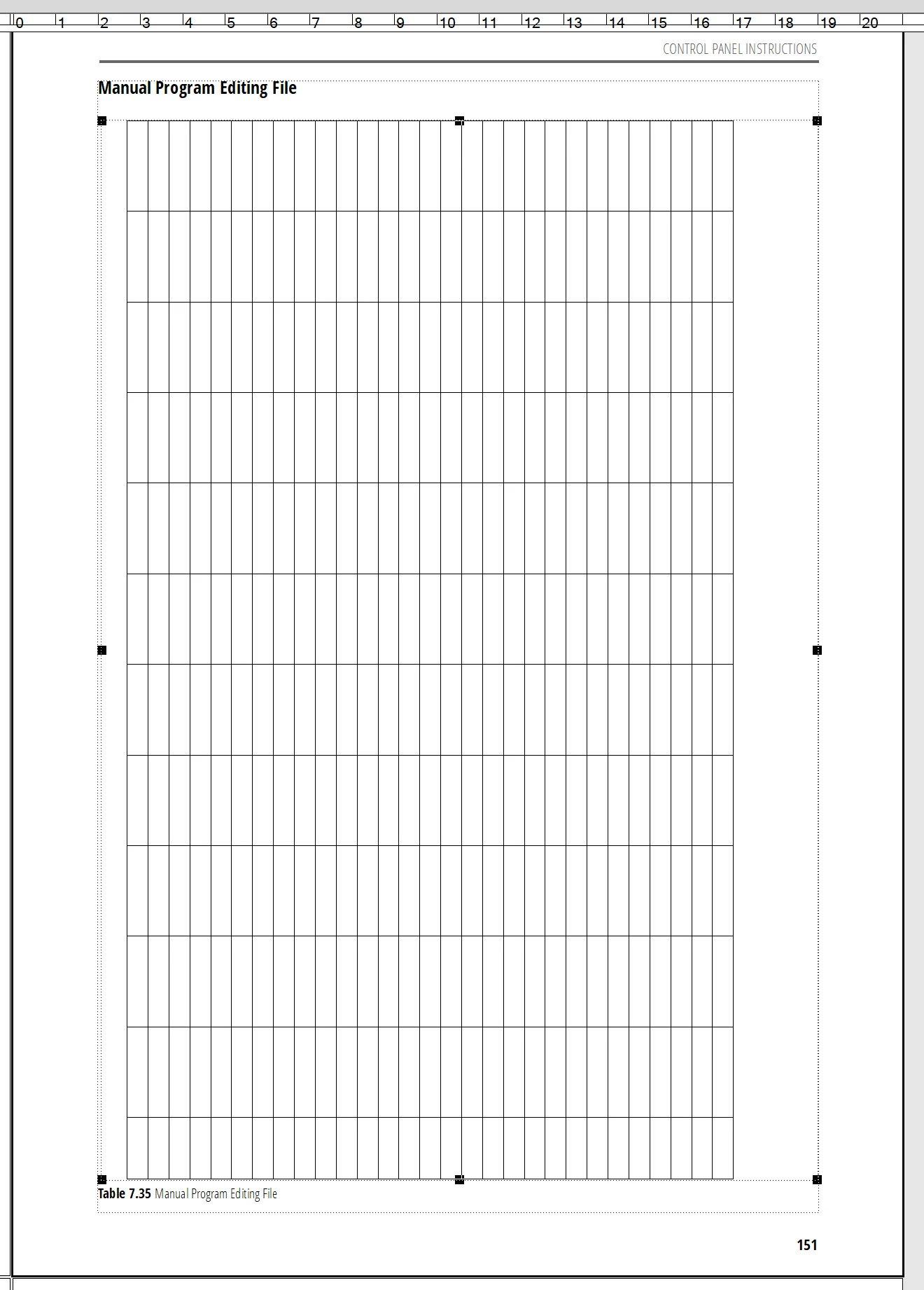


My master pages have portrait oriented text frames by default. I've inserted another text frame inside the main text frame and rotated it 90 degrees counter-clockwise. Then I've inserted the table inside of it.


I've changed the Run Around property of the landscape oriented text frame to "Run Around Contours" to be able to place it in between the lines inside of the main portrait oriented original text frame.
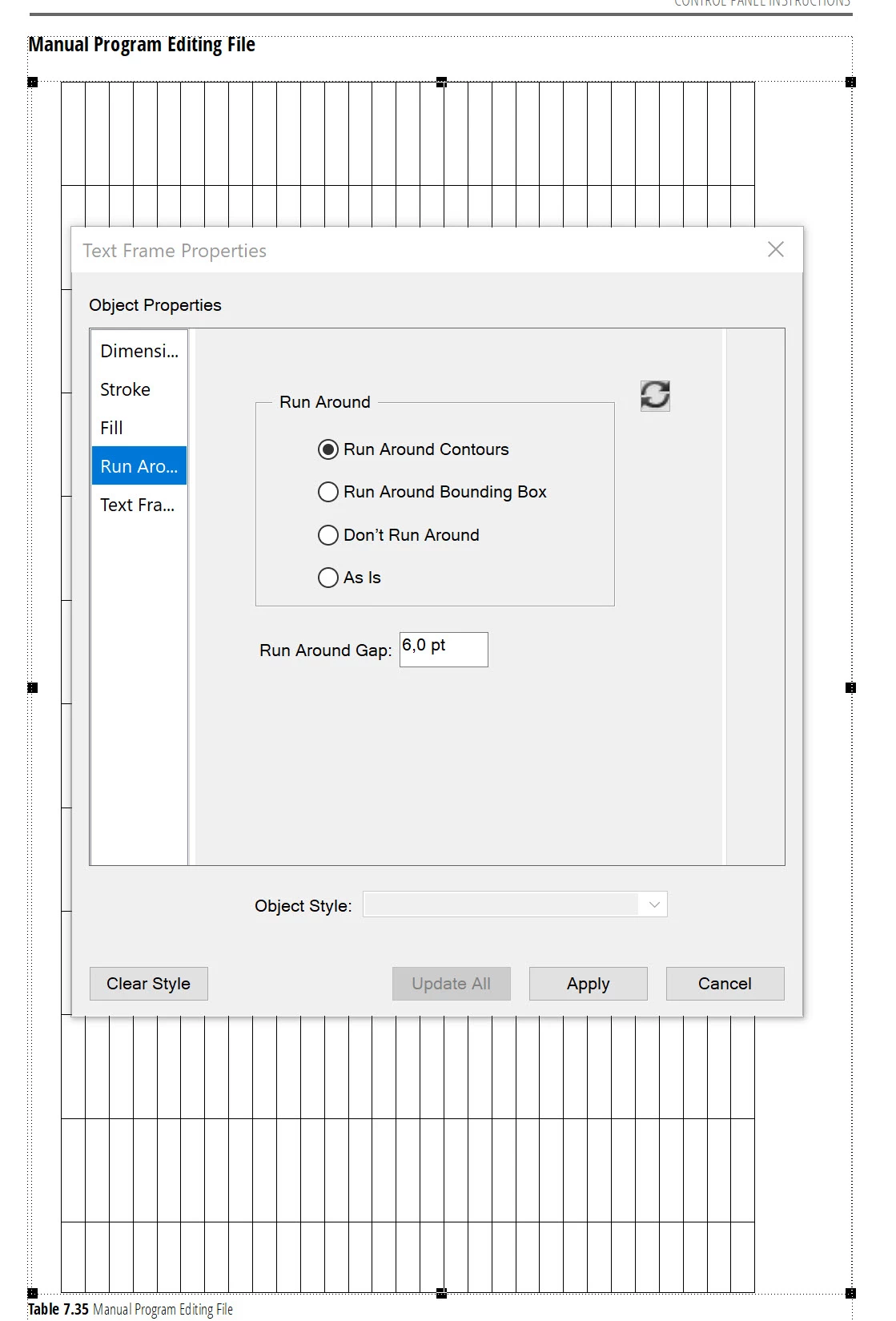


Up to this point, everything went well but right now I can't select the cells inside the landscape oriented table with the cursor. FM selects the whole table when I click on it as if I have pressed on the "Select Object" button. I have to point into the top line inside the landscape oriented text frame, then press the down arrow to enter the table and then browse the cells one-by-one by using the arrow keys. I can't select more than one cell by pressing any keyboard combination inside of the table. Shift + right arrow allows me to only select the complete line inside a single cell.


Maybe my complete workflow was incorrect or I'm missing something crucial here.


Could someone guide me on how to solve this issue?

This topic has been closed for replies.

4 replies

Matt-Tech Comm Tools
Community Expert
Community Expert
March 11, 2022

It sounds like you "just" drew a text frame on top of the existing main text frame.

To actually insert a text frame into a text frame, you'd have to first insert an anchored frame, then place the text frame into the anchored frame, then place the table.


Or (as Jang put it), define a rotated master page, and easily place the table in the normal text flow.


Added benefit: You'll be able to select and edit text without cranking your neck in odd positions 🙂

-Matt Sullivan, FrameMaker Course Creator, Author, Trainer, Consultant
4everJang
Legend
March 11, 2022

Why don't you create a landscape masterpage and avoid having to insert a table in a text frame inside the text frame that holds your document content? It seems that the text frame inside the normal document content text frame is causing the confusion here. Is there a valid reason why you would not use a landscape page or have you not yet tried that?

Bob_Niland
Community Expert
Community Expert
March 11, 2022

One caveat about using a custom Master Page for this specific application is:
☞ how to get it applied.

I suspect that a unique {main Flow} Paragraph Format is required for the anchoring paragraph (let's name it Body.Rotate), so that the AMP (Apply Master Pages) operation will assign the landscape page layout. The wider issue here is that unless it's been addressed in newer FMs, the AMP operation ignores Table content for applying pages — a body format {typically Flow A} must be used as the trigger.


Some other tips for that ¶Body.Rotate might include:

  • Set Pagination to Top of {x} page. Different L/R rotated layouts may be needed, usually depending on what any header & footer need to contain.
  • Use negative space-below, matched by the same negative space-above for the Table, so that the Table top is right against the top of the text frame.
  • As ¶Body.Rotate only needs to contain the table anchor, I usually set the color of such 'meta' para formats to my authoring-only color, which is itself set to non-print in Color Views for publication. This {usually} causes the meta text to be visible at Table top left, so you know what it is, and it's large enough to read if that matters.
  • If the para is thus a meta, it can also contain useful auto-numbering that identifies, say, the ¶ format name, plus any typed-in text notes on what the anchored content is.
4everJang
Legend
March 11, 2022

I always use a separate TableAnchor format that holds no text. Just to make sure it does not show up at all I set the font color to white, font size 2pt (minimum for FM) and line spacing to 0 pt fixed. This causes the table to be right up against the top of the text frame. But you can also adapt the dimensions of the text frame on a landscape table page to allow for the extra space if needed.

Note that the master page table may use the options Single (one page only) or Until Changed. If you expect tables that are bigger than one single page, you will have to use Until Changed and you will also need a paragraph format that starts on a new page after the table and triggers the normal portrait master page again.

Community Expert
March 10, 2022

Hi,


Yes, I also encounter this behaviour. I circumvented this issue by searching for text in a particular table cell. Then I might walk around with the arrow keys or the tab key.

You might create a bug report in the Adobe Tracker:

https://tracker.adobe.com/#/home

When you post the link here, I will vote for it.


Best regards


Winfried

Bob_Niland
Community Expert
Community Expert
March 10, 2022

It's been many years since I last tried to do rotated/landscape tables as FM tables, and I seem to recall that problem. As our table data master source was a spreadsheet, we just ended up importing them as EPS objects (would use PDF or SVG today).


If the master source for the table had to be an FM table, I'd be tempted to try:

• author/maintain the table in a separate FM landscape document

• import it by reference, either rotated, or in a rotated frame