Known Participant
February 7, 2017
Answered

Table formatting issues

  • February 7, 2017
  • 1 reply
  • 359 views

Hey gang,

I've got a document that has roughly 100 tables in it of varying lengths.  Is there a way to highlight the table text and automatically format it by selecting a table format?  Say I store a table in the reference pages and click on the Table catalog?

Also, how do I store a table in the reference pages?

Mahalo,

-terry-

This topic has been closed for replies.
Correct answer Barb Binder

Is there a way to highlight the table text and automatically format it by selecting a table format?

You will need to format the text in the table using formats from the Paragraph Designer, and possibly Character Designer. Table formats from the Table Designer impact the table position, cell margins, ruling, shading etc.

Also, how do I store a table in the reference pages?

  1. View > Reference Pages
  2. Special > Add Reference Page.
  3. Give it a name and click on OK.
  4. View > Toolbars > Graphics Toolbar
  5. Select the Place a Text Frame tool and draw a text frame on the new Reference Page
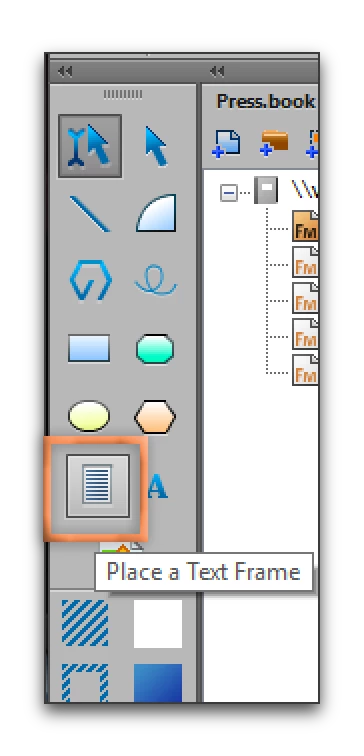
  6. Switch back to the Smart Selection tool, click an insertion point in the new frame and insert the table.
  7. Format as desired.

Now you can copy/paste the frame onto the body pages for a formatting jump start.

1 reply

Barb Binder
Community Expert
Barb BinderCommunity ExpertCorrect answer
Community Expert
February 9, 2017

Is there a way to highlight the table text and automatically format it by selecting a table format?

You will need to format the text in the table using formats from the Paragraph Designer, and possibly Character Designer. Table formats from the Table Designer impact the table position, cell margins, ruling, shading etc.

Also, how do I store a table in the reference pages?

  1. View > Reference Pages
  2. Special > Add Reference Page.
  3. Give it a name and click on OK.
  4. View > Toolbars > Graphics Toolbar
  5. Select the Place a Text Frame tool and draw a text frame on the new Reference Page
  6. Switch back to the Smart Selection tool, click an insertion point in the new frame and insert the table.
  7. Format as desired.

Now you can copy/paste the frame onto the body pages for a formatting jump start.

~Barb at Rocky Mountain Training
STL OrcaAuthor
Known Participant
February 9, 2017

Thanks, Barb.  I'll give it a go and let you know how it turns out.  You are awesome and a genius!

Mahalo,

-terry-