andspence1
Known Participant
January 30, 2019
Answered

Text randomly turning green and underlined

  • January 30, 2019
  • 3 replies
  • 4255 views

2019 Release, Version: 15.0.2.503

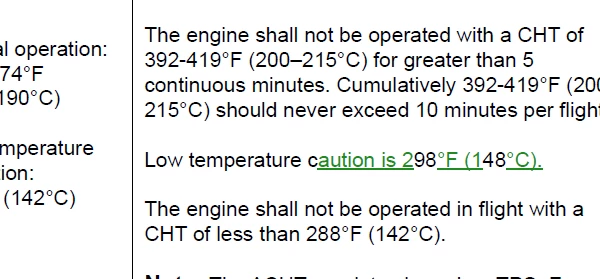
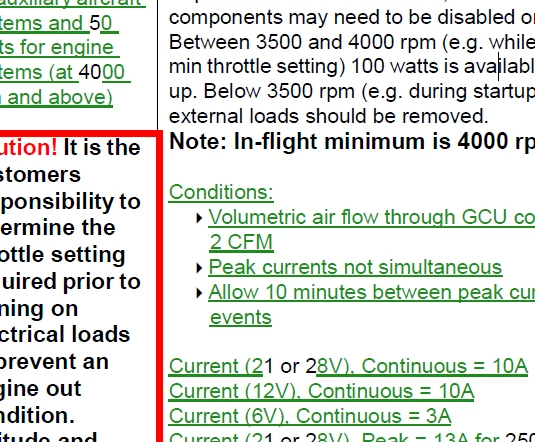
I was editing a 51 page *.fm file, and now I have random green and underlined text.  It does not seem to respond to changes from paragraph, or character designer - they don't even seem to recognize it as green and underlined (but it publishes to PDF as green and underlined, and on FM screen as well).    When I highlight a section of the green text and select a different style from the character catalog, it will change the weight, angle, and variation, but it stays green, and stays underlined no matter what. The only way I have been able to change it back to to match the surrounding font properties is to highlight it, ctrl+c and immediately ctrl+v.  It pastes back as normal.

I don't know that this is what triggered it for sure because I didn't notice it until later, but I did perform a Find/Change operation, and hit change all (the whole book).  That is not a normal procedure for me.
This topic has been closed for replies.
Correct answer Jeff_Coatsworth

Looks like Track Changes at first glance

3 replies

Barb Binder
Community Expert
Community Expert
January 31, 2019

Hi andspence1:

Your screen shot confirms that it is a track changes issue, and one that originated in Fm and not in Word. You must have turned it on and not realized it.

So in the Track Changes toolbar (View > Toolbars > Track Text Edits): accept or reject your changes. If you know you want to accept all, there is a button for that:

After accepting all changes.

Then disable Track Changes.

~Barb

~Barb at Rocky Mountain Training
LinSims
Community Expert
Community Expert
January 31, 2019

You could try saving it to MIF and then taking a look at what is going on using a text editor (Notepad++ or Notetab Light are good choices and both free). You know where it's happening, so find a short portion of the text that is green and underlined—"aution is 2" might be a good string–and then see what the codes around it say.

Community Expert
January 31, 2019

As others had said this looks like text which was marked with Track Changes.

Possibly you had clicked the button inadvertently.

Just accept all changes, and then this is normal text which behaves normal.

You had tested this already when you had clicked on Preview Final.

When you press CTRL+C and CTRL+V and the green marking goes away, this is probably because now you do not have Track Changes activated.

Jeff_Coatsworth
Community Expert
Jeff_CoatsworthCommunity ExpertCorrect answer
Community Expert
January 30, 2019

Looks like Track Changes at first glance

andspence1
Known Participant
January 30, 2019

It does seem to be related to that as when I go to Preview Final, it all changes to normal....But I've never used this function, and didn't get into that menu at all.  Further, the green underlined sections have not been changed!

Bob_Niland
Community Expert
Community Expert
January 31, 2019

Condition Codes have been ruled out?

The underlines, at least, likely rule out a rogue redefinition of a color in the library.