
Participant
January 29, 2021
Question

Unable to change the RoboScreen Capture workspace UI when launched from FrameMaker 2019

  • January 29, 2021
  • 1 reply
  • 335 views

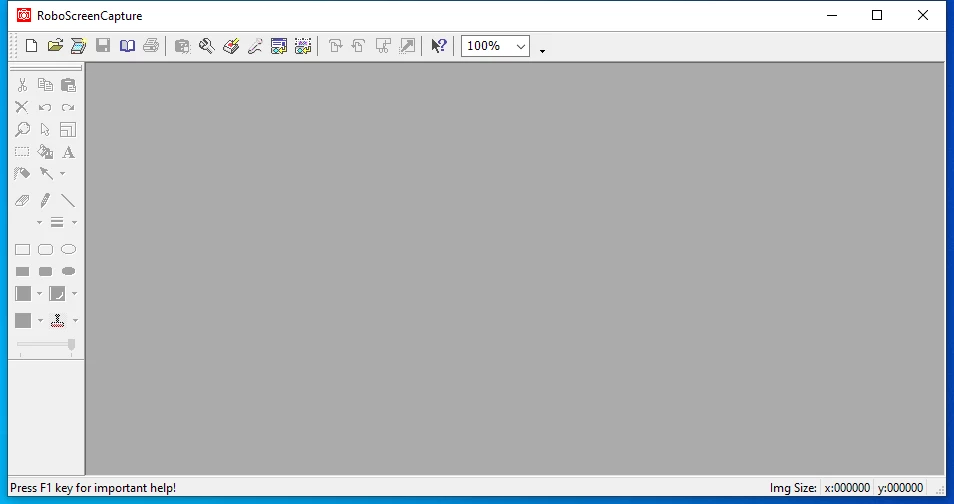
Whenever I launch RoboScreen Capture from FrameMaker 2019 (32- or 64-bit) I am forever stuck with workspace below. I cannot change the workspace to display menus or anything else. There is no menu or button to access 'reset to default.' I've even tried reinstalling FrameMaker multiple times. Is there a way to restore or change the workspace back to the original default workspace?
 

This topic has been closed for replies.

1 reply

Community Expert
February 1, 2021

Hi,


I checked this.

My RobohelpScreenCapture has a menu bar. This is just an additional toolbar. Therefore you must activate it.

At the end of your icon toolbar there is a small arrow. When you click it, you get a command Customize. In the Customize dialog is a Toolbar tab. There you can activate the menu toolbar.


Best regards


Winfried

Rodel5C21Author
Participant
February 1, 2021

Hi Winfried,

I have access to the Customize dialog like you suggest; however, nothing I do inside the dialog changes the RoboScreen Capture workspace. The workspace appears to be permanently frozen as in my screen above. This is extremely frustrating!

--Rod 

Community Expert
February 2, 2021

Hi Rod,


Yes. I see. When I open this dialog, there is an option to activate and deactivate the menu bar, but you cannot deactivate it. You can only deactivate the main icon toolbar.

Is the menu toolbar in your dialog activated or deactivated?

There are commands Reset and Reset All. Do these have any effect?

Could it be that the menu toolbar is moved to another place so that you do not see it?


Best regards


Winfried