
Inspiring
February 1, 2017
Answered

Update Book Changes Pagination Setting

  • February 1, 2017
  • 1 reply
  • 2447 views

I am printing a book to PDF, and I keep seeing extra pages.

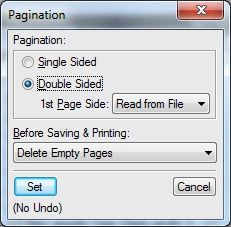
I have changed the pagination setting for Before Saving & Printing to "Delete Empty Pages", but when I click Update Book, FrameMaker changes the pagination for two chapters (of 11) back to "Make Page Count Even".

Does anyone know why it is doing that? And how I can stop it?
This topic has been closed for replies.
Correct answer Arnis Gubins

I have set both the book and the individual chapters to "Delete Empty Pages".


You're reading the starting page setting from the file, rather than letting the book set which page to start on  [hint: use Next Available]. So you're probably running into the scenario where those files are ending on the right and then next file is set to start on the right. In that situation, FM will always add an empty left.

1 reply

Arnis Gubins
Inspiring
February 1, 2017

Are you setting the pagination controls at the file or book level? You should control how a book behaves at the book level and not rely on the settings in each component file.

If you have double-sided files, and you've specified your files (chapters?) to start on the right, then when you have these in a book, any file that ends on a right page, will automatically add a blank Left page, regardless of your setting to Delete Empty Pages. This is the way a physical book behaves. If you don't care if the chapters start on the right or left, then change your settings to ensure all files use the next available page. Then the Delete Empty Pages option will work.

Inspiring
February 1, 2017

I think I have Pagination set for no blank pages at both the book and chapter levels. Perhaps I am trying to do the book level wrong?

If I have just the book file selected, the Pagination option is grayed out in the Page Layout menu. I have tried having all of the chapters selected and applying the Pagination rule that way, but FM changes the files anyway.

Is there some other method I should be using?

Arnis Gubins
Inspiring
February 1, 2017

In the Book file panel, select the component files and then right-click to get the context menu for selecting Pagination or Numbering. This will then apply the settings that you specify to all of the selected files.

Usually, one sets the first file [and perhaps the front matter numbering] separately and then the remaining files to continue from the previous behaviours as required.