
QuintinSeegers
Legend
April 3, 2023
Answered

Use of Attributes in Master Page Maps (Structured FrameMaker 2022)

  • April 3, 2023
  • 2 replies
  • 421 views

I'm trying to apply Master Pages in a Structured book using Attributes. In the Book, I have an Attribute (TRMProduct) with the options of "Exo" and "Advanced". In the Master Pages for the documents in the book, there is a CoverPage_Exo and a CoverPage_Adv set up.

I want to assign the corresponding Master Page based on the value of the TRMProduct Attribute on the book.

I've tried using the Attribute name, Attribute Value and Context columns in the StructMasterPageMaps, but can't figure how how they're supposed to work.

I have tried the following:

Attribute Name: TRMProduct

Attribute Value: "Exo"

Context: *<TrainingManual

but that doesn't appear to be correct.

Any suggestions?


The Help file doesn't offer much on the topic either.
    This topic has been closed for replies.
    Correct answer Pinpin Philippe

    Hello,

    You can manage your Context in your EDD file like this :

    If context is: * < ELEMENT[TRMProduct="Exo"]
    Context label: ContextExo
    If context is: * < ELEMENT[TRMProduct="Advenced"]
    Context label: ContextAdvenced

    The beginnng of the "if" can be different, depend of your structure


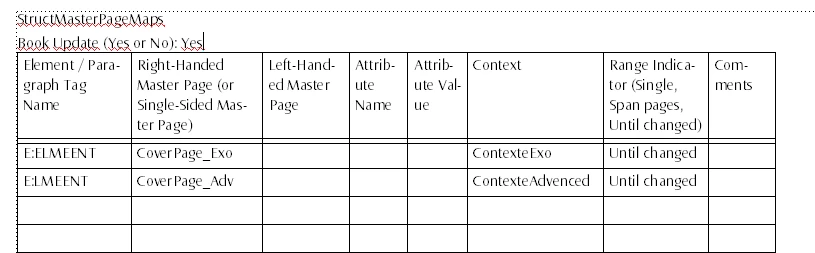
    And in your ReferencesPages, your StructMasterPageMaps Table should not use the columns "AttribueName" and "AttributeValue":


    Philippe

    2 replies

    Inspiring
    April 5, 2023

    Quintin,

        A few issues here:

    1) The master page mapping table for a structured document sets master pages when elements or paragraphs with tags that appear in the first column of the table appear. You mention that you want a master page to be determined by an attribute in the book. You haven't mentioned which pages you are trying to format. Since you refer to CoverPage_Exo and CoverPage_Adv, I am guessing that these are master pages that you want to assign. Does one of your documents have an element called CoverPage (or some variation)? If so, you want a row in the table for each possible cover page where you enter "CoverPage" in the first column. Note that Philippe's example contains "ELEMENT" in the first column since your message didn't include this information.

    2. Additional optional columns in the table allow you to qualify the applicability of an element to a particular row by a context or an attribute value. If I've understood correctly, specifying the TRMProduct attribute and one of its possible values won't apply to the CoverPage element, because that attribute is on the book element and not the  CoverPage. Thus, you'll need to use the context option instead of the attribute option.

    3. You have entered "*<TrainingManual" in the Context column of the table, using the syntax of a context specification in a context rule. Instead, FrameMaker expects a context label that is specified in the EDD in the Element for the element you are formatting. In your case, the definition of CoverPage should include something like

       If context is: * < Book[TRMProduct = "Exo"

           ContextLabel: Exo

       Else Context label: Advanced

    You would then put "Exo" in the Context column of one rule and "Advanced" in that column of the other rule.

    4. By the way, if you have entered something in both the Attribute Name and Attribute Value columns and in the Context column, FrameMaker ignores the Context column.

        --Lynne

    Pinpin PhilippeCorrect answer
    Inspiring
    April 4, 2023

    Hello,

    You can manage your Context in your EDD file like this :

    If context is: * < ELEMENT[TRMProduct="Exo"]
    Context label: ContextExo
    If context is: * < ELEMENT[TRMProduct="Advenced"]
    Context label: ContextAdvenced

    The beginnng of the "if" can be different, depend of your structure


    And in your ReferencesPages, your StructMasterPageMaps Table should not use the columns "AttribueName" and "AttributeValue":


    Philippe

    QuintinSeegers
    Legend
    April 4, 2023

    Hi @Pinpin Philippe,

    Thanks. That worked :-).

    Regards,

    Quintin