

Animate your artwork in Fresco in 5 simple steps
Want to add motion to your artwork in Adobe Fresco? With the latest MAX update, you can now animate artwork and objects in Fresco using the Frame by Frame or Motion Paths techniques. In addition, your final creation can be exported in MP4, GIF, or PNG formats for sharing or use within other applications.
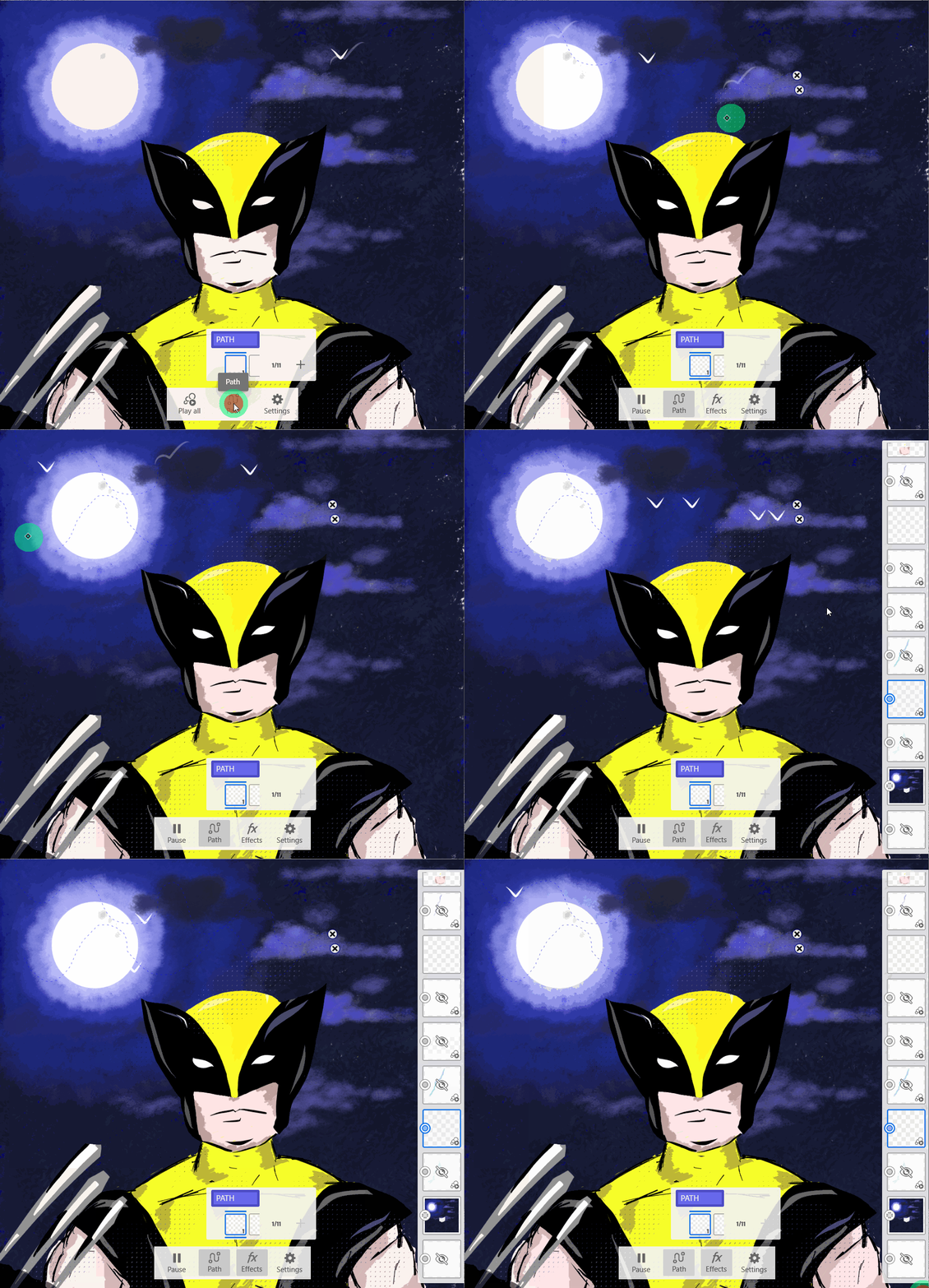
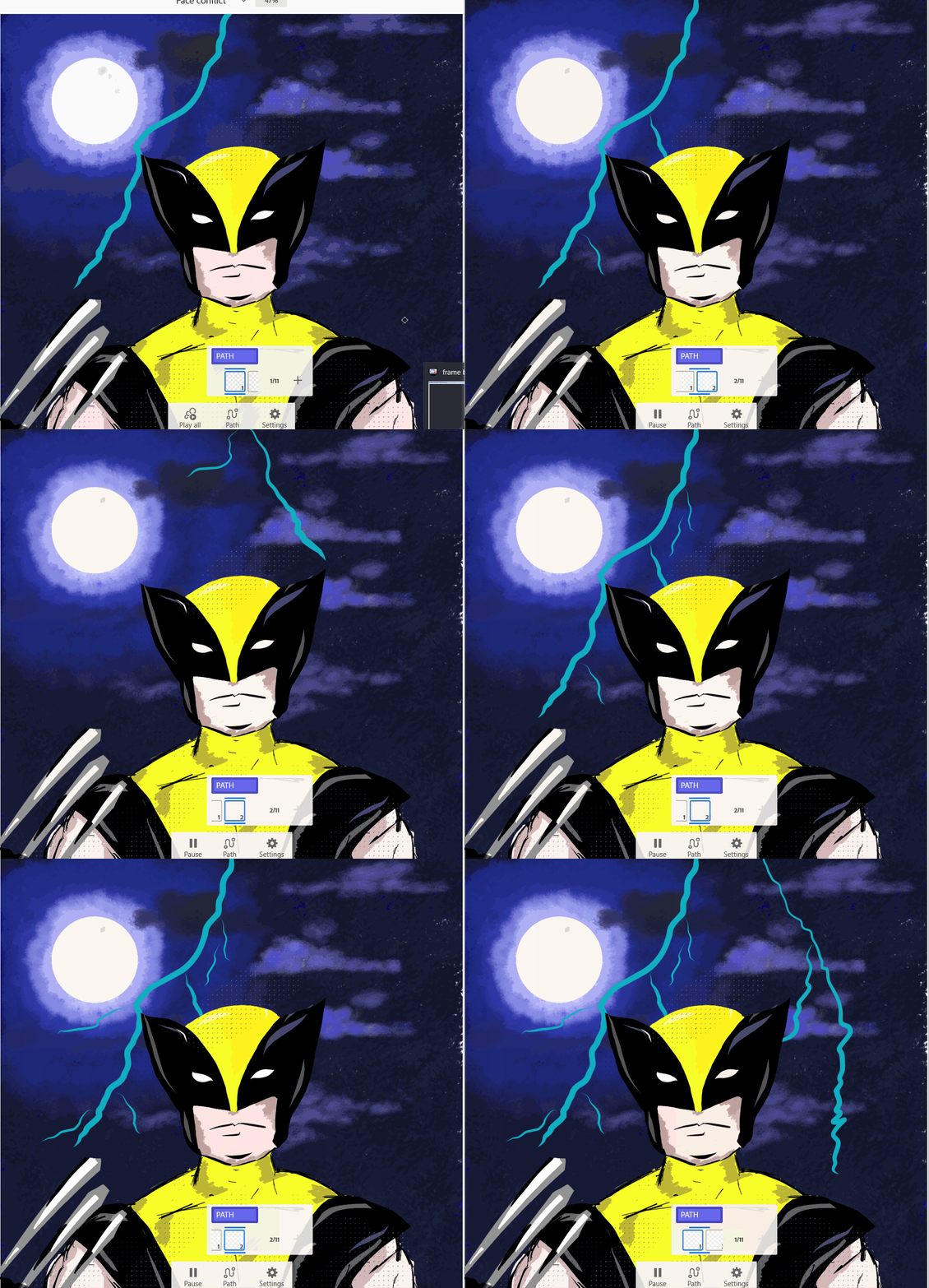
Motion Path Frame by Frame motion
See this article for information on installing the latest update.
For detailed information on using motion in Fresco, see this article.
Apply motion to Fresco animations in 5 steps
Step 1: Prepare your Artwork, or download this sample file.
Step 2: Create a new layer and select motion in the bottom right corner.
Step 3: Using the options in the Motion panel, use the Frame-by-Frame method, Motion Paths, or a mix of both to animate your artwork or its elements.
In the video below, we have used both methods. To animate thunder and bird wings, we have used the Frame by Frame method. For the motion of birds, we have used motion paths.
Step 4: Use the Motion panel options that allow you to change speed, opacity, or playback type.
Step 5: You can export it to MP4, GIF, or PNG sequence format.

We would love to hear from you about how you found this feature and what you created. Reply to this post to share your observations with us.
-Srishti


 AdChoices