Inspiring
February 25, 2024
Answered

Cannot export motion (GIF/MP4) animation at canvas size

  • February 25, 2024
  • 2 replies
  • 487 views

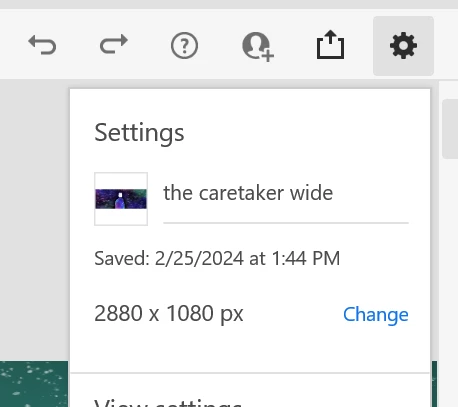
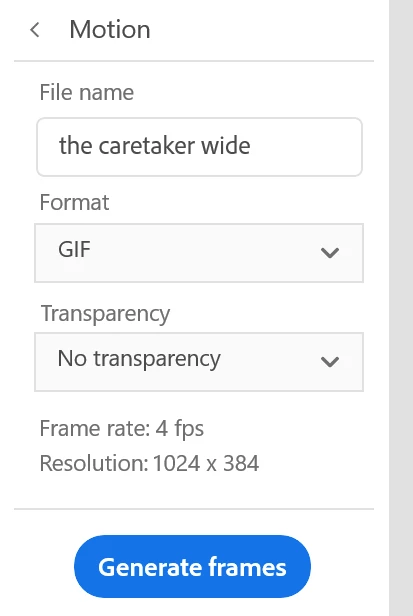
I have a 5 frame animation created at high resolution (2880 x 1080px) to accommodate the size needed for a full-width banner on my website. Exporting the motion via Fresco always downsizes my file down to 1024 x  384px regardless of the file type, including frames as PNGs. (Why???)


How do I get Fresco to natively export this at the appropriate size?


Canvas size:
 

On export, regardless of file type selected:


This topic has been closed for replies.
Correct answer kyeopu

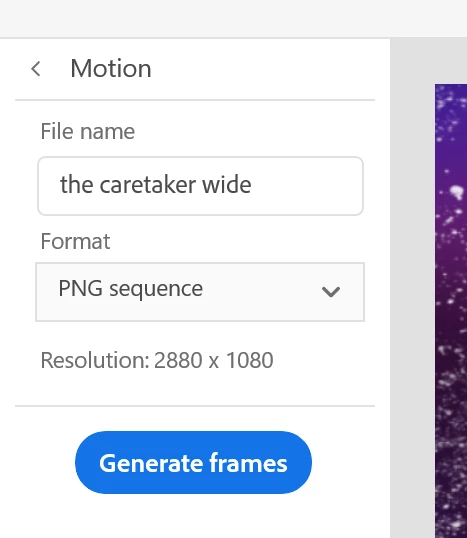
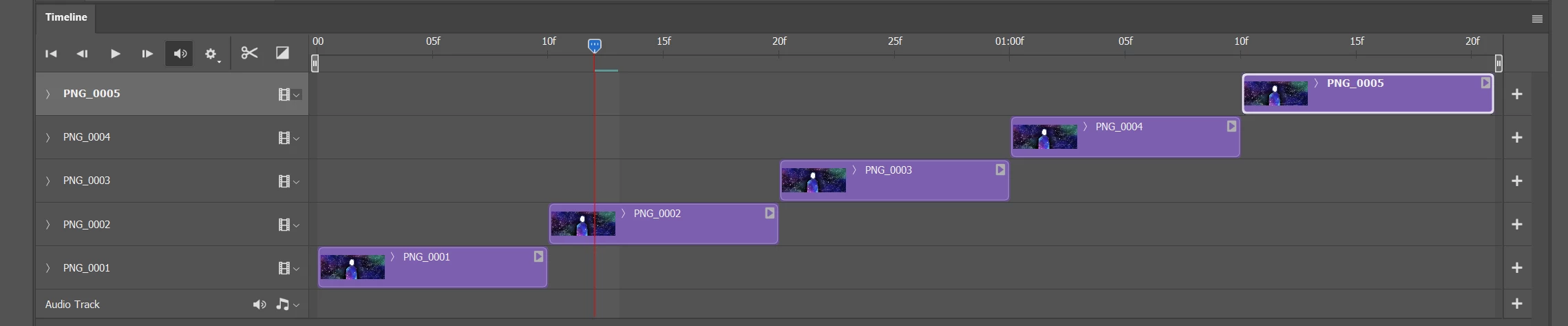
Hi Sobha, sorry to hear you're also having trouble. I was able to make the gif I needed from my Fresco animation by getting full resolution frames from the PNG export option and then stitching it together in Photoshop using the instructions Anubhav shared (https://adobe.ly/3OWk45R).


If you had a different file type selected when you open the export menu, the resolution listed in the UI may not be accurate. You can double check by selecting the export option you want, close the Share menu using the "Done" button, then reopen the Publish & Export menu again.


Sucks to have to do it this way but hopefully this helps you out.


Generate frames in Fresco:

Timeline example in Photoshop:

2 replies

sobhacrystalpalace
Participant
February 27, 2024

Hi @kyeopu , Sobha Crystal Palace also facing this issue.

kyeopuAuthorCorrect answer
Inspiring
February 27, 2024

Hi Sobha, sorry to hear you're also having trouble. I was able to make the gif I needed from my Fresco animation by getting full resolution frames from the PNG export option and then stitching it together in Photoshop using the instructions Anubhav shared (https://adobe.ly/3OWk45R).


If you had a different file type selected when you open the export menu, the resolution listed in the UI may not be accurate. You can double check by selecting the export option you want, close the Share menu using the "Done" button, then reopen the Publish & Export menu again.


Sucks to have to do it this way but hopefully this helps you out.


Generate frames in Fresco:

Timeline example in Photoshop:

Community Manager
February 26, 2024

Hello @kyeopu,

Thanks for reaching out. Would you mind exporting your artwork as a video file from Fresco and then importing it into Photoshop (https://adobe.ly/49uxbDh) to create a frame animation (https://adobe.ly/3OWk45R) and use Save a Copy as GIF from Photoshop to check if it helps?

Looking forward to hearing from you.


Thanks,

Anubhav

kyeopuAuthor
Inspiring
February 26, 2024

HI Anubhav,


I was able to grab MP4s but the resolution was still too small -  MP4 (Web ready) exported at 1920 x 720px, while the MP4 (Auto) setting exported it at 2048 x 768px. A bug I noticed while changing the file type was that the listed resolution for the export does not change, which is very confusing as the frames to PNG export said I would export at 1024 x 384 but actually exported frames at the full 2880 x 1080.


What ended up working was getting full sized frames from the PNG export option and then stitching it together in Photoshop for the final full resolution gif, but having to do that work myself defeats the purpose of making my animations in Fresco. 😞