Inspiring
June 6, 2023
Question

Selecting and Moving

  • June 6, 2023
  • 9 replies
  • 3888 views

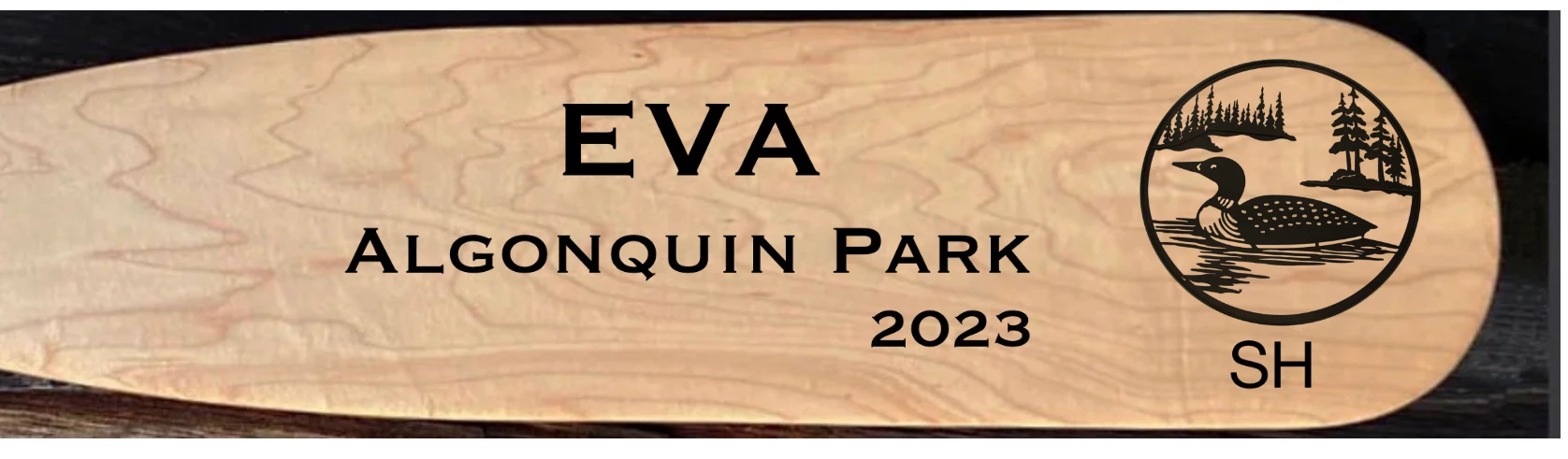
So I am a beginner with Adobe Fresco. If I am presented with a graphic such as this - can I somehow isolate the black circle with the loon in it and move it around on the paddle?

 

This topic is closed to new replies. Start a new post to keep the conversation going.

9 replies

Participant
June 7, 2023
&
thejanebradbury
Community Expert
Community Expert
June 7, 2023

If the loon is on its own layer click that layer and simply grab the Transform tool. A blue bounding box will surround it and you can then move it.


ttibsenAuthor
Inspiring
June 7, 2023

Thanks for that tip Jane. It just so happened that the loon was indeed on its own layer so your suggestion worked perfectly. What if that graphic was a photo? Can Adobe Fresco still manage to move the loon around on the paddle? 

thejanebradbury
Community Expert
Community Expert
June 11, 2023

Just to let you know, I have solved the answer to my question above - so the only way to get Copy / Paste / Selection as opposed to Copy / Paste / Layer is to make sure that you are working in a Pixel layer and then it does work. Now on to try your suggestion for making the selection appear in a new file - I'll let you know how that works out for me. At any rate, I'm really enjoying the slow understanding of this versatile app and the back and forth I'm having with you.


Ahh, a little quirk I hadn't thought of 👍  I suppose on images one could use Mask to hide all the areas not required if not wanting to change the image to a pixel layer.