Participant
September 8, 2026
Answered

ランダム配置オブジェクトのシームレスパターンの作成方法について

  • September 8, 2026
  • 2 replies
  • 45 views

タイトル: 【Illustrator】ランダム配置オブジェクトのシームレスパターンの作成方法について

本文: お世話になります。 ファブリック印刷サービス(リアルファブリック様)に入稿するためのシームレスパターンデータの作成方法についてご教示いただきたく投稿いたしました。

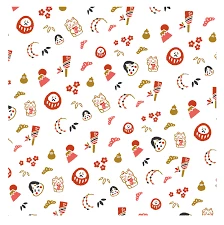
チェック柄やアーガイル柄のような規則的なパターンではなく、以下画像のような複数のイラストをランダムに散りばめたような、繋ぎ目の目立たないシームレスパターンの作成で行き詰まっております。

【作成したい仕様】

  • アートボードサイズ:54cm × 54cm(正方形)
  • カラーモード:RGB
  • 解像度:200dpi

【困っている点・知りたいこと】

  1. 54cm×54cmの枠内で複数のオブジェクトをランダムに配置し、上下左右の境界線でパーツが途切れずきれいに繋がるように作成する際、どのような手順で行うのが最も効率的かつ正確でしょうか?
  2. 「パターン定義(スウォッチ)」機能を使うべきか、または変形パネルなどで数値を移動させて境界を合わせる手動方式(54cm移動コピーなど)で行うべきか、どちらが印刷用データ書き出しにおいて望ましいでしょうか?

【使用環境】

  • OS:macOS
  • Illustratorバージョン:2026最新版

パターン作成の手順や、境界線の処理についてのコツ・推奨されるアプローチ等がありましたらご教授いただけますと幸いです。 どうぞよろしくお願いいたします。
 

    Correct answer Ton Frederiks

    @??_??2580 Since the help files do not give a lot of detailed information about the pattern maker workflow, you may wan to have a look at this video from Monika Gause:


    2 replies

    Ton Frederiks
    Community Expert
    Ton FrederiksCommunity ExpertCorrect answer
    Community Expert
    September 8, 2026

    @??_??2580 Since the help files do not give a lot of detailed information about the pattern maker workflow, you may wan to have a look at this video from Monika Gause:


    Ton Frederiks
    Community Expert
    Community Expert
    September 8, 2026

    @??_??2580 Did you try the Pattern Maker: Object > Pattern > Make? You could start by selecting an empty frame of the size you want, select the pattern maker and fill it by copy and paste elements from another document. They will automatically wrap around.

    I would suggest working with rounded Points or Pixels as a unit to avoid artefacts like visible lines due to anti-aliasing of fractional pixels (converting cm to px often creates fractional pixels).

    After creating the pattern, exporting can be done by exporting a single pattern tile.

    A single tile can be created by dragging the final pattern from the Swatches panel onto a new Artboard, selecting the last object from that pattern (<Path>) and select Object > Artboards > Fit to Selected Art