noe_d
Participant
July 13, 2017
Answered

3D Effect doesn't work correctly
  • July 13, 2017
  • 5 replies
  • 2342 views

Hey there,

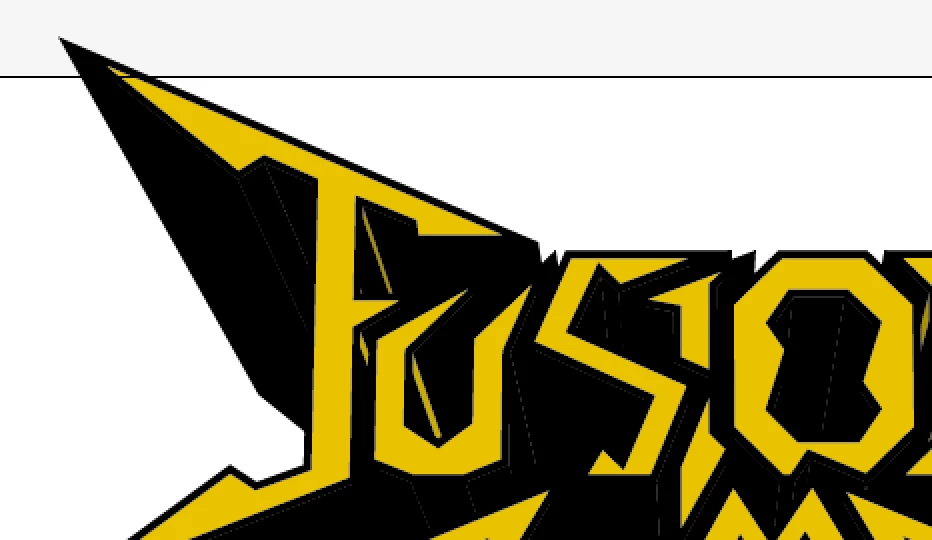
When I try to extrude this typo, the program shows colored spaces where there should be just black outlines. Could somebody explain it to me?

Thank a lot in advacne,

Catherine.

This topic has been closed for replies.
Correct answer JETalmage

Could somebody explain it to me?

Yes.

The main thing that's tripping you up is this: Your starting artwork consists of paths that have both fills and strokes. When 3D Effect extrudes strokes, it creates surfaces for both the outer sides of the strokes and the inner sides of the strokes. So the extrusion of the strokes is like a "tunnel."

So what you are extruding is actually two paths for each character: One is the black stroke, which is effectively converted to a Compound Path. The other is the fill, which is a simple path (unless it is already a compound path):
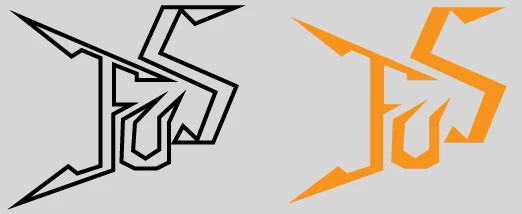
As a result, the extrusion of the black outlines have voids where you are seeing "light at the ends of the tunnels", allowing portions of the extrusions of the orange fills to show through where they overlap.

Also, it seems that you are using the Front orientation in 3D Effect. If so, it is unnecessary to extrude the fill at all.

It is almost always best to avoid extruding paths to which strokes have been applied, because it almost always results in many unnecessary paths. Instead, create separate paths to serve as the "strokes." You can do this either by...

  1. Object>Path>Outline Stroke
  2. Object>Compound Path>Release
  3. Pathfinder palette: Unite

...or by using Object>Path>Offset Path:

ExtrudedStroke.png

Pointer: Sometimes, especially when using the Front orientation of 3D Effect, the rendering can leave erroneous voids. You can usually correct this by clicking one of the rotation values which contain zero and keying in a small value, like .001. That small value will reset to zero, and often correct the erroneous voids.

JET

5 replies

JETalmage
JETalmageCorrect answer
Inspiring
July 14, 2017

Could somebody explain it to me?

Yes.

The main thing that's tripping you up is this: Your starting artwork consists of paths that have both fills and strokes. When 3D Effect extrudes strokes, it creates surfaces for both the outer sides of the strokes and the inner sides of the strokes. So the extrusion of the strokes is like a "tunnel."

So what you are extruding is actually two paths for each character: One is the black stroke, which is effectively converted to a Compound Path. The other is the fill, which is a simple path (unless it is already a compound path):

As a result, the extrusion of the black outlines have voids where you are seeing "light at the ends of the tunnels", allowing portions of the extrusions of the orange fills to show through where they overlap.

Also, it seems that you are using the Front orientation in 3D Effect. If so, it is unnecessary to extrude the fill at all.

It is almost always best to avoid extruding paths to which strokes have been applied, because it almost always results in many unnecessary paths. Instead, create separate paths to serve as the "strokes." You can do this either by...

  1. Object>Path>Outline Stroke
  2. Object>Compound Path>Release
  3. Pathfinder palette: Unite

...or by using Object>Path>Offset Path:

ExtrudedStroke.png

Pointer: Sometimes, especially when using the Front orientation of 3D Effect, the rendering can leave erroneous voids. You can usually correct this by clicking one of the rotation values which contain zero and keying in a small value, like .001. That small value will reset to zero, and often correct the erroneous voids.

JET

chanaart
Community Expert
Community Expert
July 14, 2017

The Illustrator 3D is an effect. It is limited and not always will perform the correct results. It is not a true 3D like in photoshop. If you have a complicated shape use the 3D feature in photoshop.

Chana

JonathanArias
Legend
July 14, 2017

You would accomplished so much more from the 3D tool workspace in photoshop. The 3d tool in illustrator is a neglected tool that needs revising and upgrading.

Monika Gause
Community Expert
Community Expert
July 14, 2017

JonathanArias  schrieb

You would accomplished so much more from the 3D tool workspace in photoshop.

Well, but Photoshop won't give you paths as a result.

This looks like it should be a logo. In most cases having paths in a logo makes a lot of sense.

So first I would check if all the paths are closed. If they are then what we see is indeed just poor rendering. And as already has been mentioned, can easily be expanded and then united and filled with black. It would need a lot of cleaning up anyway (as a logo)

barbara_a7746676
Community Expert
Community Expert
July 14, 2017

The text looks like it is hand-drawn, not a font.. I may not be understanding the question, but If you are referring to the gold areas inside the F and the U shapes, that is probably happening because the F shape is not a closed path. Check for open end points on the F and join them.

Mylenium
Legend
July 14, 2017

Well, the 3D stuff is a hack based on creating blends and hence with complex contours artifacts ir inevitable since a blend has its own limitations. That's why you have to clean up stuff afterwards. That said, since all you seem to be doing is creating a black blob, nothing stops you from drawing the outline manually and placing it beneath your yellow letters. Basic perspective drawing and since you only have sharp corners and straight lines in your type it would be easy enough. You know, it's the simple things and being efficient. Using the 3D extrude is simply the wrong approach here and will be a nightmare to deal with latest when you want to use your logo for reproduction...

Mylenium