


Tifhogan
Participant
January 5, 2017
Answered

3D Effect for Curved Road

  • January 5, 2017
  • 6 replies
  • 3438 views

Hello Adobe Community,

I am trying to create the illusion of depth by adding a 3D effect to a curved road I have illustrated. However, when I apply any of the 3D effects, the road becomes distorted. I also tried using the pen tool to accomplish this effect, but I am struggling to make it look seamless. Here is the road:
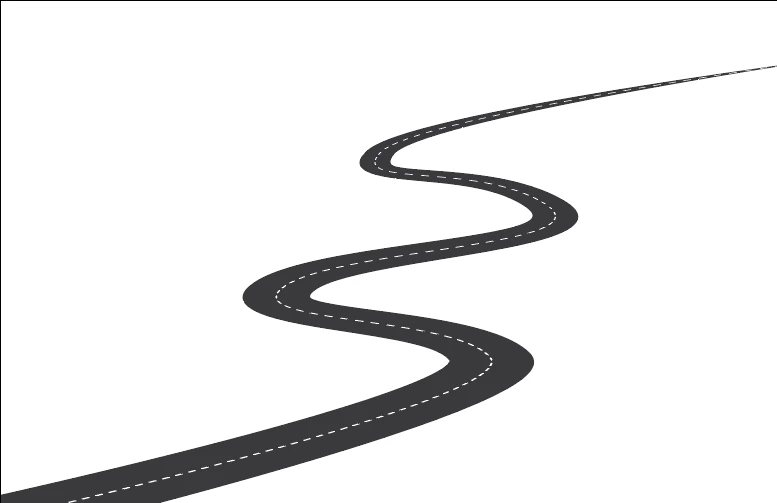
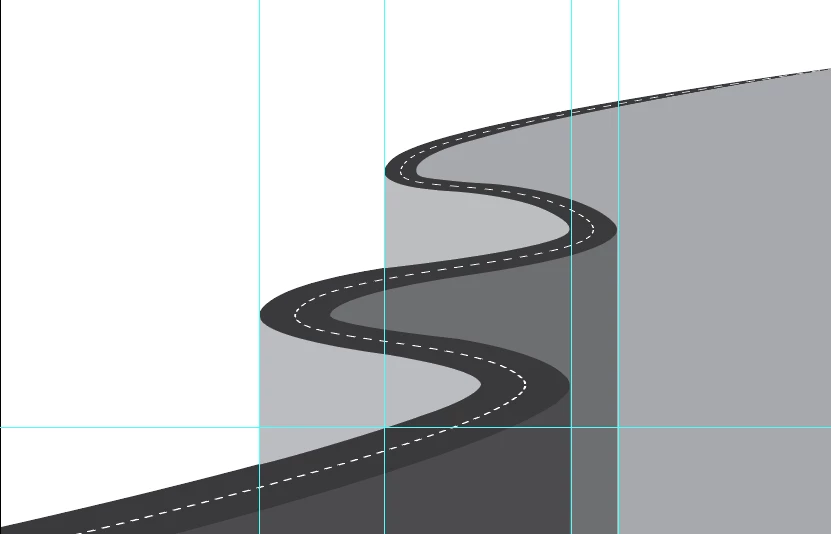
I want to draw lines straight down from the edges of each curve to make the road look like it's elevated.This is a rough example of what I'm going for using the pen tool:

Any suggestions would be extremely appreciated!

Best,

Tif
This topic has been closed for replies.
Correct answer Tifhogan

I ultimately worked with the pen tool to achieve the effect I was look for.

Thank you all for your responses! Unfortunately the perspective grid and extrude effect were giving me very different results.

6 replies

Participant
May 20, 2023
IMG_20230520_035709_765.png
Tifhogan
TifhoganAuthorCorrect answer
Participant
January 8, 2017

I ultimately worked with the pen tool to achieve the effect I was look for.

Thank you all for your responses! Unfortunately the perspective grid and extrude effect were giving me very different results.

Jeff Witchel, ACI
Community Expert
Community Expert
January 5, 2017

The biggest problem with Extrude is the road cannot be 100% Black or it will be impossible to differentiate between the sides of the extruded road and the road itself. Try making the road about 60% Black. Please see attached.

Jeff Witchel, ACI
Community Expert
Community Expert
January 5, 2017

You could use 3D > Extrude for the second part of your request.

Jeff Witchel, ACI
Community Expert
Community Expert
January 5, 2017

I would suggest using Perspective Grid.

  1. Draw the road flat as an object with two Strokes in the Appearance panel (a thick Black Stroke with a much thinner White Dashed Stroke on top)
  2. With the flat road selected, go the the Object menu > Flatten Transparency to make the Strokes into Fills
  3. Select the Perspective Grid tool (Shift + P) to turn on a grid.
  4. Under the View menu, go Perspective Grid > One Point Perspective and choose the default.
  5. Switch to the Perspective Selection tool (Shift + V)
  6. Choose the bottom Plane in the Perspective widget by pressing 2
  7. Click on your flat road and drag into perspective over the grid

Please see attached.

Monika Gause
Community Expert
Community Expert
January 5, 2017

Please show the results of the 3D effects.