
Known Participant
February 7, 2025
Answered

3D/Extruded Rounded Square

  • February 7, 2025
  • 1 reply
  • 906 views

Hi there,


I am trying to create a 3D rounded cornered square that looks like a keyboard button.


I have tried creating a rounded square, duplicating it, layering it under the first square and then drawing the corners to connect the two like this:
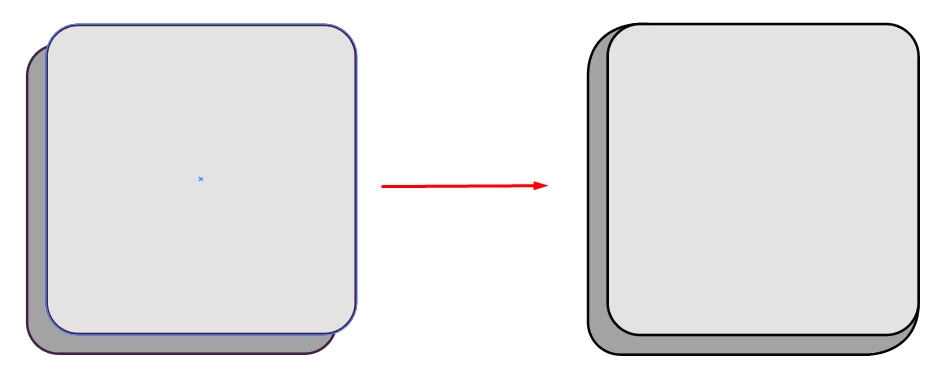


However, I'm not sure if it looks right.


Should the corners have a straight join from the top of the square and then going into a rounded part. Not sure how to explain that, but something like this:
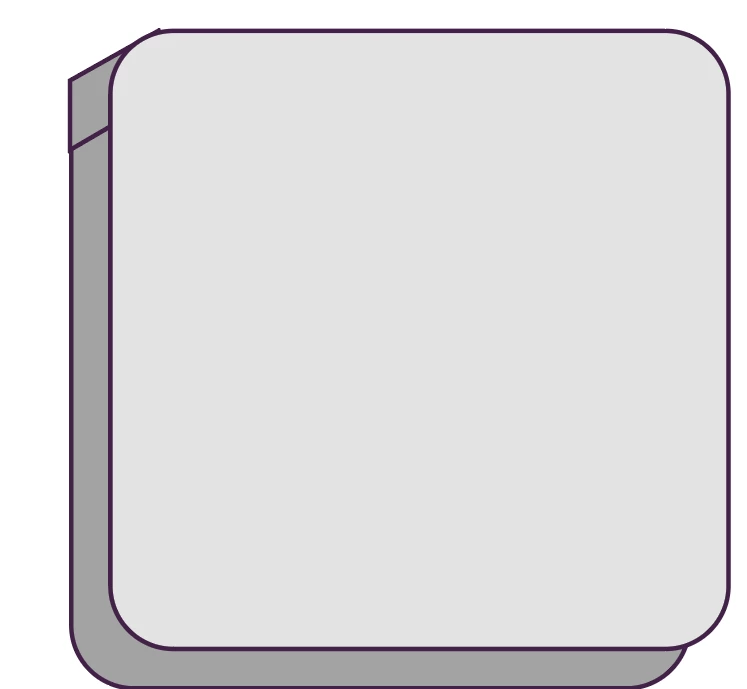
(Obviously this is just rough and not merged with the underneath layer etc)


Can anyone recommend a way of creating such a button? I have also tried the 3D extrude option in Illustrator, but need the button to be solid colour/shapes.


Also, just out of interest, should the button have a straight edge or is the first image with the rounded corners correct?


Thanks!

Correct answer Monika Gause

It does, it was just for reference. It looks like the bottom one starts more inwards rather than having a staight line.


So here's the process with Live Paint.

Smart Guides can be turned on in the View menu

You might needt to go into the Preferences > Smart guides and turn on all the options.


https://youtube.com/shorts/ZDcgBCN-XeM?feature=share 

1 reply

Monika Gause
Community Expert
Community Expert
February 7, 2025

Should this have a perspective or isometric?


Keyboard caps can look quite differently. Some have straight edges, some don't, some are like a flat pyramid, some are just extended. So maybe you decide that first?


You can still use the classic 3D effect. Use no lighting and then expand the appearance. Afterwards you can apply coloring or unite the shapes-.

Known Participant
February 7, 2025

Thanks for the reply.


There will be no perspective - just face on with a bit of depth. I just wasn't sure how to get the straight/round edges via best practice, or if I should just go with hand drawing the edges. I also wasn't sure which "looked correct" as if I have straight edges, it sometimes didn't look right as in if I start the line right at the top of the top left curve or if it should be a little bit down the curve if that makes sense.


Monika Gause
Community Expert
Community Expert
February 7, 2025

The edge needs to be round at the top and the bottom. And because you cannot find the tangent points with Illustrator native functionality, you could first rotate the squares and the draw it using Smart guides:


I would first build all the parts using simple shapes and then use Live Paint for the construction

https://helpx.adobe.com/illustrator/using/live-paint-groups.html