
Inspiring
January 12, 2016
Answered

A Simpler Method Than Divide or Clipping Mask?

  • January 12, 2016
  • 1 reply
  • 36338 views

Ok, I am back with a new question. Design to go on Tshirt

NOT THIS DESIGN, just example.

Shirt color shows though creating lines within the gun(indicated by black background)

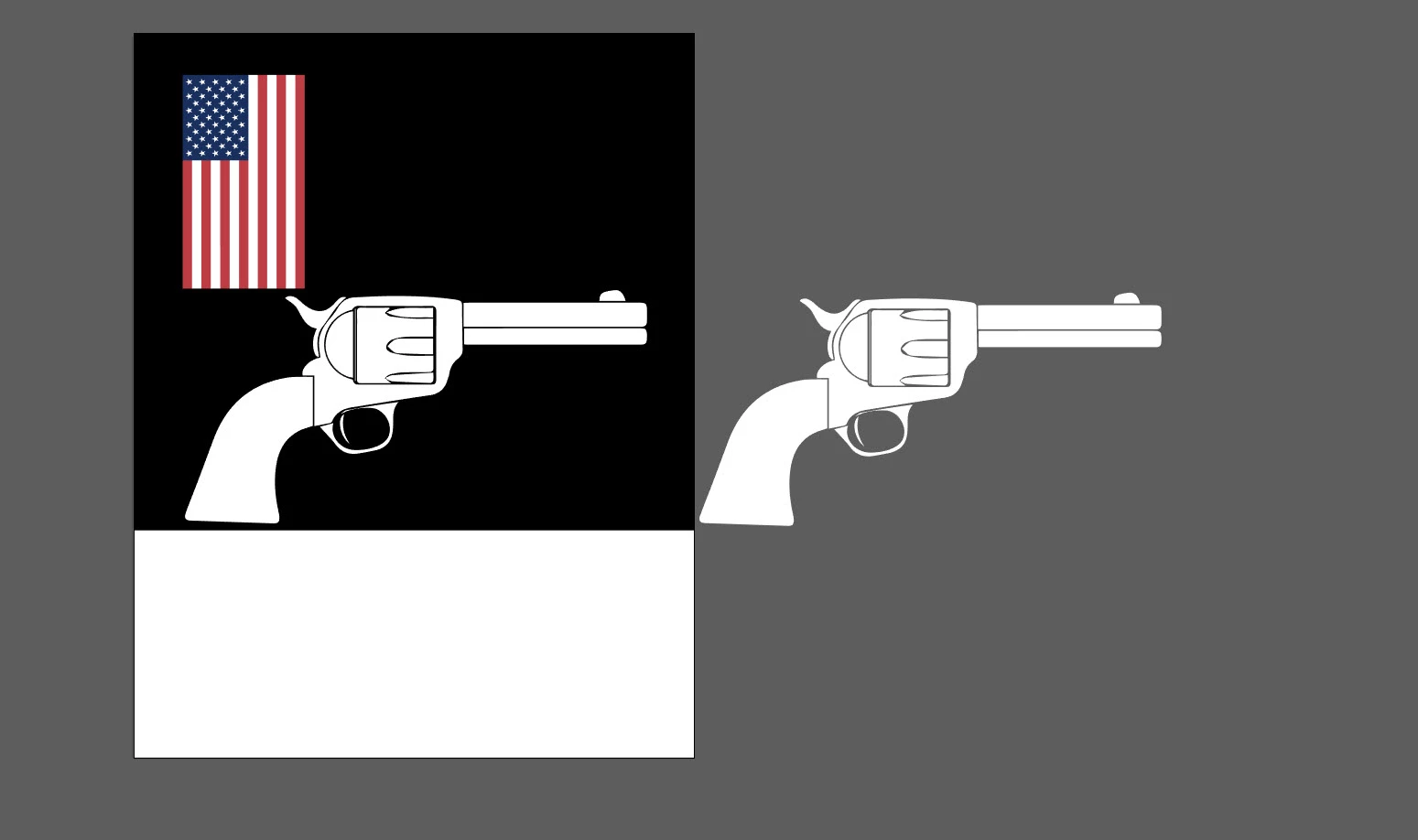
Here I have a gun, on a locked black background layer. All the white pieces of the gun

are their own shapes, grouped together.(so the gun remains the gun.)

As you can see, by the gun on the right, the black background(shirt color) shows

through creating the outline of the gun.

Now, I want to overlay this flag over the gun, to

where it looks like the gun has a flag on it.
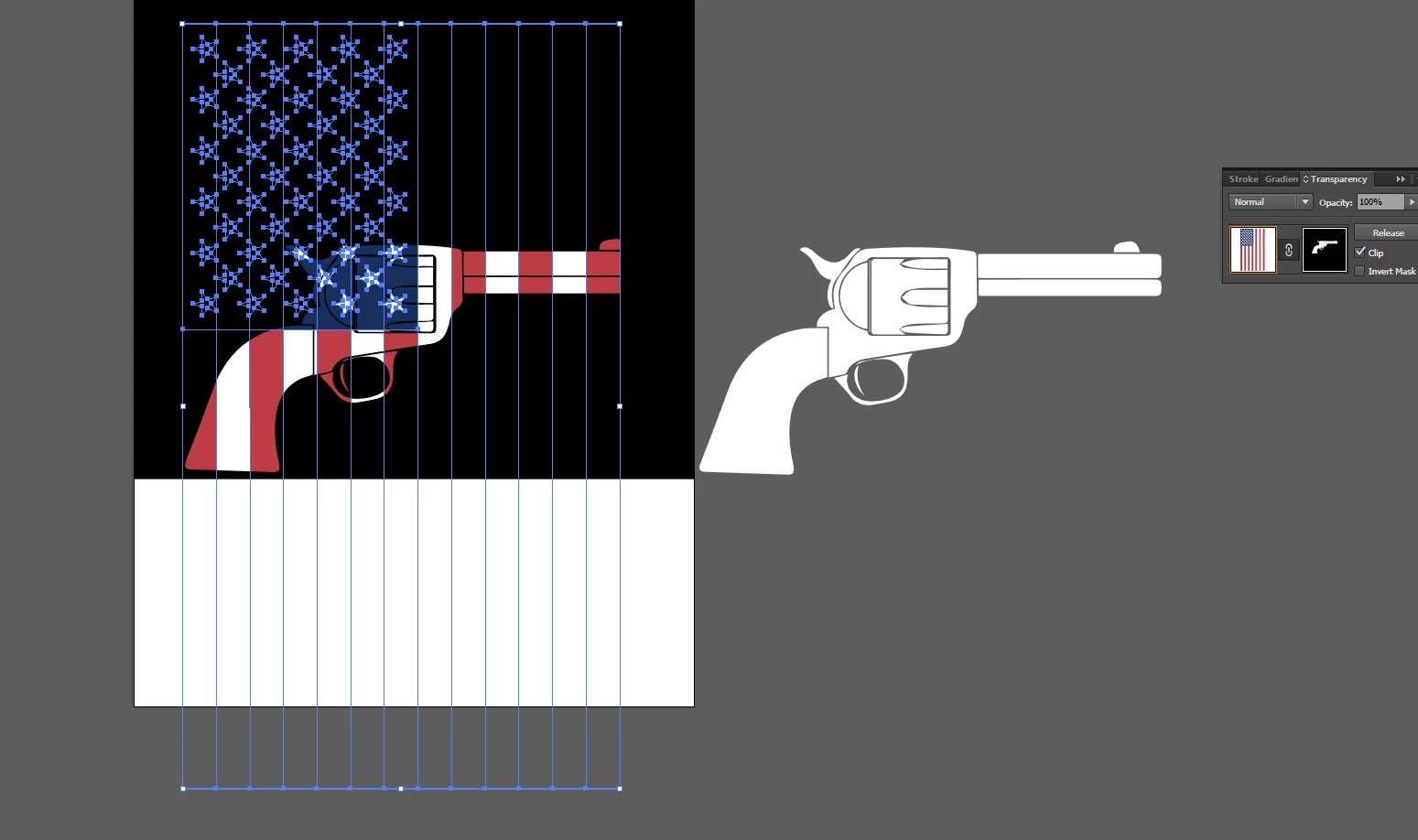
Now, here is Clipping Mask. Yes it works, but for what I am doing. I can't have the paths in the background

that make up the flag. No extra anything, just the gun, and looking like it has a flag. The clipping path

method also creates larger file size. For screen printing on shirts, these extra lines of invisible flag

can cause an issue.
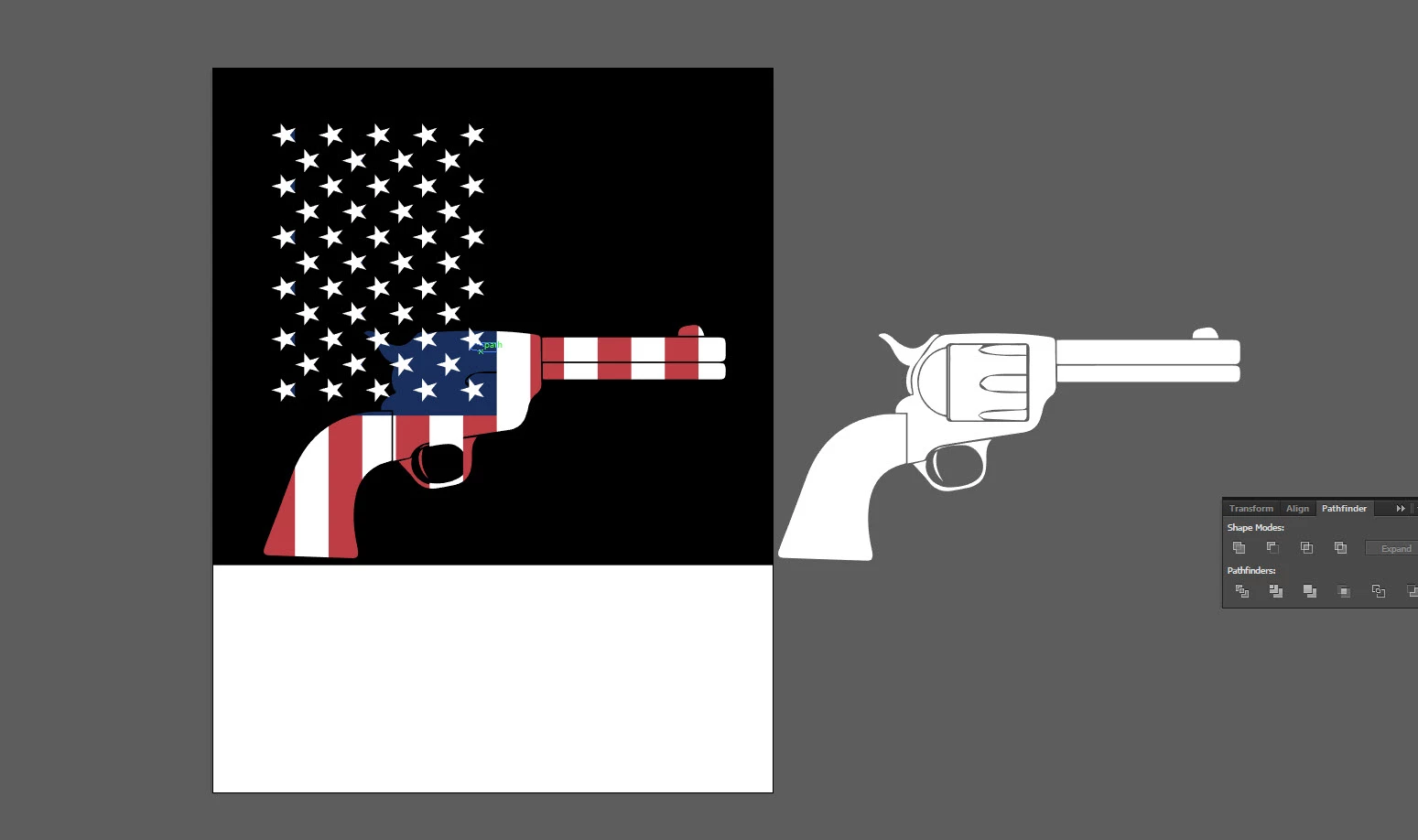
Now, divide works great. I put the gun in back, the flag in front, and Divide. Then Ungroup.

In the image below, I deleted many of the flag parts that were divided.

However, then I have to hunt for the paths that I want to be transparent(so shirt shows through lines).

This takes a long time. You can see I have a piece selected in the spinning drum, where the bullets go inside.
That piece, gets deleted, like many other, so that the black shirt color shows through where it needs to, again.
There has to be an easier way to do this. So that it overlays the flag only over the white shapes that make the gun
like a clipping mask, but where I can delete all the paths associated with the parts of the flag I don't need.

Any takers?


This situation is exactly the situation I have right now. I have a skull that I need to overlay a flag on.

    This topic has been closed for replies.
    Correct answer Dozerbeatz

    Your EPS file has a raster graphic embedded in it? No wonder the file size is so high.


    I FIGURED A WORKAROUND...I AM A GENIUS!

    So,  while brainstorming, I believe I have a better method.

    We will use a black background as a cookie cutter.

    Using a black background same size as document.

    Using original skull to cut through leaving the black.(select black background and skull then divide)

    Edit>Cut the black(which is a cutout template of everything that should be transparent.) now in clipboard

    Put flag in document, Paste black over flag.

    Select both cookie cutter black and flag.

    Divide

    Ungroup

    Select Same fill color(selecting black cookie cutter)

    Delete

    VIOLA! Left with all parts that have flag color.

    ALL VECTOR. Small file size.

    I AM A BEAST!

    I am now using cookie cutter method on all designs that I had,

    and it is significantly allowing a smaller file size.

    Mainly because there is only one group, that contains all the pieces

    that make up the design.
    Using text, and expanding arced text, that had grunge effects created

    large file sizes.

    Maybe all that could be cleaned up.

    However, this method is so easy.

    1 reply

    Kris Hunt
    Legend
    January 12, 2016

    > I can't have the paths in the background that make up the flag.

    Why not? Sure you can.

    > The clipping path method also creates larger file size.

    By what, 5 kB?

    > For screen printing on shirts, these extra lines of invisible flag can cause an issue.

    No they won’t. Not one bit. Anything that is not a visible spot color will not appear in your separations.

    > However, then I have to hunt for the paths that I want to be transparent (so shirt shows through lines). This takes a long time.

    Yes, this is a very bad way of doing it. What if you wanted to adjust the position of the flag after the fact? Use a clipping mask. You could also use an opacity mask, but a clipping mask makes more sense in this case.

    monkeysaremyfriend
    Participant
    January 12, 2016

    I must have been misinformed about the extra invisible lines when using a clipping mask. I read it somewhere that the lines can show up on the film positive as lines. (can't remember) I did some searching and came across this though. Read about clipping mask. Not sure what they are referring to Art Work — Info Screen Printing I have forwarded the question to a design team that deals specifically with screen printing. There are other sites that mention using clipping with no issue.

    If things that are transparent(but still have paths) do not effect the creation of the mesh for screen printing...that is going to save alot of time with things that I have been doing in the design process.

    My main goal was to prevent any confusion and minimize room for errors when it comes to printing.