
Roger Breton
Legend
July 20, 2024
Question

Actions: incomplete capture?

  • July 20, 2024
  • 2 replies
  • 690 views

I want to use Illustrator's Actions to expedite repetite tasks.

I tried to create the following action:
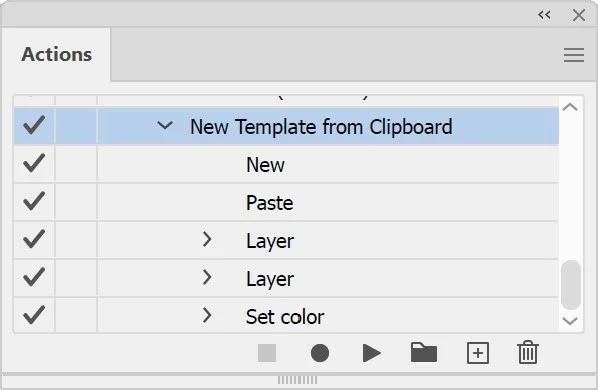


Trouble is, right after "Pasting" (some image for tracing from the Clipboard), Illustrator fails to capture a crucial step I need to perform which is to adjust the Artboard to the size to the pasted image?


I go Object > Artboards > Fit to artwork bounds (or Selected Art) and I can see the command being executed under my eyes when I summon it with the mouse YET the command never shows up in the recorded actions? As though Illustrator fails to capture it?

Any idea why? So frustrating...

This topic has been closed for replies.

2 replies

creative explorer
Community Expert
Community Expert
July 20, 2024

@Roger Breton are you planning to do a 'batch' action to this? You have a folder of images and you want  to apply that same 'action' to all of the images. 

Or is it a one-off, and whenever you need to do a repetitve task, this would do the trick. 

I ask because in my head, the same artwork will always be in the clipboard unless you copy a new artwork there.

When I teach my students how to use 'Actions' always write ot down first. What are 'ALL' the steps you are trying to accomplish. 

m
Roger Breton
Legend
July 20, 2024

This is a "one-off" type of things. 
As I find interesting art on the web, to demo vector concepts to my students, I copy the image and paste it into a new document. From there, the steps I perform are always the same.
Thank's for your kind help.

creative explorer
Community Expert
Community Expert
July 20, 2024

@Roger Breton 
Make sure there is another Illustrator document open so that when we close the file, we can easily stop the recording of the action.

Copy image (from the web) and Paste image into Illustrator:

Actions:
1. Create a new action set. Give it a name for the folder

2. Create a new action + . Give it a name (I normally give it the same name from the folder). Hit record.

3. Take the image and resize the artboard. Object - Artboard - Fit to Selected Art

4. Image Trace - Pick a Preset (I will use High Fidelity Photo or 16 Colors) - Click OK
5. Click on Expand

6. Save file. Pick a file format. Click Save

7. Pick a version if Illustrator Options pop open or SVG options. Click OK when ready

8. Close file

9. Stop action


m
Kurt Gold
Community Expert
Community Expert
July 20, 2024

For this step you'd have to use the Insert Menu Item command in the flyout menu of the Actions palette.

Roger Breton
Legend
July 20, 2024

I tried that already to no avail?