laurensvi
Participant
January 23, 2019
Answered

Add lines to compound shape

  • January 23, 2019
  • 1 reply
  • 454 views

Hey all,

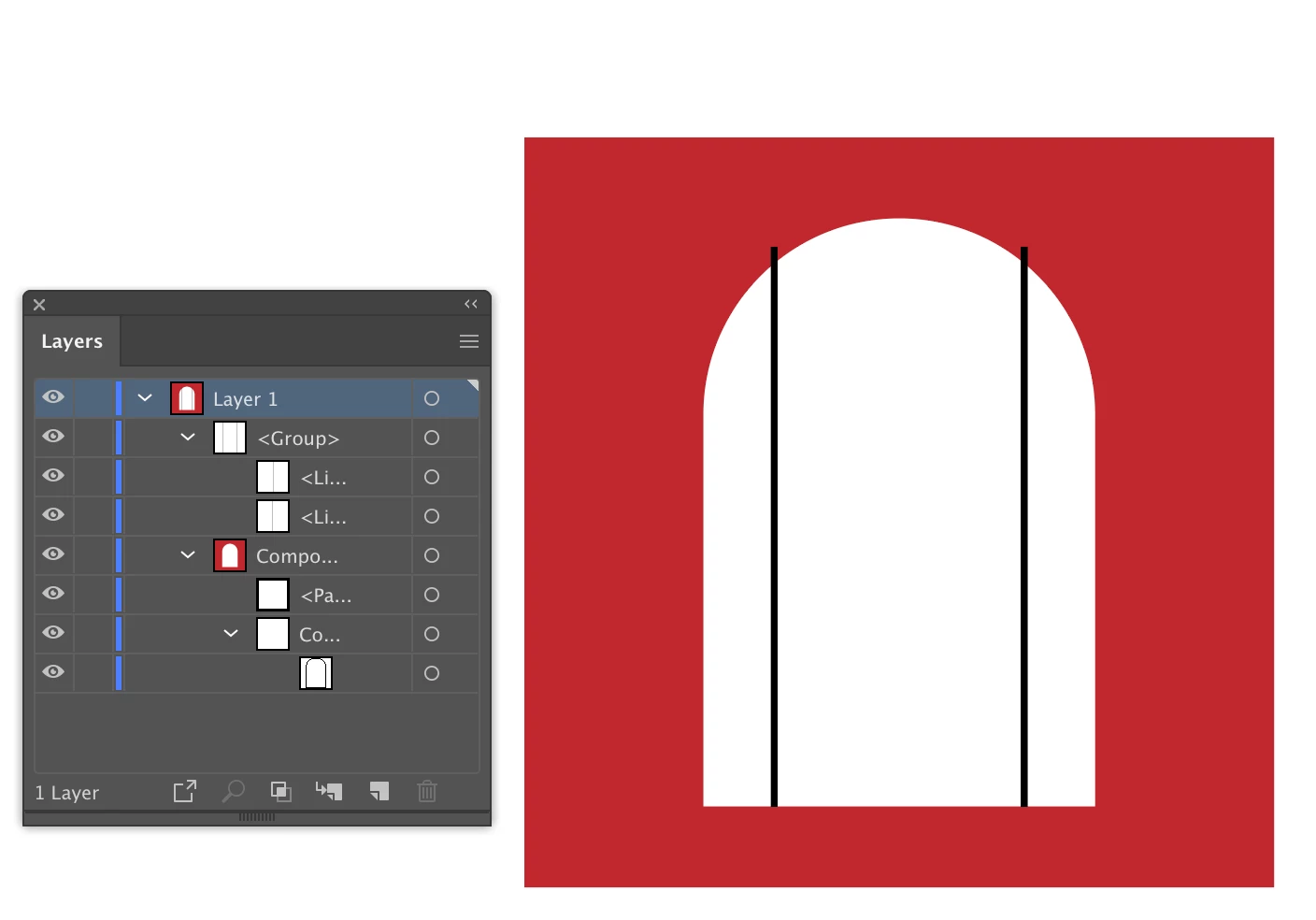
In the progress of learning Illustrator, so I have a quick question on compound shapes: how do I add the black lines to the compound shape? I want them to be a part of the same shape and thus be the same color, but when I try to, either the lines become invisible or the entire shape becomes invisible.

Thanks

This topic has been closed for replies.
Correct answer Daniel E Lane

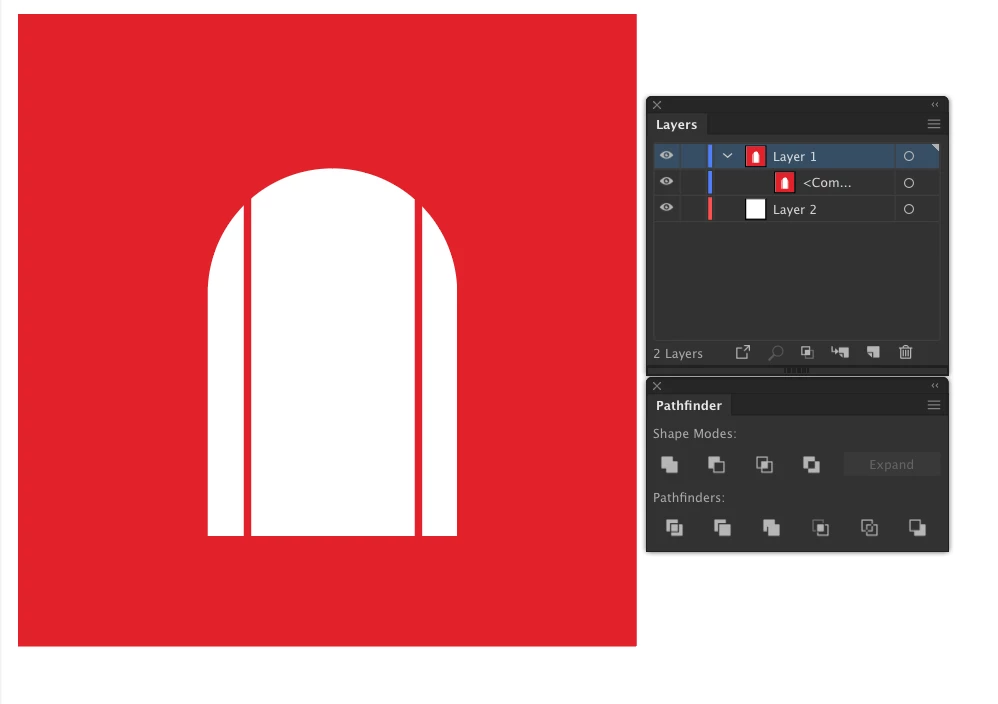
Ok, this isn't too bad. I've recreated it on my box to get stills to show you. The main problem with what you were trying to do is that you had a filled shape and two things that are just lines. They also need to become outlined shapes in order to let everything join like you want.
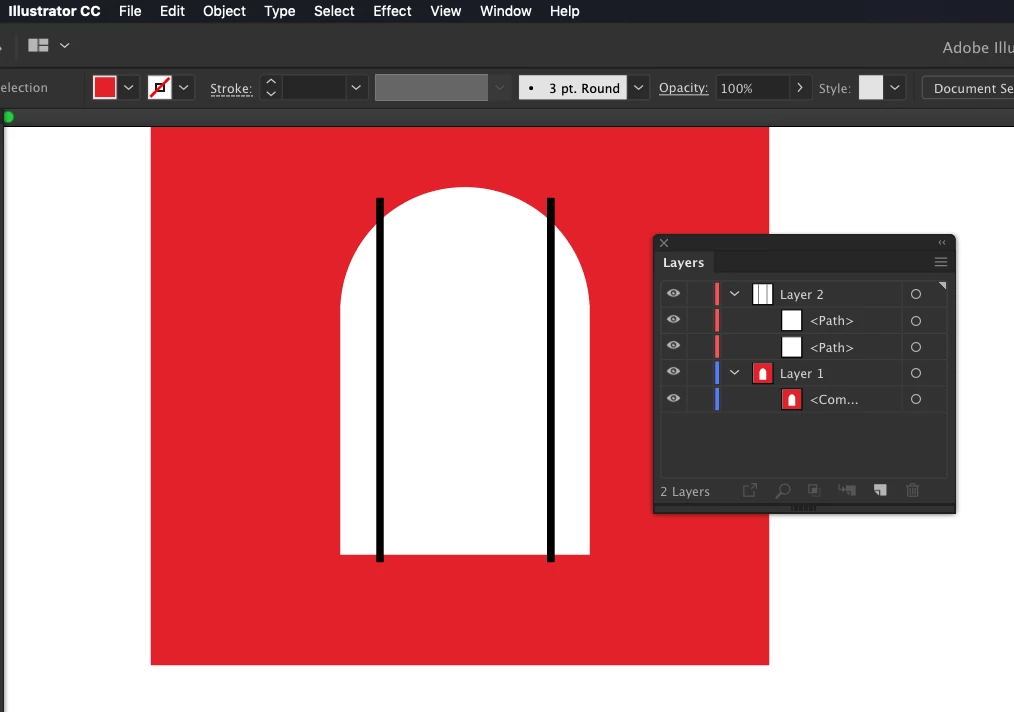
1.     You want to turn those two lines into outlines. Select both of the black lines either with the Black Arrow Tool, or in your layers panel.

2.     Then with them selected, go to Object > Path > Outline Stroke. this will turn them into shapes instead of just lines.
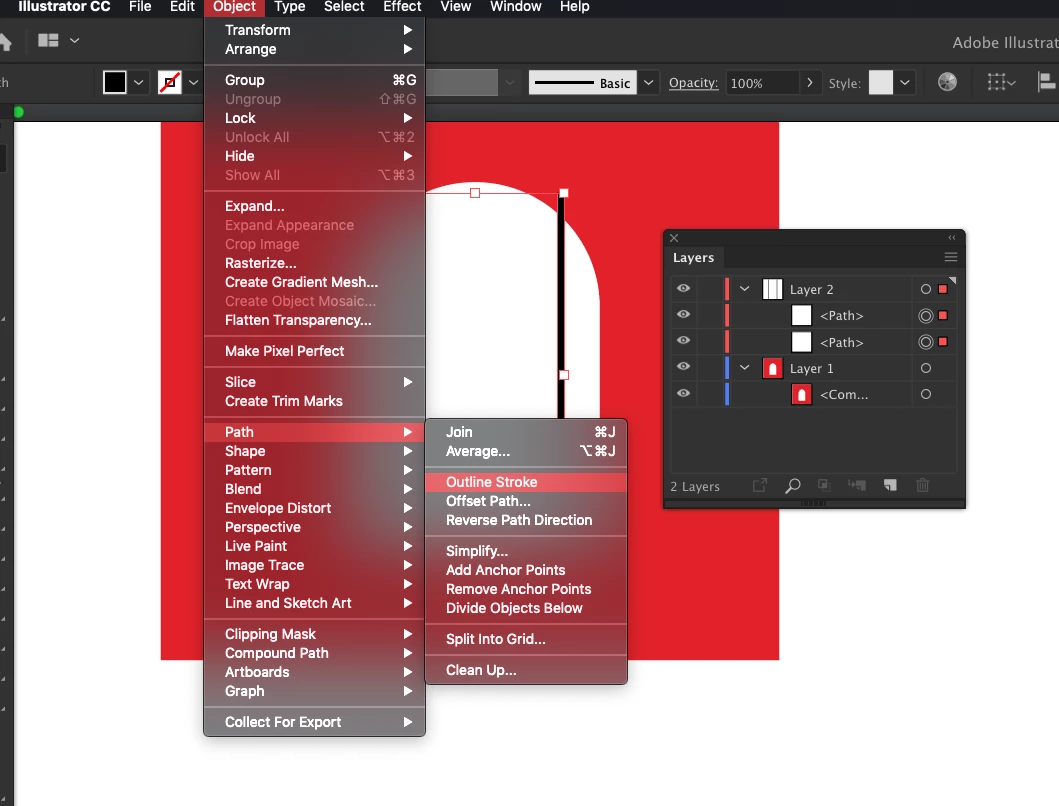
3.     Since you said you wanted them to all be the same color in the end, I swapped the layer positions at this point so that the red box would be on top. When you do the next step, it will take on the attributes of whatever the top layer is.

4.     Select all. Either Cmd+a, or drag over everything with the Black Arrow Tool, or select it all in the layers panel.

5.     With them all selected, in the Pathfinder Panel, click the 1st button (upper row, left) called Unite.
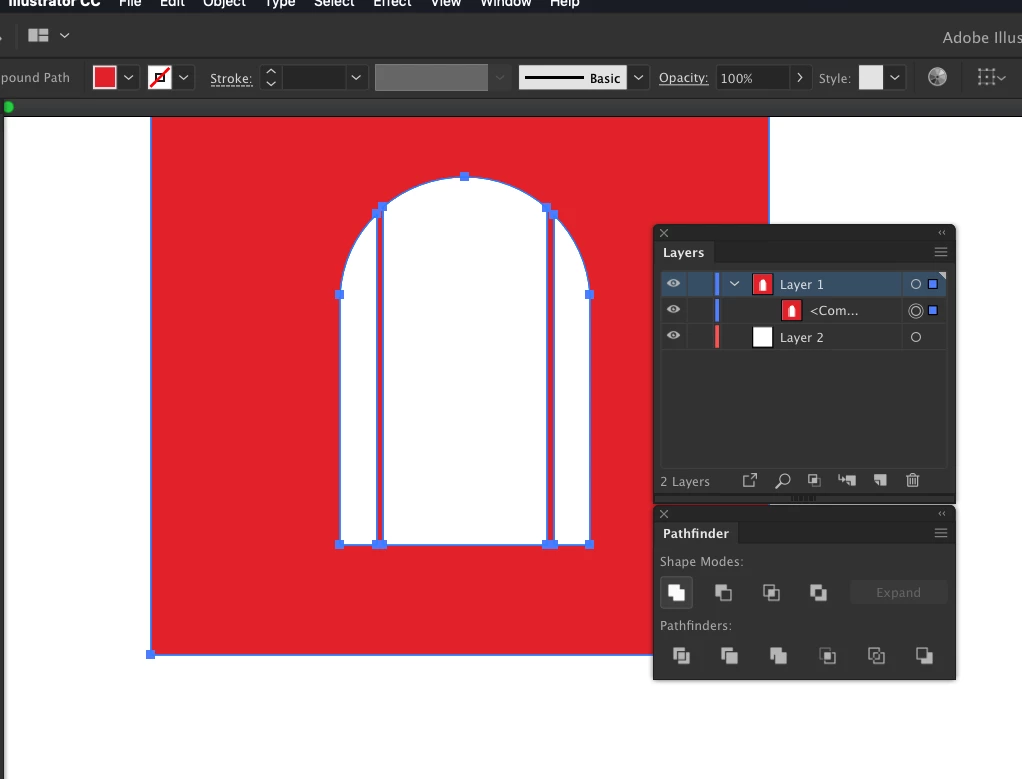
That's it. Everything is now merged and the same colors and attributes.
1 reply

Daniel E Lane
Daniel E LaneCorrect answer
Inspiring
January 24, 2019

Ok, this isn't too bad. I've recreated it on my box to get stills to show you. The main problem with what you were trying to do is that you had a filled shape and two things that are just lines. They also need to become outlined shapes in order to let everything join like you want.

1.     You want to turn those two lines into outlines. Select both of the black lines either with the Black Arrow Tool, or in your layers panel.

2.     Then with them selected, go to Object > Path > Outline Stroke. this will turn them into shapes instead of just lines.

3.     Since you said you wanted them to all be the same color in the end, I swapped the layer positions at this point so that the red box would be on top. When you do the next step, it will take on the attributes of whatever the top layer is.

4.     Select all. Either Cmd+a, or drag over everything with the Black Arrow Tool, or select it all in the layers panel.

5.     With them all selected, in the Pathfinder Panel, click the 1st button (upper row, left) called Unite.

That's it. Everything is now merged and the same colors and attributes.