


Participant
Aug 14, 2018 7:14 PM UTC
Answered

Adding ASE Swatch Palettes to CC Libraries

I have a bunch of ASE files that I would like to be able to share in collaborative CC Libraries. The swatches all have custom names. I am trying to use Illustrator to add them to the Library, and I can only figure out how to add each swatch one by one. To make matters worse, the hex code is used as the default name when that color loads into the library, so I have to rename each one. Is there a way to move the whole swatch palette to the library and preserve the naming system and folders?

Myra Ferguson
Myra FergusonCorrect answer
Community Expert
Aug 14, 2018 8:03 PM UTC

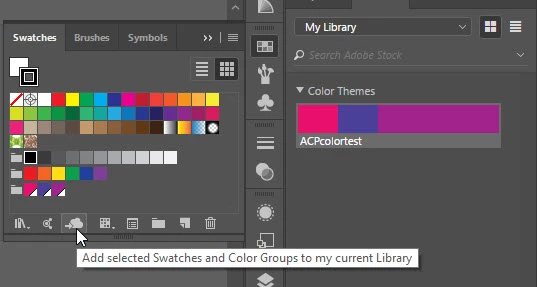
From the Swatches panel, use the flyout menu to select Open Swatch Library > Other Library... and navigate to your .ase file. Create a new library. Select the color group you opened in the Swatches panel and click the 3rd icon from the left, Add selected Color Groups and Swatches to my current library. Your ASE will appear in the CC Library as a Color Theme with whatever name was associated with that color group.

6 replies

Participant
Aug 14, 2018 9:16 PM UTC

Thank you! This worked, however when I re-import the swatched from that library there are a bunch of random duplicates of the same swatch and the names are not retained. The work around for this is to make sure all the swatches are global (for anyone with this same issues in the future).

Translate
jedi_twitch
Participant
Feb 4, 2019 8:42 PM UTC

I had the same problem with the swatches doubling when brought in from the library. What do you mean by “make sure the swatches are global”?

Translate
Monika Gause
Community Expert
Community Expert
Feb 4, 2019 9:14 PM UTC

jedi_twitch  schrieb

I had the same problem with the swatches doubling when brought in from the library. What do you mean by “make sure the swatches are global”?

Please read the documentation: How to use and create swatches in Illustrator

Translate
Myra Ferguson
Community Expert
Myra FergusonCommunity ExpertCorrect answer
Community Expert
Aug 14, 2018 8:03 PM UTC

From the Swatches panel, use the flyout menu to select Open Swatch Library > Other Library... and navigate to your .ase file. Create a new library. Select the color group you opened in the Swatches panel and click the 3rd icon from the left, Add selected Color Groups and Swatches to my current library. Your ASE will appear in the CC Library as a Color Theme with whatever name was associated with that color group.

Translate