Participant
July 1, 2019
Answered

Adobe Illustrator Offset Path Tool menu won't open.

  • July 1, 2019
  • 3 replies
  • 3579 views

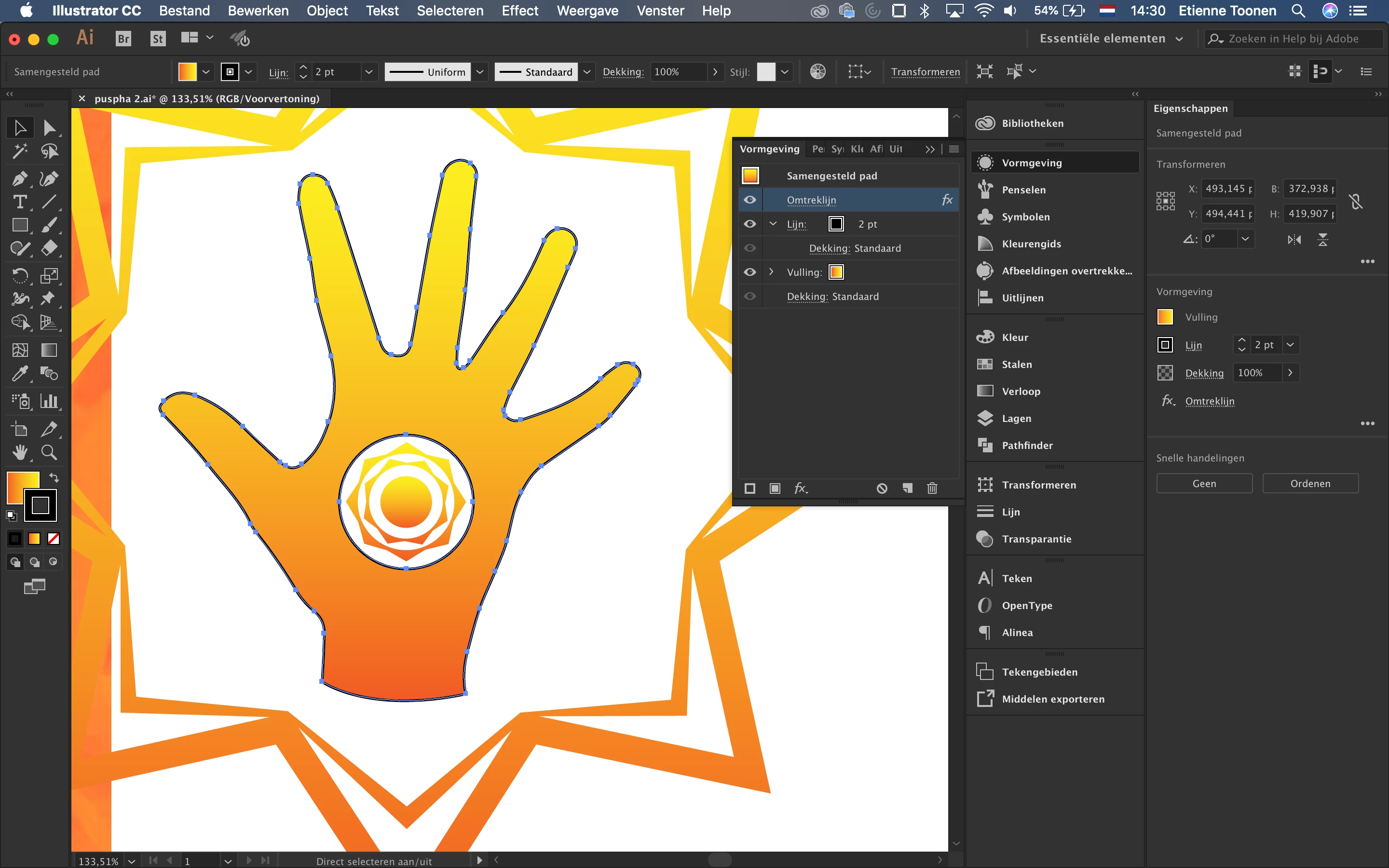
So I'm trying to make an outline around my hand, but I can't seem to open the effects menu for the Offset Path. I'm left-clicking, right-clicking, double-clicking and nothing is working. Does anybody know a solution?

Thanks in Advance.

(Btw "Omtreklijn" is Offset Path)
This topic has been closed for replies.
Correct answer Ton Frederiks

Omtreklijn is not Offset Path, but Outline Stroke (which does not have a dialog).

Pad Verschuiven is Offset Path.

3 replies

Ton Frederiks
Community Expert
Ton FrederiksCommunity ExpertCorrect answer
Community Expert
July 1, 2019

Omtreklijn is not Offset Path, but Outline Stroke (which does not have a dialog).

Pad Verschuiven is Offset Path.

Participant
July 1, 2019

Aaaaaaah, it worked. Thanks, man. I watched a Youtube video and the tool was in that position.

I didn't translate it and just thought that it was there.

I can now expand the lines!

Thanks, everyone for the help!

Monika Gause
Community Expert
Community Expert
July 1, 2019

In case you run into this again, you could try my translation pages: Illustrator polyglott: Werkzeuge und Menübefehle EN, DE, FR, ES, PT, IT, SV, NL, PL, DK

Ares Hovhannesyan
Community Expert
Community Expert
July 1, 2019

There is another Offset Path under Object-<Path->Offset Path . Does it work?

jane-e
Community Expert
Community Expert
July 1, 2019

Hi

I apologize for not being able to translate your screen shot, but do you have the Stroke selected in the Appearance panel when you click the fx for Effects > Offset path?

I think “lijn” is Stroke, and that is what you want to apply the Offset Path to.

~ Jane

Participant
July 1, 2019

I've tried on multiple shapes and put the stroke on multiple sizes. I've tried layering the Offset Path on top, bottom and even inside the line in the Appearance panel... Yet when I click on it nothing happpens.

jane-e
Community Expert
Community Expert
July 1, 2019

Has it worked for you before?

Confirm these things:

  • The object on the artboard is actually selected
  • The stroke is selected
  • Preview is turned on in Offset Path

Note: If your object is not selected, Preview is not an option.

Please show a screen shot of what you see when you choose Offset Path