
Participant
July 11, 2017
Answered

Adobe Sufferer - How to batch convert AI to PNG

  • July 11, 2017
  • 3 replies
  • 17444 views

I am baffled with how to do what should be a simple task. I find the answers on this forum on this topic incomplete - or mentioning Menu Choices [i.e. File>Automate>Batch] that I do not see in my software.

I have a folder with AI images. I want to convert them to PNG. How do I do that? Does Adobe actually give this info somewhere - or does one have to rely on forums for this info.

#baffled

#frustrated
This topic has been closed for replies.
Correct answer Mike_Gondek10189183

1)  make yourself an action using the record button as on a vcr to record  file >> export as >> png, hit stop to stop recording

2)

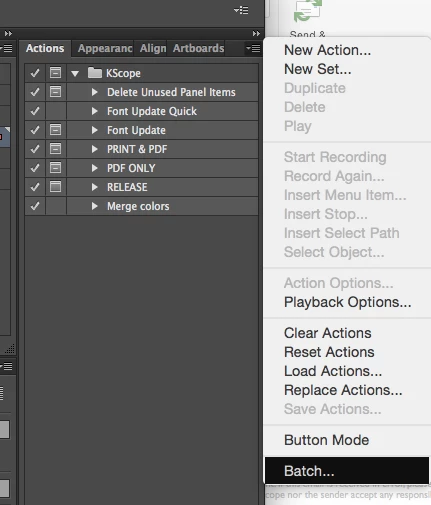
Action fly out >> batch and choose the action you just made, and point to the folder of images

3 replies

vsny2000Author
Participant
July 17, 2017

Eureka! It is now working - Thank you for the information. Not sure why the file name was messed up but I have fixed it. SO PSYCHED! Now to get to work...... :-)

John Mensinger
Community Expert
Community Expert
July 11, 2017
Mike_Gondek10189183
Community Expert
Mike_Gondek10189183Community ExpertCorrect answer
Community Expert
July 11, 2017

1)  make yourself an action using the record button as on a vcr to record  file >> export as >> png, hit stop to stop recording

2)

Action fly out >> batch and choose the action you just made, and point to the folder of images

vsny2000Author
Participant
July 17, 2017

I think I see what is happening - the macro that is recorded has a line in it that says "In: Macintosh HD:" it seems that is inserted into the file tree name when the art is saved- wish then crashes out. I am on a Windows PC. Why would that line be in the macro? Is there a toggle I need to switch?

Mike_Gondek10189183
Community Expert
Community Expert
July 17, 2017

Use actions to automate tasks in Illustrator

  1. For Destination, specify what you want to do with the processed files. You can leave the files open without saving the changes (None), save and close the file in their current location (Save And Close), or save the files to a different location (Folder).Depending on the Destination option you select, you can set additional options for saving the files.