Known Participant
March 22, 2024
Answered

Advice on how to create text with this 3D/Depth effect

  • March 22, 2024
  • 2 replies
  • 2444 views

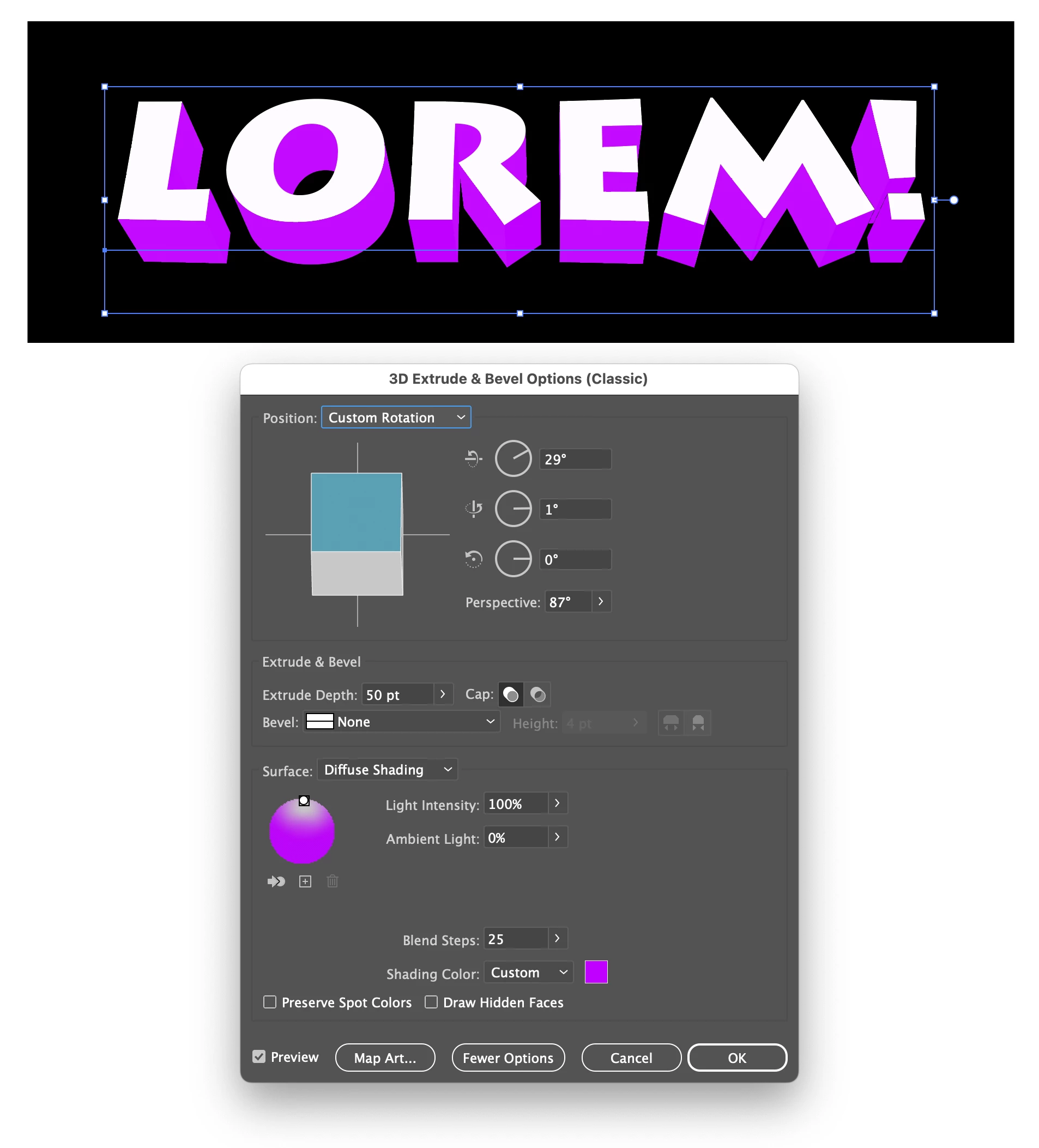
I want to create a 3D text/depth effect similar to what is in the attached image. I experimented with using some of the 3D effect tools, and it worked ok, though no matter what I did the colors I applied to the letters did not display properly for some reason. I applied white to the letters and it shows as being white for the fill, though it displays and greyish for some reasaon. Can someone please suggest a different way that I can create this type of effect for text? I am guessing this it is simple, though I am not great with Illustrator. Thanks 

This topic has been closed for replies.
Correct answer Ton Frederiks

You could try this with the classic 3d effect. You can always Expand Appearance and adjust the colors.

2 replies

Ton Frederiks
Community Expert
Ton FrederiksCommunity ExpertCorrect answer
Community Expert
March 22, 2024

You could try this with the classic 3d effect. You can always Expand Appearance and adjust the colors.

media katAuthor
Known Participant
March 22, 2024

I tried what you suggested and I apply the color within the window as you suggested, after closing the window I am unable to apply white as a fill color, so I Expand Appearance and all color and shading disappears and it becomes like an outline that no longer has the shading or fill color. When I try to apply a fill color it just fills the whole shape including where the shading is supposed to be.

What am I doing wrong? 

Thanks

media katAuthor
Known Participant
March 22, 2024

I got to the point where I was able to add a gradient to the shading area, though since the shading is made up of many shapes the gradient is not continuous. I tried selecting the indidual pieces making up the shaded area with the Direct Selection tool, and to use the shape builder, though that does not work....

Monika Gause
Community Expert
Community Expert
March 22, 2024

Create the base artwork using the 3D classic effects. Then expand the appearance. Then apply the files fills. 

WHen creating the artwork, use to shading in the effect. Later use the shapebuilder tool to make the shapes


Alternative: Astute Graphics has a third party plugin that can make block shadows.

media katAuthor
Known Participant
March 22, 2024

1. I chose the option to Expand Appearance, though I am not sure what you mean by "Then apply the files fills"?

After choosing to Expand Appearance it still does not take the color I choose for the fill.

2. I am also not sure what you meant by "WHen creating the artwork, use to shading in the effect. "

Thanks


Monika Gause
Community Expert
Community Expert
March 22, 2024

Sorry, I had a few typos.

There is a shading option in the 3D effect. Use "No shading" there.

Disregard all the coloring. 

Then Expand the appearance

Then use the shapebuilder tool or live paint to create the shapes. What is shown in your screenshot happens because there are multiple shapes building the curve. You need to combine them.