

hsiaohaha
Inspiring
October 29, 2022
Answered

Ai 2023 preference window is too small

  • October 29, 2022
  • 3 replies
  • 1963 views

Hello, all the Adobe staff & experts,


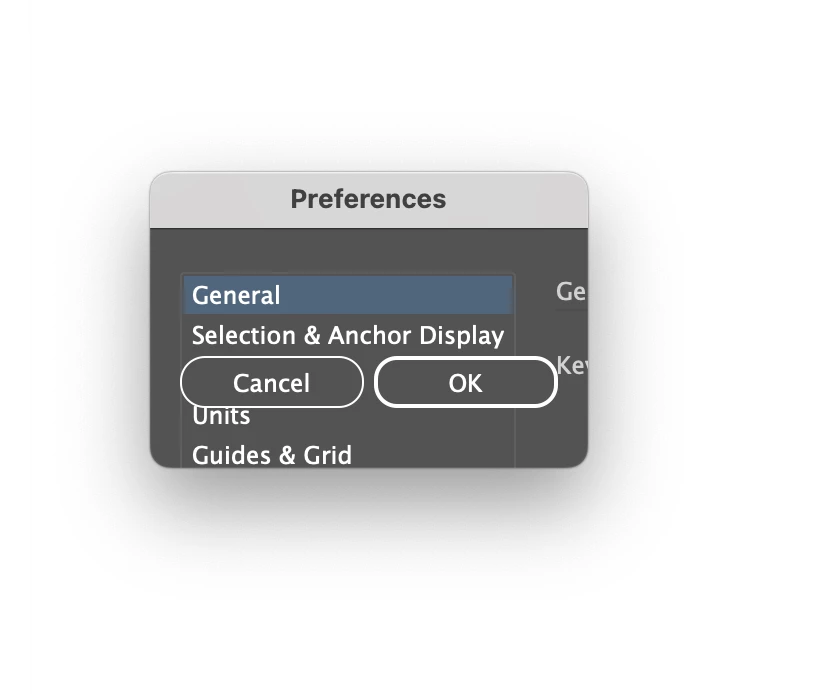
I just updated my Adobe to the 2023 version and my MacBook Pro to Ventura 13.0 because Photoshop and Lightroom keep showing the Ventura system runs the best for this 2023 version. However, I couldn't open my Illustrator preference window after all the updates. InDesign and Photoshop have no these issues, ubt only Illustrator has this wired situation. 


Does anyone know how to fix it? 

The problem is that I can't scale up the window and see the penal entirely. I can only press the up and down buttons with a blind view. This troubles me at work because I have to change the unit system very often. 

My laptop system details are listed below at the bottom.


Thanks in advance. 


Regards,

H
 

MacBook Pro 15" 2017

Processor: 

2.8 GHz Quad-Core Intel Core i7

Graphic: 

Radeon Pro 555 2 GB

Intel HD Graphics 630 1536 MB

Memory:

16 GB 2133 MHz LPDDR3
 

This topic has been closed for replies.
Correct answer Anshul_Saini

Hi @Bergstroom,


Thanks for reaching out. Would you mind trying the following steps and see if that helps:

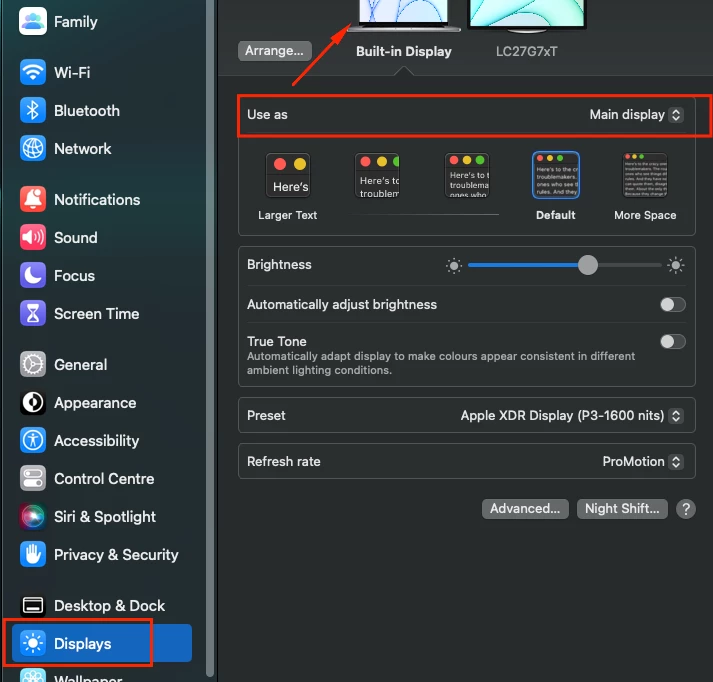
  • Set your Macbook Pro as Main display in System Preferences > Dsipalys > Select "Built-in Display" > "Use as Main Display"


  • Move the preferences dialog to Macbook Pro Screen, then close it. Reopen the preferences dialog again, and it should get enlarged.


Let us know how it goes. We'd be looking forward to your response.


Thanks,

Anshul Saini

3 replies

Bergstroom
Participant
November 15, 2022

Just replying to let you know that I have exactly the same issue.
Working with a MacbookPro and a second screen as well.

Anshul_Saini
Community Manager
Anshul_SainiCommunity ManagerCorrect answer
Community Manager
November 21, 2022

Hi @Bergstroom,


Thanks for reaching out. Would you mind trying the following steps and see if that helps:

  • Set your Macbook Pro as Main display in System Preferences > Dsipalys > Select "Built-in Display" > "Use as Main Display"


  • Move the preferences dialog to Macbook Pro Screen, then close it. Reopen the preferences dialog again, and it should get enlarged.


Let us know how it goes. We'd be looking forward to your response.


Thanks,

Anshul Saini

DPA200
Participant
February 2, 2023

That worked for me. I'm on a Mac Studio M1 Ultra running Ventura 13.1 on 3 monitors. I changed one of my side monitors to "Main Display" and then the pref window was correct. I then re-set my center monitor as "Main Display" and it still kept the correct size pref window

Anshul_Saini
Community Manager
Community Manager
November 8, 2022

Hi @hsiaohaha,


Thanks for sharing the details. It seems like a  macOS display settings issue. Would you mind checking if setting your Macbook as Main display in System Preferences > Dsipalys > Select "Built-in Display" > "Use as Main Display" helps or not?


Kindly update the discussion if you still need assistance with it. We'd be happy to help.


Thanks,

Anshul Saini

hsiaohaha
hsiaohahaAuthor
Inspiring
November 10, 2022

@Anshul_Saini,

I selected "Built-in Display" as "Main Display, " which is my default setting. Even though I mentioned the problem was solved, after I had redownloaded thousand times and re-set up my preference, this issue still exist. Usually, after I reinstall the Illustrator app a couple of days later (like four days), the preference window becomes very small again.

I found out that unplugging my connect screen helps, but this issue still troubles me. Having two screens for work is a must, so I must disconnect my connect screen > restart my mac > use the reference > and re-connect my other screen.


I hope you can help. Thanks!


Anshul_Saini
Community Manager
Community Manager
November 13, 2022

Thanks for trying, @hsiaohaha. Would you mind going to the following locations in Finder and deleting all the Illustrator files & folders of Illustrator:

  • ~/Library/Application Support/Adobe
    Delete Adobe Illustrator XX, Adobe Illustrator XX Settings, AIRobin XX & UXP folders

  • ~/Library/Caches
    Delete AI_xx_x, com.adobe.AIRobin & com.adobe.illustrator folders
  • ~/Library/Preferences
    Delete Adobe Illustrator, Adobe Illustrator XX settings, AIRobin XX Settings & com.Adobe.Adobe Illustrator.XX.plist files and folders
  • ~/Library/Preferences/Adobe
    Delete the Adobe Illustrator folder
  • /Library/Application Support/Adobe

    Delete UXP & CEP folder


    Note: Location starting with this "~" sign indicates the User Library, which is hidden. So, you need to copy & paste the exact path in spotlight search or from Finder Menu > Go > Go to Folder > Paste the location in the dialog box like this:


Disclaimer: Please note that deleting these folders will reset Illustrator preferences. It will remove all the custom settings, and Illustrator will launch with default settings. You can also take a backup of the folders in case you want to. Location is mentioned in the article.


Let us know how it goes. I will be looking forward to your response.


Thanks,

Anshul Saini

Steve Werner
Community Expert
Community Expert
October 29, 2022

I have a MacBook Pro 14" 2021 = Apple M1 Chip


I'm running Illustrator 2023 (v27) on Ventura with no problems 


Have you tried restoring the preferences when you launch the computer by holding down Cmd+Shift+Option?

hsiaohaha
hsiaohahaAuthor
Inspiring
November 1, 2022

Hi Steve Werner,

Thanks for your fast response! I haven't tried your tip yet, but I ended up reinstalling my Illustrator from Adobe Cloud. It doesn't show up the same problem, but the reinstall part ruins my CJK function with English UI entirely. I am sad that I can't go back to the previous setting. 😞 

If anyone has the same issue here, just try the Cmd+Shift+Option tip. Re-install an app is too risky...