Participant
February 5, 2023
Answered

AI and using free patterns from Adobe Stock

  • February 5, 2023
  • 1 reply
  • 776 views

I am very new using AI. I am trying to add to the pattern swatches and I discovered some free patterns in AdobeStock to see if I subscribe to be able to get some paid ones but I can't seem to figure out why some do add to my swatches and other just add as colors. Can someone help me get this right?

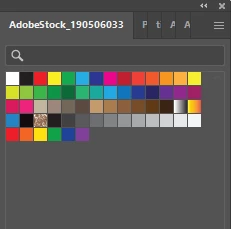
Here you ca see how some I was able to add: 
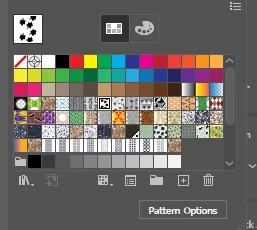
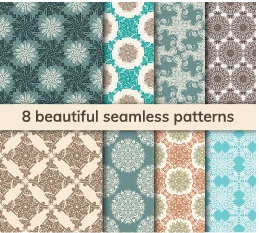
But this one, if I click on it it shows only colors when it's supposed to be a set of patterns. 
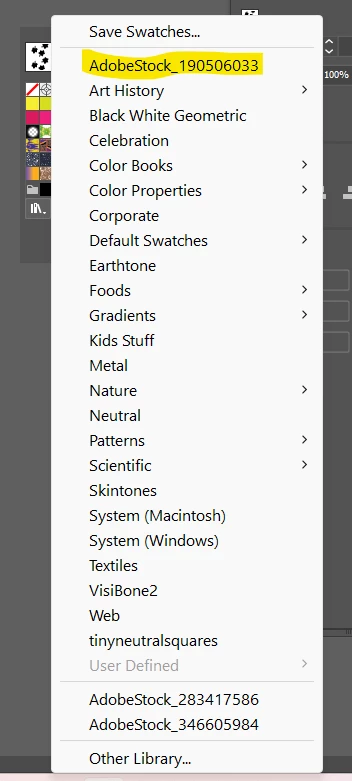
I am probably saving them in the incorrect place? But I thought I did both the same way, one set worked and the other didn't.

Thank you in advance! 
 

This topic has been closed for replies.
Correct answer Monika Gause

Thank you.

First of all, make sure you download the vector file.

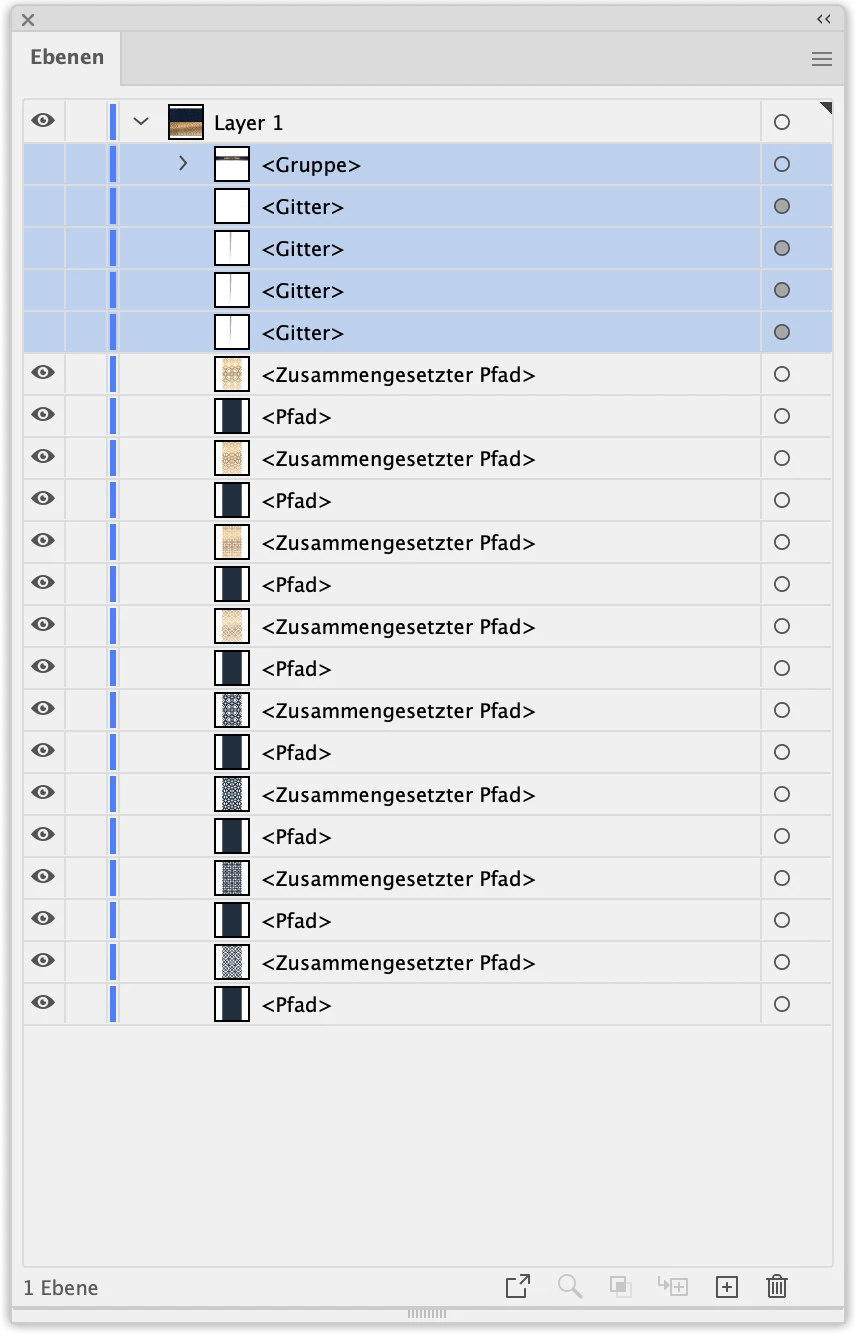
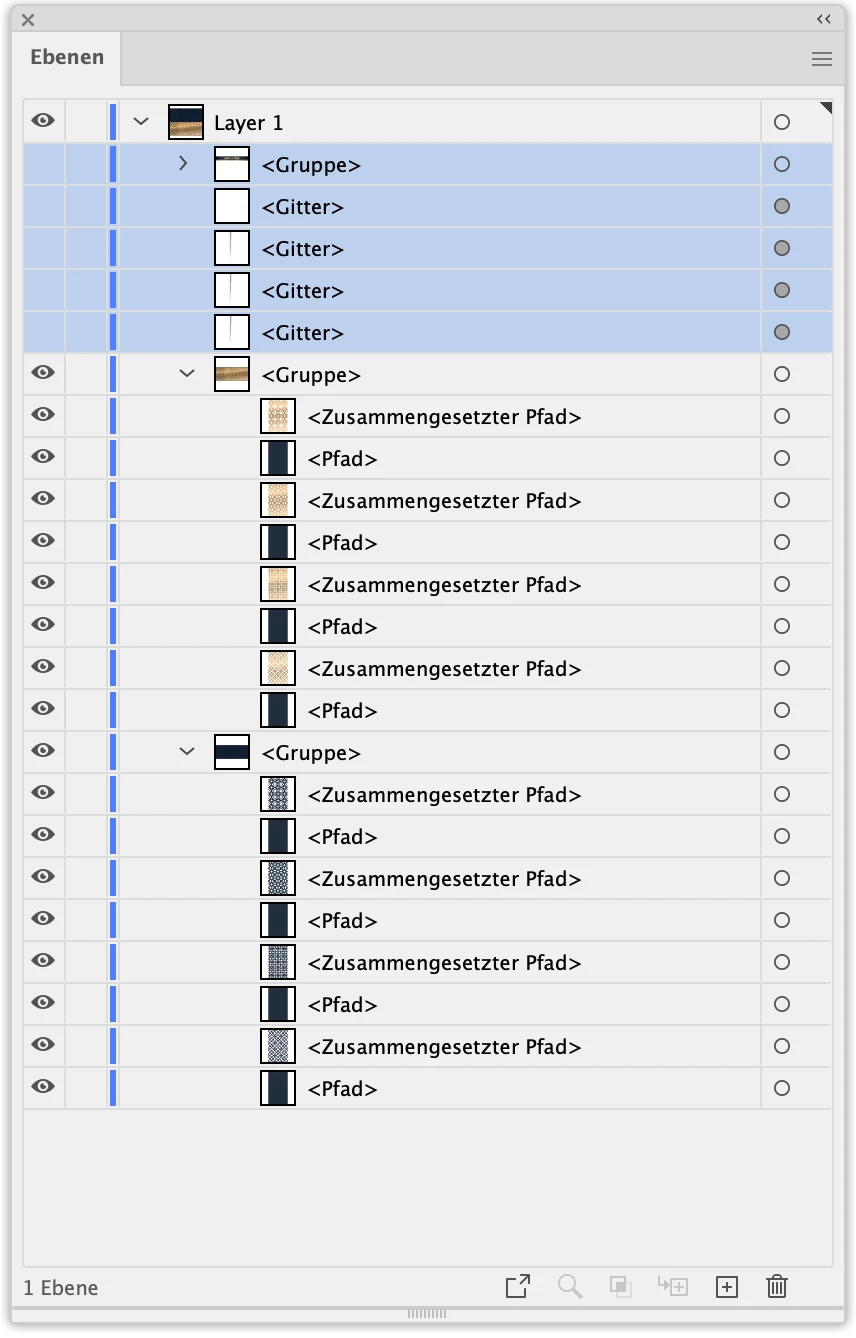
Then when opening that in Illustrator, open the Layers panel. In there, all the parts highlighted in blue you do not need. You can delete them or hide them. Then select both the groups and ungroup them. Object > Ungroup.


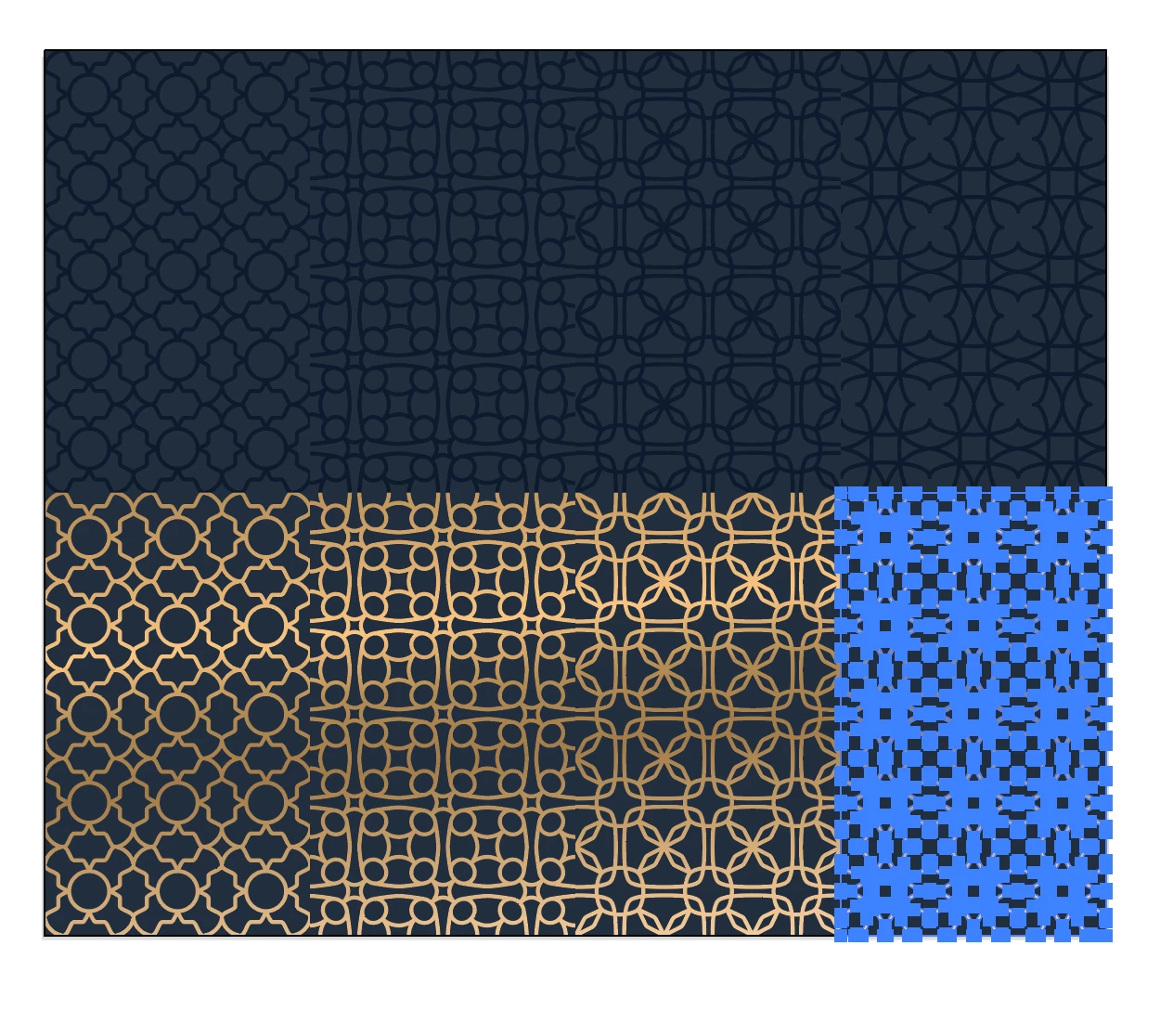
Then with the selection tool drag a rectangle into one of the patterns. The rectangle just need to touch into the pattern, not surround it completely.

Thsi selects the parts. Then Object > Pattern > Make. CLick on "Done" in the grey bar at the top of the document. Then you'll find the pattern in the swatches panel.


1 reply

Monika Gause
Community Expert
Community Expert
February 5, 2023

Some patterns actually are just the artwork and not yet turned into patterns (technically). You need to do that yourself. You could check out Illustrator's pattern editing mode. 

https://helpx.adobe.com/illustrator/using/create-edit-patterns.html 


If you cannot make sense out of it, please tell us the number of that stock file or the URL.

Participant
February 5, 2023

Thank you, I had tried that but these patterns do not separate into individual artboards (images). I am pasting the URL below. I can download but it downloads like one image and not separate patterns. I am probably not explaining myself very well, so sorry!


https://stock.adobe.com/search/images?filters%5Bcontent_type%3Aphoto%5D=1&filters%5Bcontent_type%3Aillustration%5D=1&filters%5Bcontent_type%3Azip_vector%5D=1&filters%5Bfree_collection%5D=1&filters%5Bcontent_type%3Aimage%5D=1&k=patterns&order=relevance&safe_search=1&limit=100&search_type=usertyped&search_page=1&acp=&aco=patterns&get_facets=1&asset_id=346906825

Monika Gause
Community Expert
Monika GauseCommunity ExpertCorrect answer
Community Expert
February 5, 2023

Thank you.

First of all, make sure you download the vector file.

Then when opening that in Illustrator, open the Layers panel. In there, all the parts highlighted in blue you do not need. You can delete them or hide them. Then select both the groups and ungroup them. Object > Ungroup.


Then with the selection tool drag a rectangle into one of the patterns. The rectangle just need to touch into the pattern, not surround it completely.

Thsi selects the parts. Then Object > Pattern > Make. CLick on "Done" in the grey bar at the top of the document. Then you'll find the pattern in the swatches panel.