Participant
January 27, 2017
Answered

AI CC: lines in pattern are jagged after pattern rotation

  • January 27, 2017
  • 2 replies
  • 2014 views

Hi Everyone!

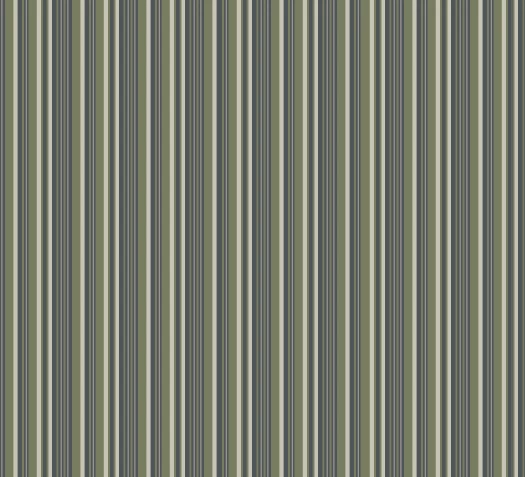
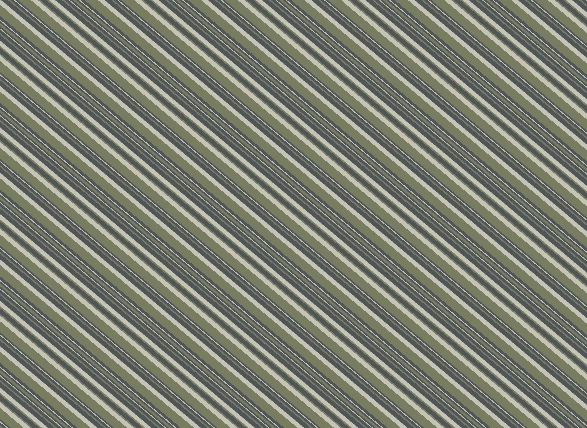
I created a stripe pattern in AI.  The pattern looks fine by itself.  However, after I rotate the pattern, lines become jagged.  I did the rotation by Transform->Rotate->Rotate Patterns.   Please see the before rotation and after rotation image below.  Have any of you came across this issue?  I would really appreciate it if someone can help me!!!!!! 

before rotation:
after rotation:
    This topic has been closed for replies.
    Correct answer rcraighead

    Is the pattern vector or raster? Do you have "Anti-alias Artwork" turned ON in Preferences?

    Recreated your pattern and no jagged edges. Do you have "Pixel Preview" on by chance?

    2 replies

    Ton Frederiks
    Community Expert
    Community Expert
    January 27, 2017

    Try to switch the preview between GPU and CPU; Cmd E (or Ctrl E for Win) and see if it looks better.

    Participant
    January 27, 2017

    Hi Ton,

    I tried switching to CPU, and it still looks the same. 

    Thank you for your suggestion~

    Feitong

    rcraighead
    rcraigheadCorrect answer
    Legend
    January 27, 2017

    Is the pattern vector or raster? Do you have "Anti-alias Artwork" turned ON in Preferences?

    Recreated your pattern and no jagged edges. Do you have "Pixel Preview" on by chance?

    Participant
    January 27, 2017

    Thank you rcraighead for looking into my issue!!

    The pattern was created in AI using rectangular tool and the pattern option tool.  I guess it is vector?  I had Anti-alias Artwork on and Pixel Preview was off. 

    If you scale the pattern to 30% of the original size (pattern only), do you still get the correct pattern?

    Willi Adelberger
    Community Expert
    Community Expert
    January 27, 2017

    That is only a screen issue.