SebastiaoV
Known Participant
October 7, 2017
Answered

Any good tutorial on Gradient Mesh?

  • October 7, 2017
  • 2 replies
  • 1865 views

Hi guys,

I would like to do a gradient for a large 6 meters wide (20 feet) billboard. This is the sample image.

http://www.guoguiyan.com/gradient-wallpapers/69010779.html

I believe is better done with Gradient Mesh, right? I thought Photoshop could be also a good to provide a richer gradient color variation than Illustrator but i am not. The drawback with Photoshop is that if my final artwork is a large billboard the JPG might be too big to have the correct resolution, right?

Any advice is Gradient Mesh is the best way to go for reproducing this image? Should i do it in Illustrator or Photoshop for a 6 metres wide billboard? If gradient mesh is the way to go could you advice me on a good tutorial do reproduce this effects?

Thanks 1000!
This topic has been closed for replies.
Correct answer Ton Frederiks

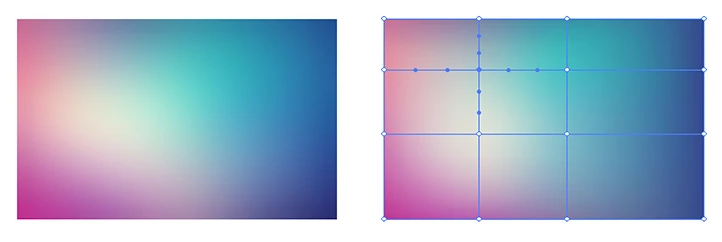
It should not be too difficult to create your example with the Gradient Mesh.

The Help file gives a good description of the tool:

Create and edit mesh objects in Illustrator

In my example, I created a rectangle and picked up the dark blue color from the image wit the Eyedropper ( I )

I switched to the Gradient Mesh tool ( u ) and clicked in the rectangle to add a mesh point.

Switched back to the Eyedropper to pick up a color from the image at a corresponding location.

I kept selecting mesh points and switching back and forth to pick up colors.

Be careful with adding too many points.

2 replies

Participating Frequently
March 8, 2018

How would i go about creating a gradient mesh like this one?

Ton Frederiks
Community Expert
Community Expert
March 8, 2018

Try a gradient along a stroked path and Outline Stroke

Ton Frederiks
Community Expert
Ton FrederiksCommunity ExpertCorrect answer
Community Expert
October 7, 2017

It should not be too difficult to create your example with the Gradient Mesh.

The Help file gives a good description of the tool:

Create and edit mesh objects in Illustrator

In my example, I created a rectangle and picked up the dark blue color from the image wit the Eyedropper ( I )

I switched to the Gradient Mesh tool ( u ) and clicked in the rectangle to add a mesh point.

Switched back to the Eyedropper to pick up a color from the image at a corresponding location.

I kept selecting mesh points and switching back and forth to pick up colors.

Be careful with adding too many points.

SebastiaoV
Known Participant
October 7, 2017

Thanks for the good tips Ton! i will try that approach.

Cheers,

Ton Frederiks
Community Expert
Community Expert
October 7, 2017

Good to hear that, thanks.