
Inspiring
June 1, 2023
Answered

Asset Export, with rotated placed images, not working properly

  • June 1, 2023
  • 1 reply
  • 388 views

I like to use the asset export panel. It works well most of the time, but when my asset group includes a rotated placed image, the export makes the image look low resolution with a dodgy aliasing effect. Here is an example which kind of shows the effect comparing a straight placed image next to a rotated placed image. I've checked the anti aliasing settings and increased output resolution but any rotated placed image gets the weird look.
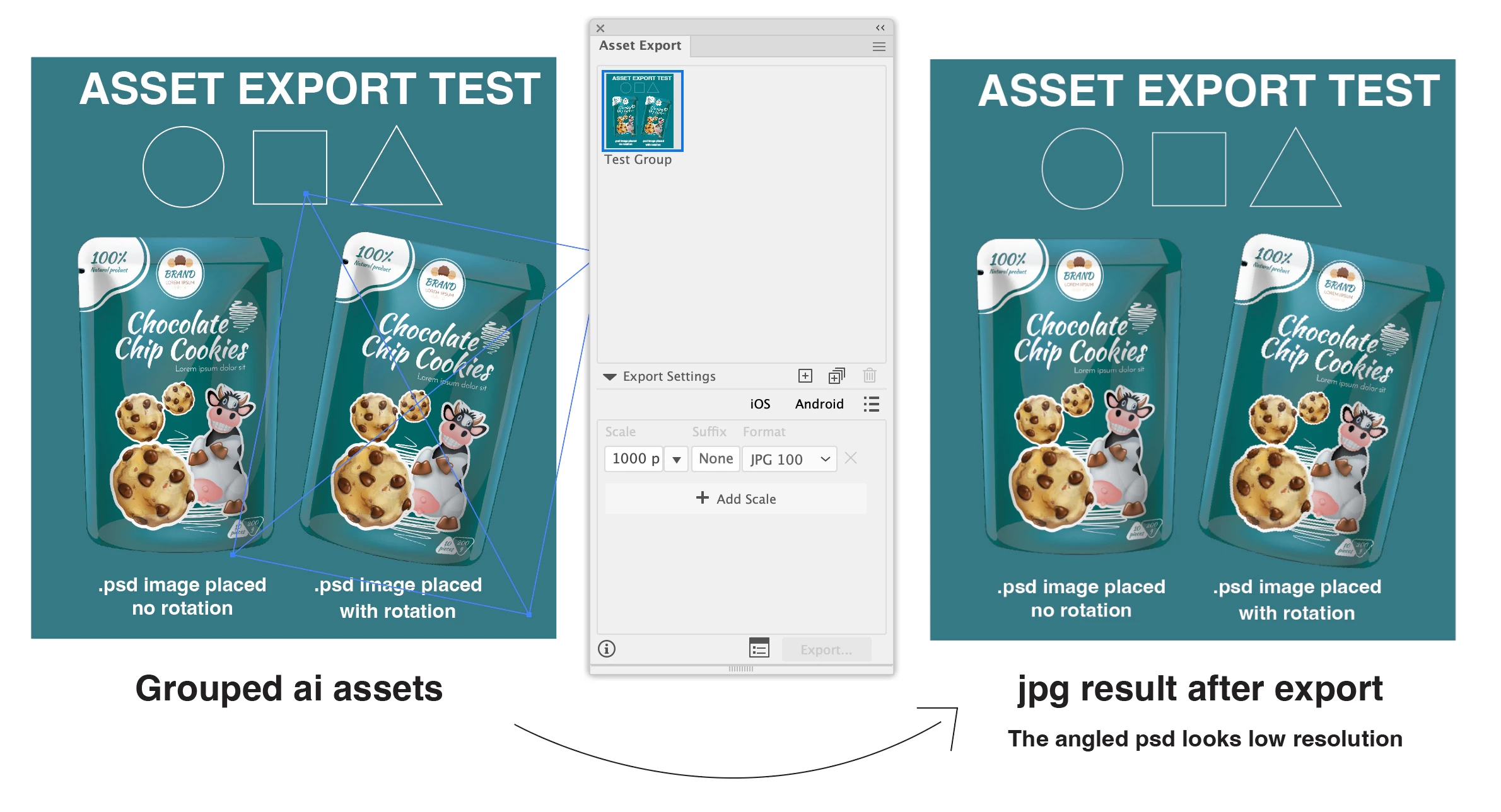
When the object group is copied directly from Illustrator and pasted into Photoshop, it works perfectly. So something is going on with the way the asset export function works.

Any ideas to fix? Or is it a bug in the programing?

This topic has been closed for replies.
Correct answer 5ko2za

Thanks @Mike_Gondek10189183 . I tried some more settings. When I export to PNG it works nicely. Whatever settings I use for JPG export (size, resolution compression value or anti-aliasing) it will not apply anti-aliasing to the rotated image. I can recreate the look of the JPG result by exporting to PNG with deliberately no anti-aliasing set.

Looks like I'll stick with PNG exports from now on.

1 reply

Mike_Gondek10189183
Community Expert
Community Expert
June 1, 2023

Is definitely the asset export panel as your Photoshop bitmapping test shows. Try Aty optimized. Does this happen if you change scale to 1x?


5ko2zaAuthorCorrect answer
Inspiring
June 1, 2023

Thanks @Mike_Gondek10189183 . I tried some more settings. When I export to PNG it works nicely. Whatever settings I use for JPG export (size, resolution compression value or anti-aliasing) it will not apply anti-aliasing to the rotated image. I can recreate the look of the JPG result by exporting to PNG with deliberately no anti-aliasing set.

Looks like I'll stick with PNG exports from now on.