
Known Participant
March 9, 2021
Answered

Automatically deselect a path I just created

  • March 9, 2021
  • 3 replies
  • 658 views

I've been running into this issue a lot and its annoying as hell. 

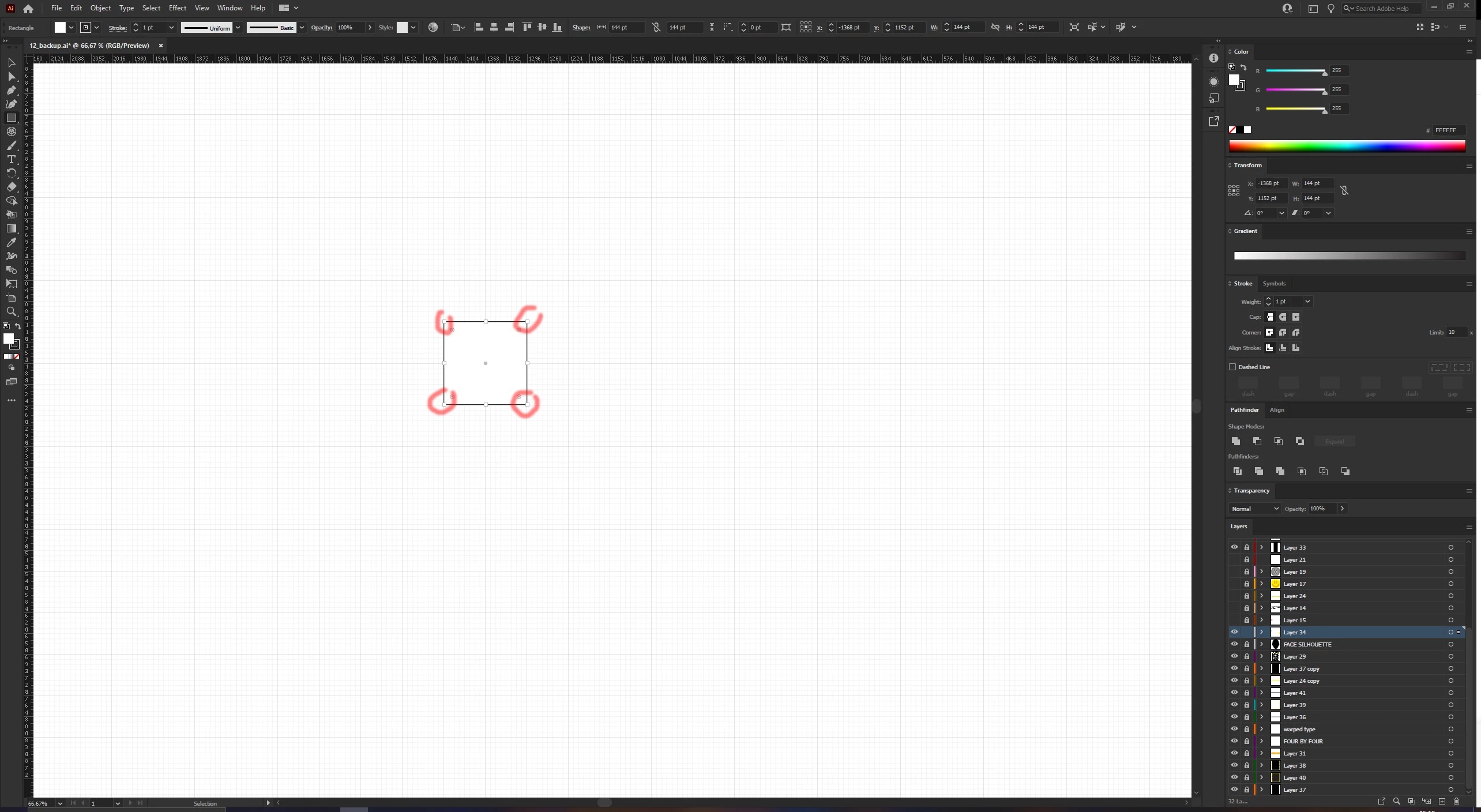
Whenever I create a new path it keeps the path selected, so when I want to create another path right next to it instead of creating this new path is edits the old one. 


Lets say I want to create 5 rectangles of the same size right next to each other I cannot create them by starting at the top left every time because once I want to create the second rectangle it will automatically select the top right of the first rectangle. I only want to edit a rectangle if I select MYSELF, it being my choice to select it, NOT having adobe decide that I want to select the first rectangle. 


How do I turn this annoying function of? 
This topic has been closed for replies.
Correct answer pixxxelschubser

It may be a workaround:

  • draw your rectangle
  • press and hold [Strg/Ctrl] key
  • click next to your rectangle
  • let go of the [Strg/Ctrl] key
  • draw your next rectangle

repeat the steps

3 replies

pixxxelschubser
Community Expert
pixxxelschubserCommunity ExpertCorrect answer
Community Expert
March 9, 2021

It may be a workaround:

  • draw your rectangle
  • press and hold [Strg/Ctrl] key
  • click next to your rectangle
  • let go of the [Strg/Ctrl] key
  • draw your next rectangle

repeat the steps

Kurt Gold
Community Expert
Community Expert
March 9, 2021

You could also temporarily hide the bounding boxes in the View menu or hide the shape widgets.


Doug A Roberts
Community Expert
Community Expert
March 9, 2021

Unfortunately, since Live Shapes became the default for the shape tools, this has been the case.

See here for a preferences hack workaround:


https://community.adobe.com/t5/illustrator/how-do-i-disable-live-shapes/m-p/7886863#M25201


(I have not tested this in v25)