Participant
August 16, 2025
Answered

Beginners help in Illustrator - change color object

  • August 16, 2025
  • 2 replies
  • 555 views

Hi, I am completely new to Illustrator. 


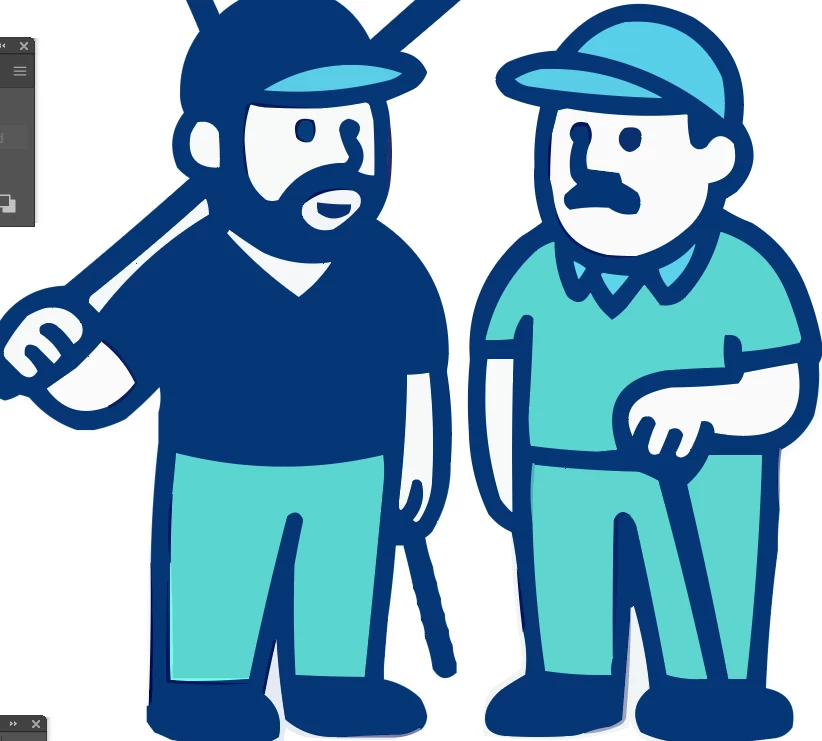
I have an object that used to be a .png file that i have vectorised and opened in Illustrator. I have added one object in Illustrator.


The issue I have is the the color is slightly different from other objects. It sounds easy to change it... I have tried the eye dropper, and copied in the color I want. But it is still slightly different. I am going crazy...


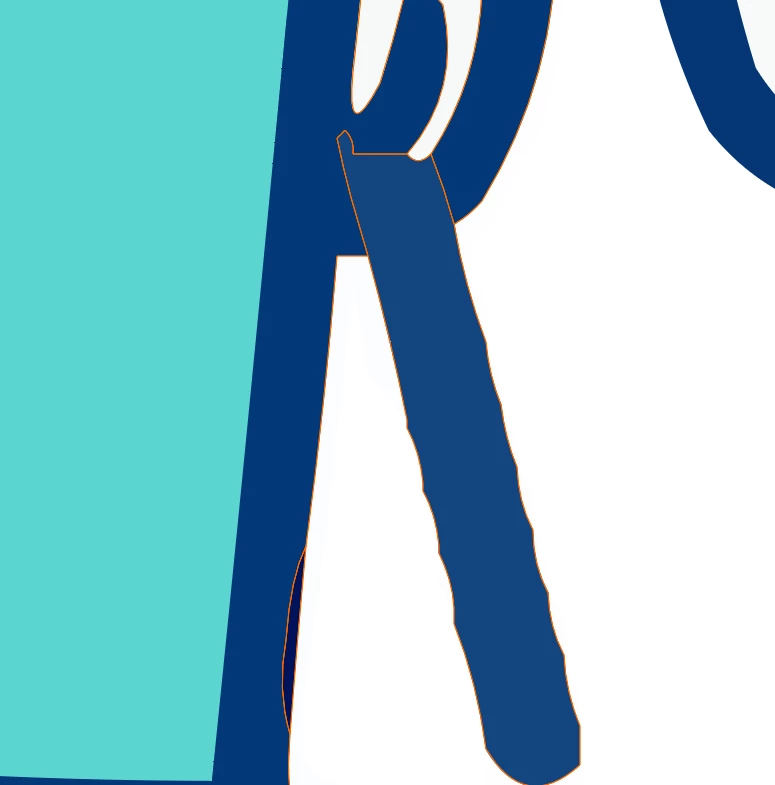
I have tried to attached the .ai dokument here, but it does not work... Can somebody help med fix the golf club handle of the left person to have same color as the rest of the outline of the body? I have attached a jpg with an arrow. I am sure you see if you open... 


I am happy to email the .ai dokumet 


Thank you for helping a beginner out. And please let me know what I have missed
Correct answer Anna_Lander

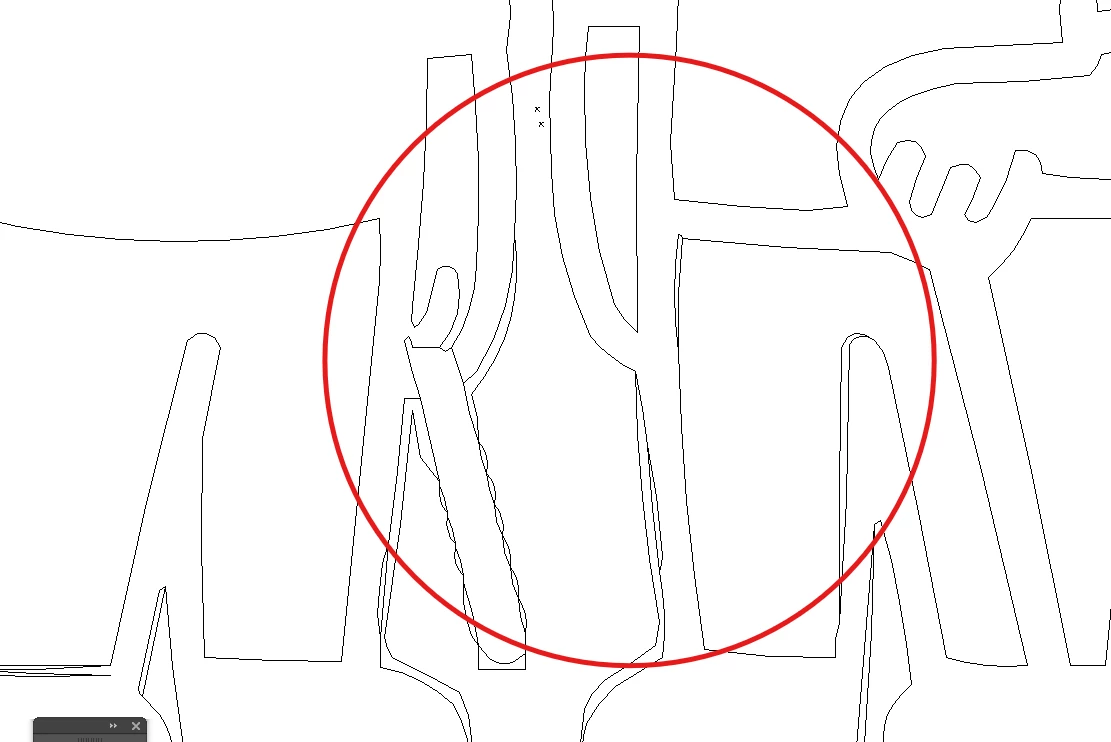
Saying short, it's a result of tracing images.  When you trace with automatic settings for a color image, the program creates some artifacts, small objects with different unneeded colors, opacity settings etc. You can see them in Outline mode (Ctrl/Cmd+Y).

next time will be better to trase such images with "3 colors" setting, it provides more clean result.
What you can do now:
1. Return to Preview mode (Ctrl/Cmd+Y).
2. Select only the needed details

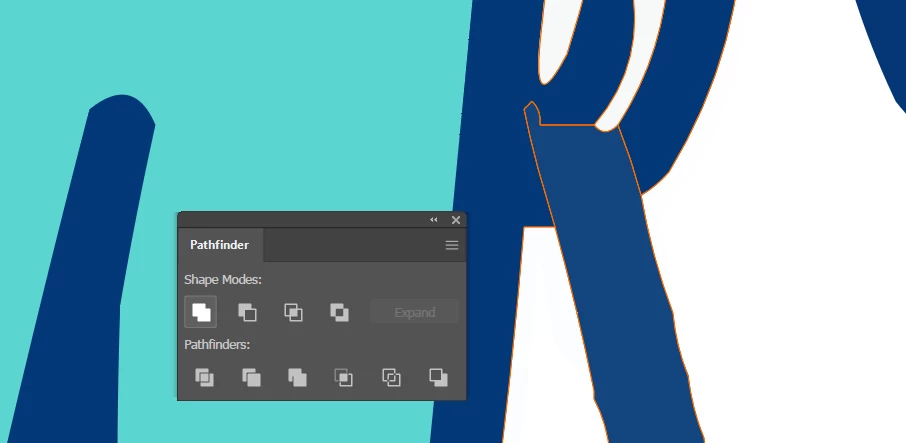
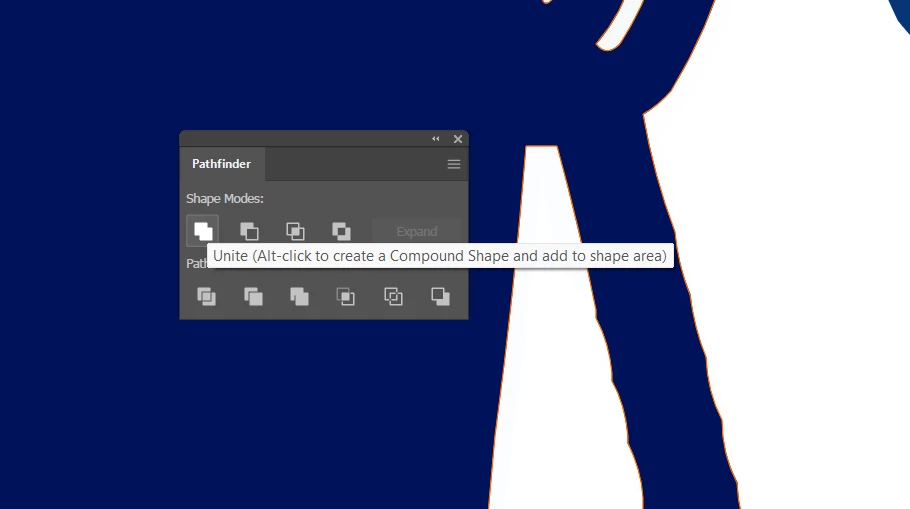
3. Use the first button on the Pathfinder panel (you can find it in the Window menu):

4. The result will get the color of the top of selected objects (in your case, it's the small dark blue artifact on the leg of the character) and come to front. It's OK.

5. Now use eyedropper to take the color from another character, and send the object to back (Ctrl/Cmd+Shift+[)

6. finally, would be good to clean the image. For example, you can select all white objects with Magic Wand, deselect internal ones (faces, hands etc.) and delete the outer ones. Maybe it's worth to unite the colored elements, especially dark blue ones, and set them the same color. Did you notice that you have 2 different colors on the ball's face, they are not the same as the characters' outline, and all the letters have also different colors? 

To use this image as a logo, you need to rid all the artifacts (delete or unite) and set just limited set of colors. As far as I can see, there might be 4 colors: 
- dark blue for main outlines and silouettes
- another dark blue for the ball's face
- light blue for caps and shirts
- greenish light blue for caps and shirts.
Make sure that all the objects have just one of these colors for good consistency of your logo and style.

2 replies

Participant
August 16, 2025

Great idea. Here is a .pdf version of the dokument


Participant
August 17, 2025

Anyone who think they can help? I would really apreciate an answer...

Anna_Lander
Community Expert
Community Expert
August 17, 2025

if possible, wait please about an hour. I'll return and describe the needed actions.


Monika Gause
Community Expert
Community Expert
August 16, 2025

You can upload the AI document here.

First, change the file extensions form .ai to .pdf

Then you can upload it.