



Question
Best practices to optimize CPU usage when working with 3D in Illustrator
3D rendering is a highly resource-intensive process. Read on to learn how to optimize CPU usage when working with 3D in Illustrator. Following these best practices will prevent lag, slowness, and crashes when working with 3D.

Hardware:
The minimum system requirements for the latest version of Illustrator are shared on this page. However, minimum requirements are not always sufficient, especially when it comes to rendering complex 3D files.
- If your work mostly involves creating 3D objects, then a minimum of 32 GB of RAM is recommended.
- 3D rendering heavily relies on graphics cards (GPUs). If you are facing frequent lags or crashes, then we recommend upgrading your GPU. A Graphic card with OpenGL 4.x and above, with the minimum of 4 GB VRAM on a computer that supportss OpenGL version 4.0 or greater.
- Rendering works on both HDDs and SSDs, but SSDs are better in most ways, allowing faster access, offering greater reliability, and even using less power.
- When you save and open files across a network or from removable media, many variables affect application performance. We recommend that you not save files on a Network Drive/ Shared Folder on System /External HDD
Application Settings
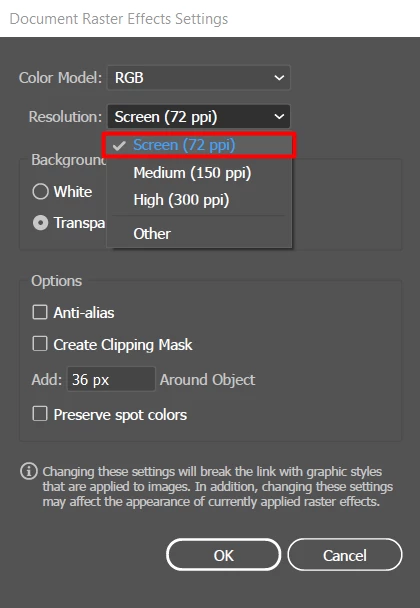
- Choose a lower resolution when editing the files: Document Raster Effects Settings (Effects > Document Raster Effects Settings) control rendering of Raster effects. Lowering the resolution while editing can help in optimizing the performance.
- Choose the correct Rendering Mode:
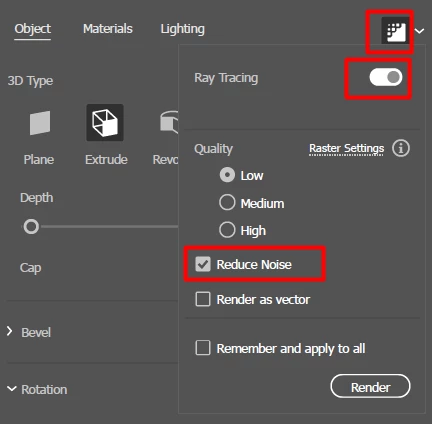
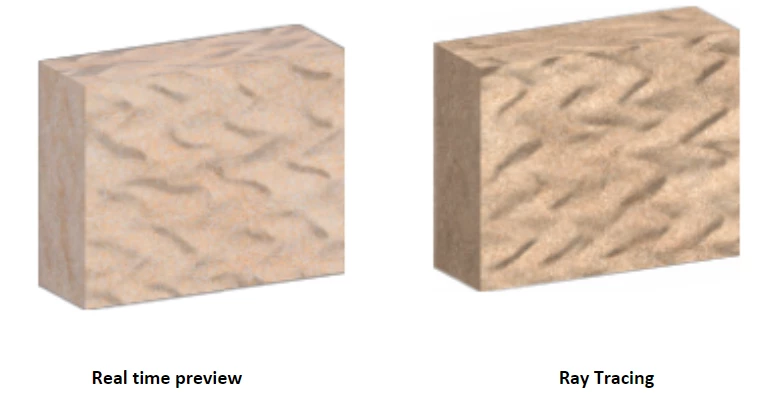
- Enable real time preview: Use real-time preview when editing your files
- Disable Ray Tracing: Ray Tracing produces high quality results with crisp lights and shadows; however, it is computationally intensive. Hence you might encounter lags (progress bars) while editing 3D effects when Ray Tracing is turned on. This lag depends on the size and complexity of the underlying path and also the device’s hardware configuration.
- Enable Reduce Noise: In Render settings, enabling “Reduce noise” setting (ON by default) can reduce the lag to a certain extent.
If you are still facing performance issues or getting errors while working with 3D features, please check out this article.
-Srishti
 AdChoices