Participating Frequently
February 14, 2022
Question

Blend Distorting non-attatched shape?

  • February 14, 2022
  • 2 replies
  • 737 views

Hello,

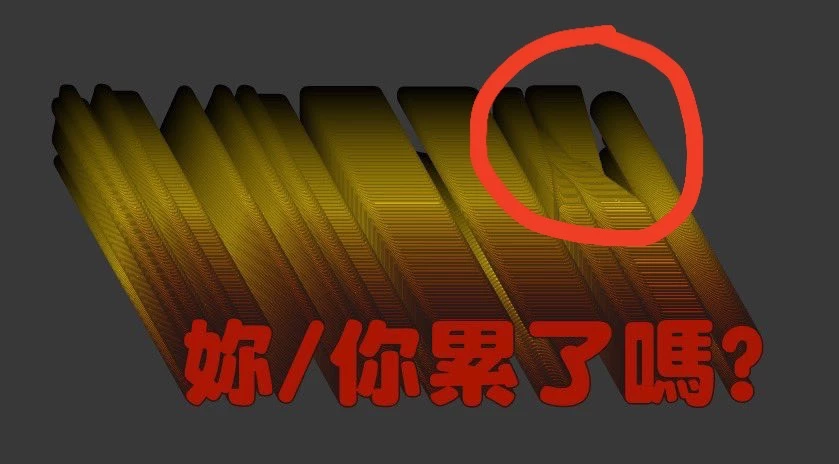
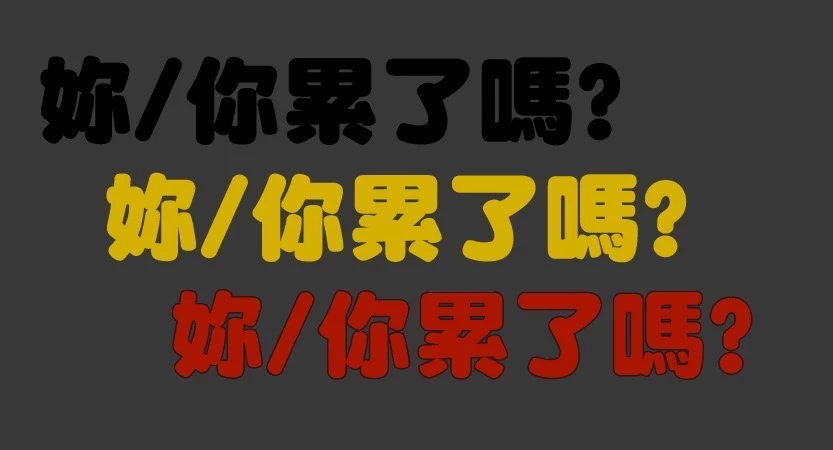
I have trying to make a smooth gradient out of these Chinese words with the blend tool.

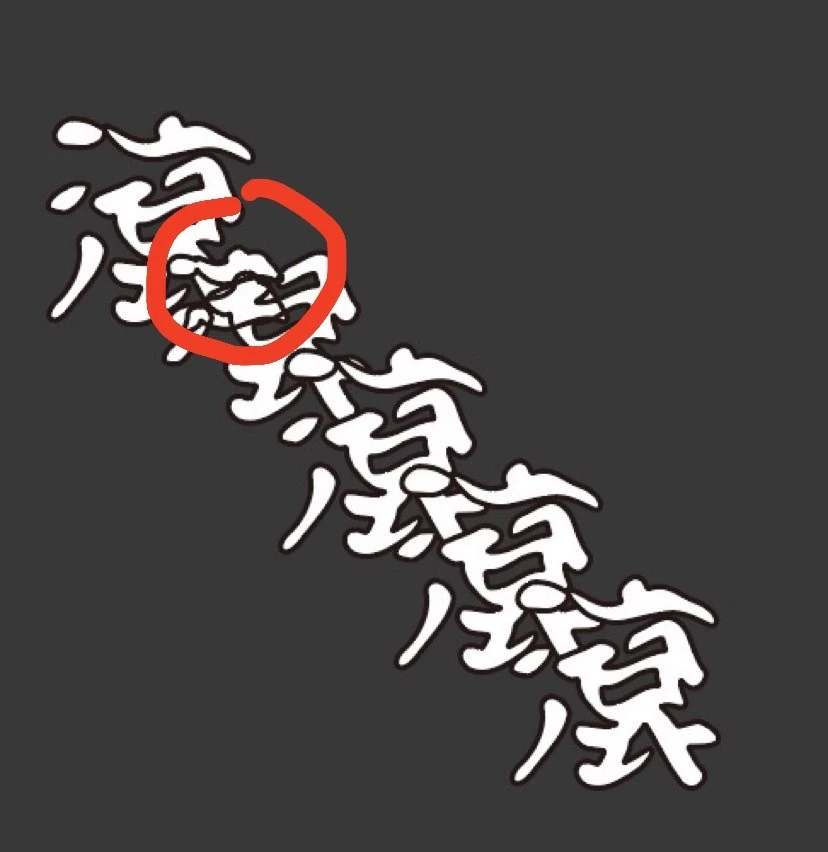
Somehow when I start with more then two original outlines it distorted. And this seems to happen when the word having the stokes that are not attaching to the restof the word structure.

So, why this is happening and how can I make it select correct anchor points with such shapes to make it look smooth?
 

This topic has been closed for replies.

2 replies

Jacob Bugge
Community Expert
Community Expert
February 15, 2022

皓堪,


As I (mis)understand it, why use a Blend at all?


Always keep the original artwork and work on a copy in cases like this.


For the desired smooth gradient as I (mis)interpret it, you can:


1) Select all the text, then Ungroup enough to have all the character parts as independent ungrouped paths, you can see them forming one rather long line of paths in the expanded Layer in the Layers panel;

2) Hold Ctrl/Cmd and press 8 to turn the whole set into one Compound Path, you can also see that in the Layers panel;

3) Create a large rectangle with no fill and no stroke and place it so that it extends past the characters on all sides, then hold Ctrl/Cmd and press X and then B to bring it beneath the character, as you can also see in the Layers panel;

4) Give the rectangle desired gradient, as a simple linear vertical gradient from black to yellow to red, you can see it behind the characters;

5) Select both the Compound Path of characters and the rectangle and hold Ctrl/Cmd and press 7, this Clipping Mask/clipping set will show the gradient inside the characters and gide it outside them.


This ought to give you the desired (appearance of the) gradient down through the characters.


If you wish to have the gradient follow the characters at a slanting angle, as they appear in your first screebshot, you can just set the desired angle in the Gradient panel; you can also use a slanting rectangle, but neither its shape/direction nor its size matter because any part outside the characters will be hidden.


You can read more about Clipping Masks here,

https://helpx.adobe.com/cn/search-results.html?q=Clipping+Mask&scope=[%22helpx%22]&subscope=[]&limit=10&start_index=0&sort_orderby=relevancy&sort_order=desc&post_facet_filters={%22applicable_products%22%3A[]}


including here (first on the list),

https://helpx.adobe.com/cn/illustrator/using/clipping-masks.html

Participating Frequently
February 15, 2022

Thanks for the information. It might take some time for me to read and understand it and translate into Chinese version's tool name I'll do it next day! Hope you the best!

Jacob Bugge
Community Expert
Community Expert
February 15, 2022

You are welcome, 皓堪.


I hope you will report your findings.


To find the Chinese name for a tool like Compound Path, you can do this, when you click the links they will show what happens:


I) Open this empty search:

https://helpx.adobe.com/search-results.html?q=&scope=%5B%22helpx%22%5D&subscope=%5B%5D&limit=10&start_index=0&sort_orderby=relevancy&sort_order=desc&post_facet_filters=%7B%22applicable_products%22%3A%5B%5D%7D


II) Enter the English name Compound Path in the search box as here, where you can see the name Compound Path in big characters on the black background:

https://helpx.adobe.com/search-results.html?q=Compound+Path&scope=%5B%22helpx%22%5D&subscope=%5B%5D&limit=10&start_index=0&sort_orderby=relevancy&sort_order=desc&post_facet_filters=%7B%22applicable_products%22%3A%5B%5D%7D


III) In the URL, add /cn after helpx.adobe.com so it becomes helpx.adobe.com/cn:

https://helpx.adobe.com/cn/search-results.html?q=Compound+Path&scope=[%22helpx%22]&subscope=[]&limit=10&start_index=0&sort_orderby=relevancy&sort_order=desc&post_facet_filters={%22applicable_products%22%3A[]}


Then you can see the Chinese name for Compound Path 複合路徑 to the far right in the first line under the search box, and it is repeated in blue 複合路徑 in the list of search results where you can also find Chinese instructions how to use it.


michelew83603738
Community Expert
Community Expert
February 14, 2022

I am not sure what you mean by "having the stokes that are not attaching to the restof the word structure," but generally you do not want to have an outline on things that you are blending, as you will not really see the color blend as well if everything has the same color stroke. So I suggest you try it without the stroke. It also appears that you are perhaps not clicking at the same place on all 3 objects and that is why you are getting the distortion. Things can twist if you select different places when you click to blend.

Participating Frequently
February 14, 2022

For the strokes, I mean for exapmle: this word means "roll" in Chinese, and some strokes are away form others.

I use the tool bar on the top of the screen by selecting all objects to do the blend effect, that is why I wonder how it is not working.

michelew83603738
Community Expert
Community Expert
February 15, 2022

Oh, I see. I would probably have to take a look at the actual file to figure out what is going on or a work around.