
Astrid Martirossian
Participant
April 30, 2020
Answered

Blend modes do not behave the same way across different documents

  • April 30, 2020
  • 2 replies
  • 1735 views

Hi all!


In one Illustrator document, I have a group of several elements.
One element, a black-and-white texture image (placed as a linked file), uses the Screen blend mode and is placed on top of a group of blue lines.
It looks like this:
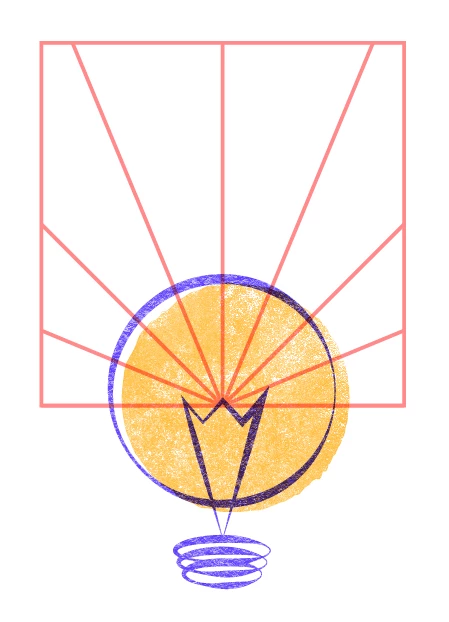
All is fine and well, until I want to copy this group of elements to another opened Illustrator document. Then it suddenly looks like this:
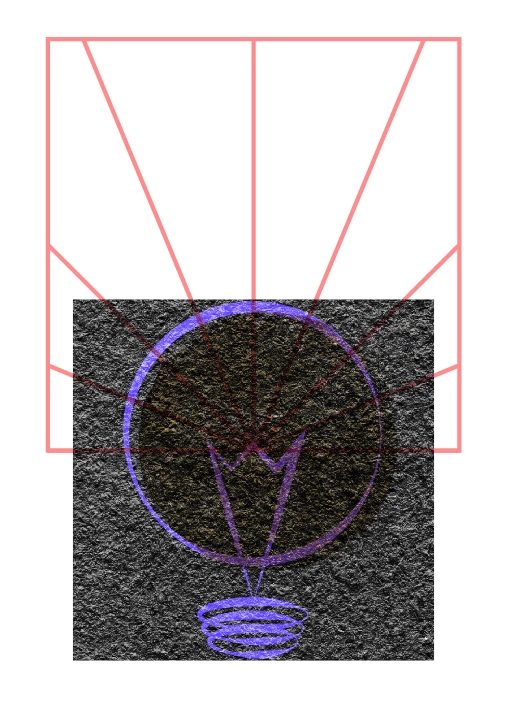


Obviously this is not what I want.
I've tried copying the group back and forth between the two documents. It consistently behaves correctly in the first document, but gets messed up in the second document.
So I'm suspecting there is some setting in the second document that messes this up... but what?


Some other info:
- I work in Adobe Illustrator CC 2020 - 24.0.1 (64-bit).
- The documents are both set in RGB mode.
- I've tried resetting preferences, this did not work.
- Absolutely no changes are made to the elements before or after copying and pasting them.

Does anyone know or have a guess as to what causes this strange behaviour?


Cheers,
Astrid

This topic has been closed for replies.
Correct answer Monika Gause

Is there background artwork in one of the documents but not in the other one?

2 replies

Monika Gause
Community Expert
Monika GauseCommunity ExpertCorrect answer
Community Expert
April 30, 2020

Is there background artwork in one of the documents but not in the other one?

Astrid Martirossian
Participant
April 30, 2020

I just realized that one has a locked white background, and the other doesn't. Turns out that was the culprit!
Thanks!


So stupid that I failed to notice that, haha

Ton Frederiks
Community Expert
Community Expert
April 30, 2020

Astrid, can you check if the screen mode is applied to the layer?

Click on the layer that contains the texture image and on the circle to the right of the layer name.

Check in the Appearance panel if the screen mode is applied to the layer.

If so, set it to Normal. Deselect everything, select the texture and apply the Screen mode to the texture.

Astrid Martirossian
Participant
April 30, 2020

Yes, Screen mode is applied to the layer.
I just tried setting it to Normal and back to Screen, but it still gives me the wrong appearance.

Ton Frederiks
Community Expert
Community Expert
April 30, 2020

Just apply it to the image.

Maybe cut the image, delete the layer.

Create a new one, paste and apply the screen mode.