Participating Frequently
May 2, 2019
Question

Blend tool issues

  • May 2, 2019
  • 4 replies
  • 571 views

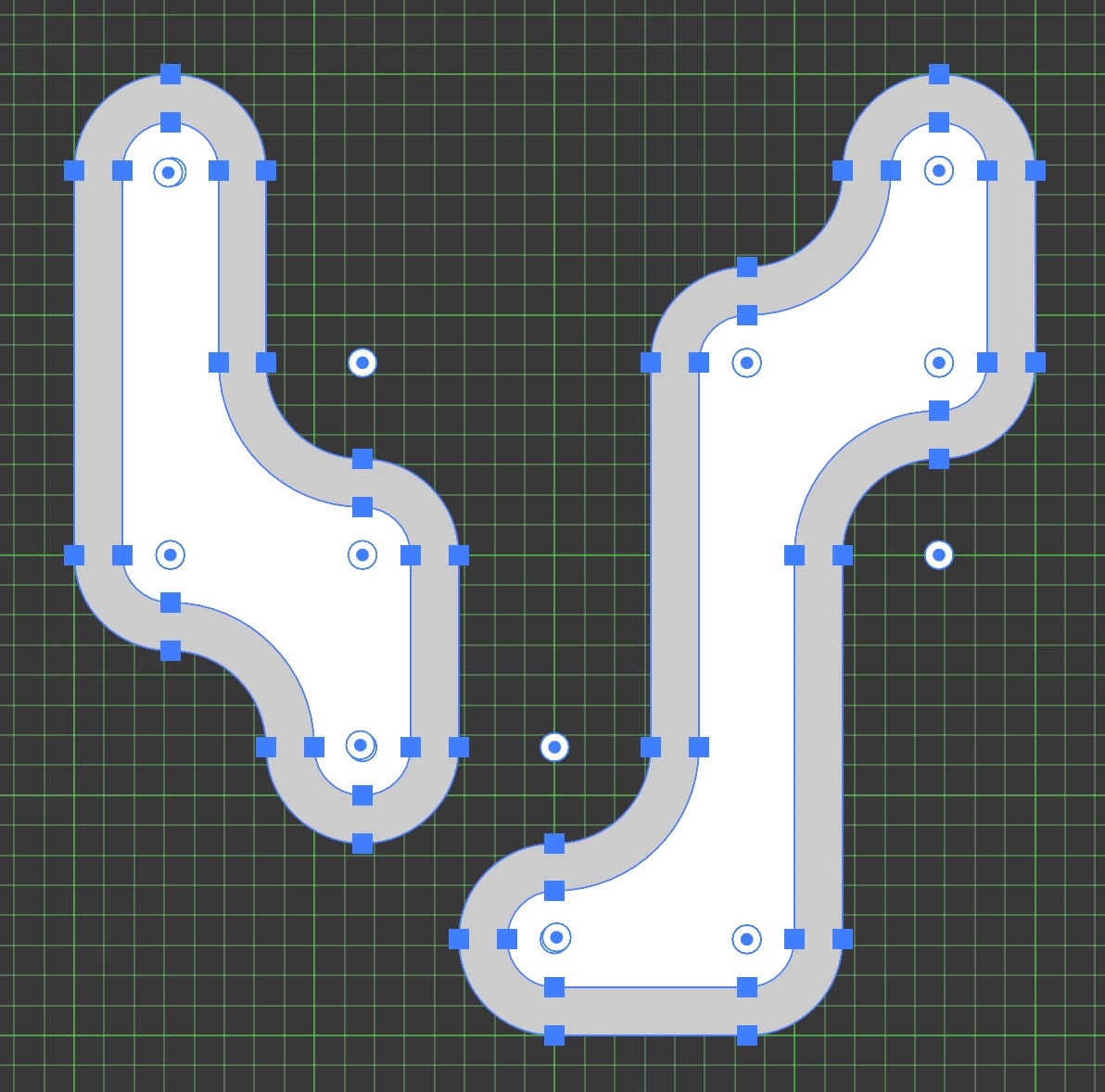
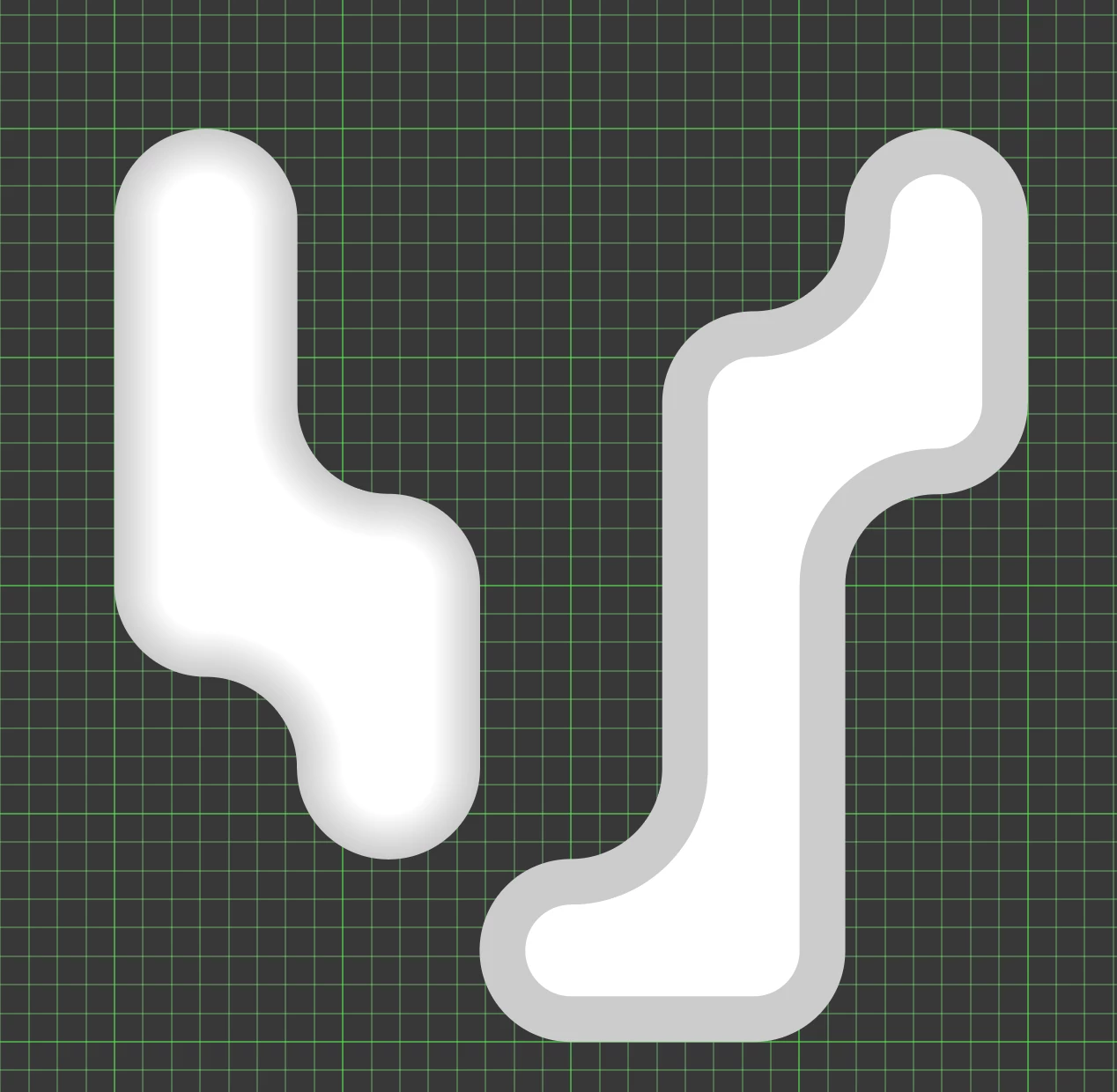
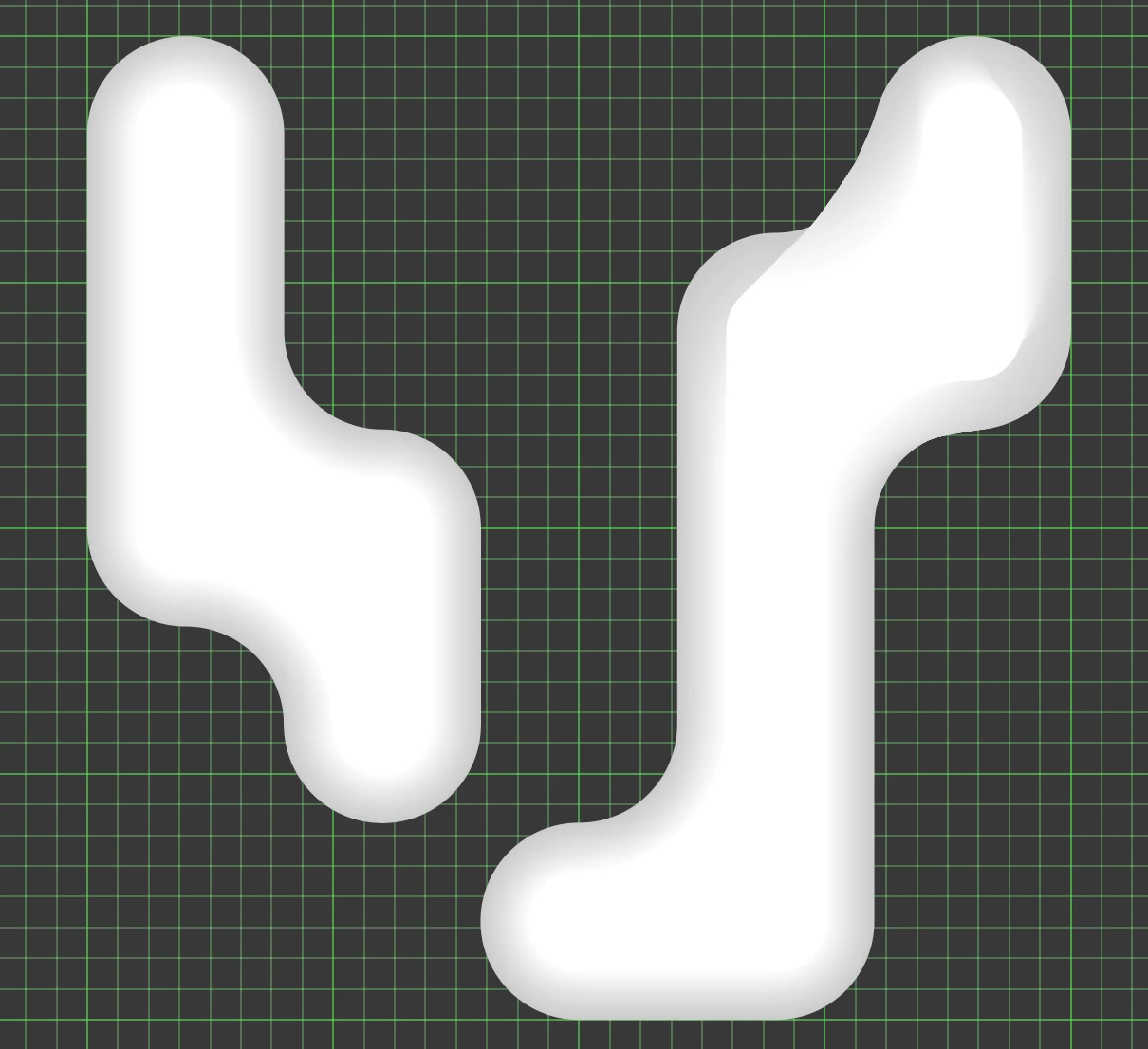
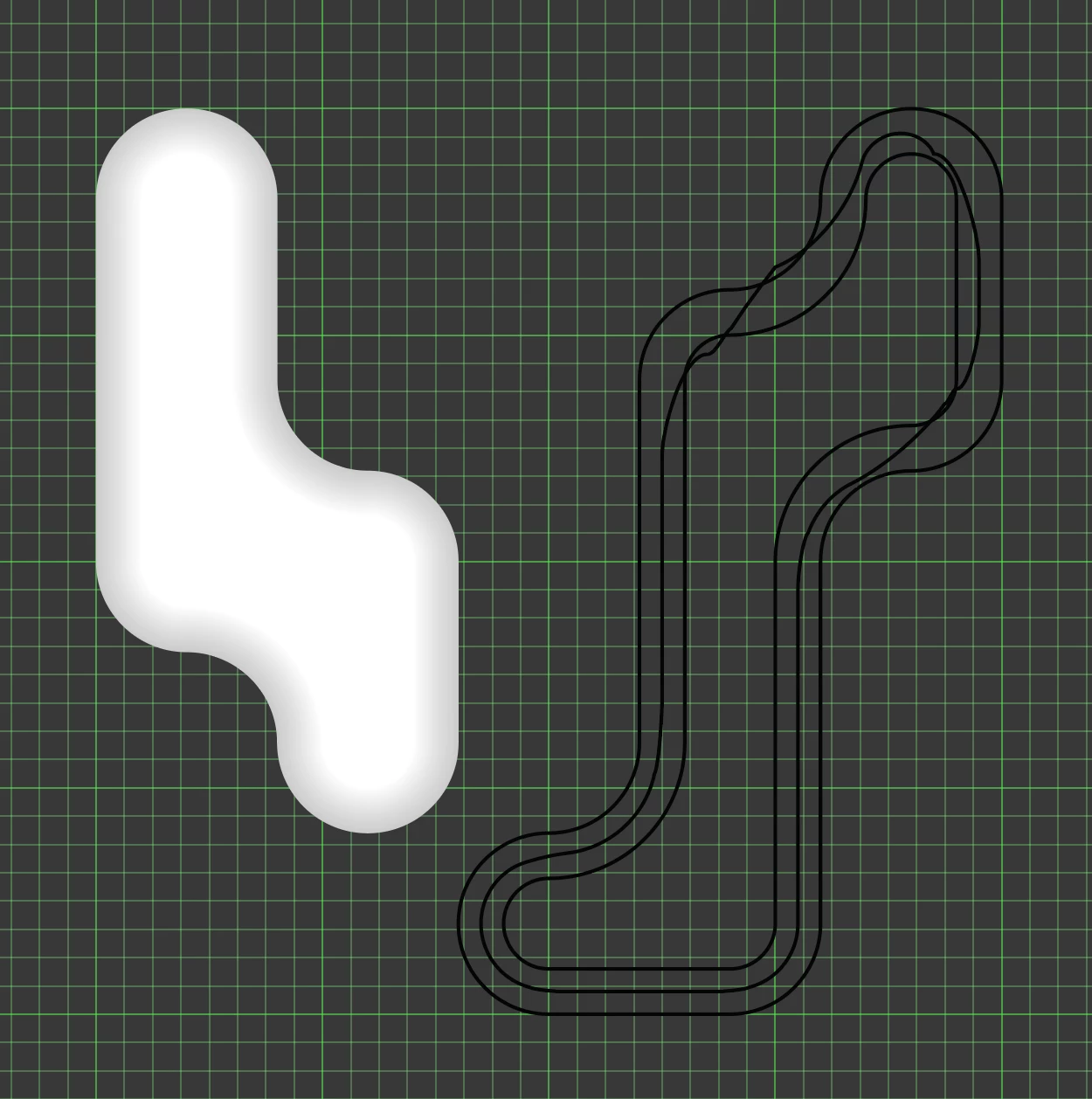
I made two shapes and then used the offset path to make each shape have an inner shape so that I can blend them with a highlight and shadow and give them a slightly 3d look. One shape blends perfectly while the other gives me some awkward lines and does not follow the path.
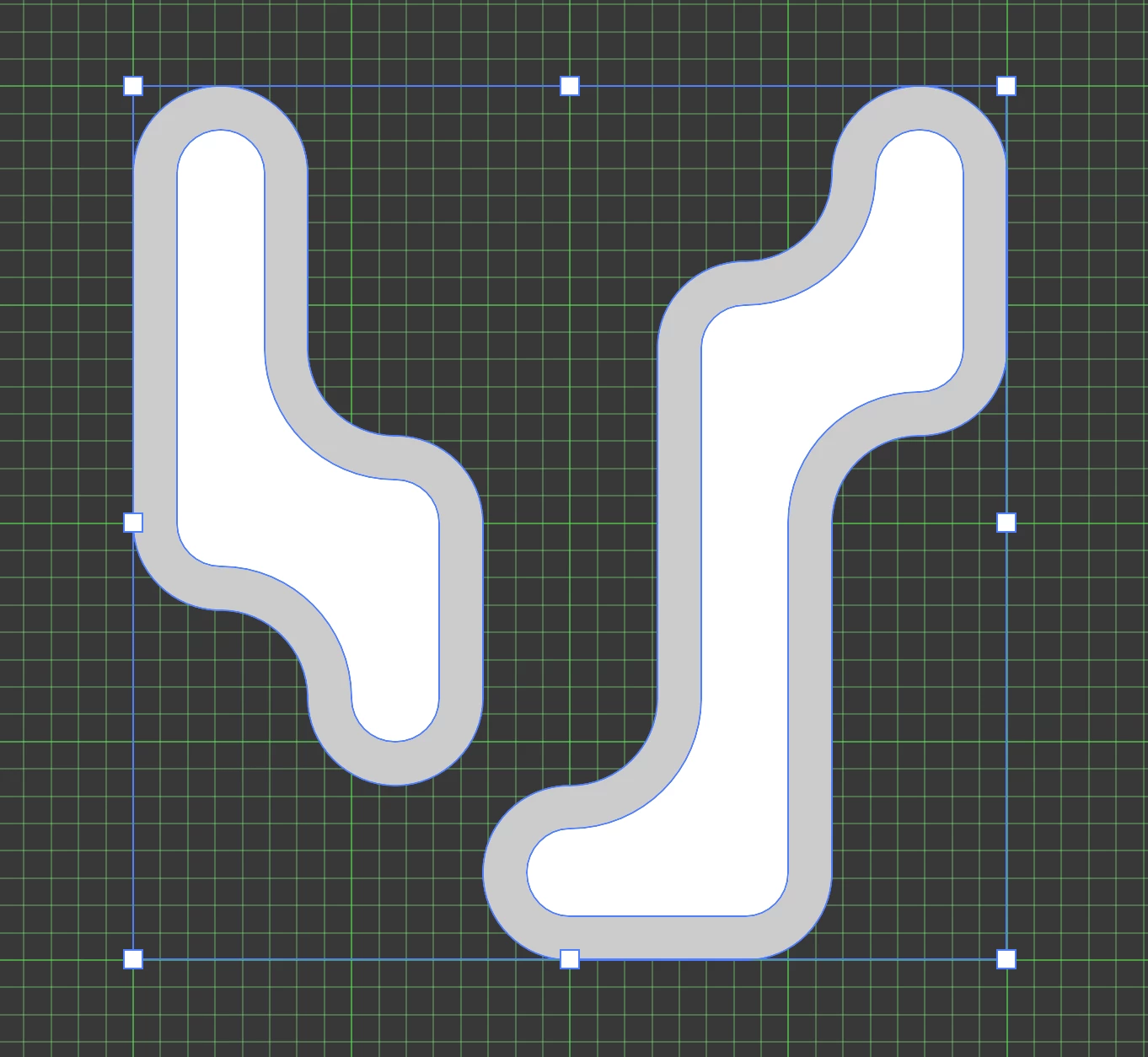
please help! I'm not sure why it's doing this

This topic has been closed for replies.

4 replies

Participating Frequently
May 2, 2019

Is there a way to see or find these overlapping points?

c.pfaffenbichler
Community Expert
Community Expert
May 2, 2019

Participating Frequently
May 2, 2019

interesting... let me find these hidden points and see if that helps! thank you for your help and will keep you posted on the outcome

Myra Ferguson
Community Expert
Community Expert
May 2, 2019

If the blend doesn't work, you could try achieving a similar effect with an inner glow by

  • Making the shape and its offset path one shape by going to Window > Pathfinder and clicking Unite
  • Going to the Appearance panel and clicking Add New Effect
  • Selecting Stylize > Inner Glow...
  • Changing the blend mode to Multiply in the dialog
  • Selecting a similar gray in the dialog
Monika Gause
Community Expert
Community Expert
May 2, 2019

Please select an equal number of opposite points on those shapes with the direct selection tool (but not all the points)

Then use the blend tool and click on one point on one path and the corresponding point on the other path (both must have been selected on the first step)

Participating Frequently
May 2, 2019

Thank you for the response... I tried what you sadi and the same thing in the end

c.pfaffenbichler
Community Expert
Community Expert
May 2, 2019

Can you provide the file?