


Participant
April 16, 2023
Question

Blend tool not working

  • April 16, 2023
  • 4 replies
  • 746 views

My blend tool don't blend.when i try to blend two objects, one of the objects turns completely black, and the other one keeps its color. the "specified steps" window is also not clickable, the preview is disabled and I can't activate it again. this is the only tool that doesn't work for me. I already uninstalled the program several times but nothing changes, please help me guys, i can't find anything about this bug anywhere. (images below)

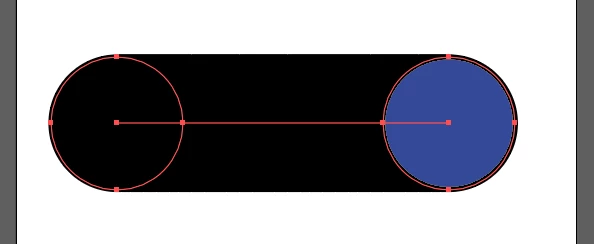


first image: before i make the blend

second image: when i make the blend


4 replies

pixxxelschubser
Community Expert
Community Expert
April 16, 2023

You can also set the stroke to [None]

Participant
April 22, 2025

I had the same problem as OP and this fixed it. I had to set the stroke to none and then it finally showed up how I wanted it to. 

Monika Gause
Community Expert
Community Expert
April 16, 2023

When you blend, one of the objects will always be behand the other one and the  blend steps stacked between them.


Reduce the number of steps to 3 or the like and then you will see the logic behind blends.

Jacob Bugge
Community Expert
Community Expert
April 16, 2023

cyberthai,


In addition to what Larry said, if this is only happening in a specific document, the best way is to just delete it (after rescuing any sound artwork) and start over in a new one.


Otherwise, resetting the preferences may be required, rescuing customized settings.


https://helpx.adobe.com/illustrator/using/setting-preferences.html


Larry G. Schneider
Community Expert
Community Expert
April 16, 2023

Have you tried fewer steps? Looks like the stroke is larger than the distance between the individual copies. If you delete the stroke does it look different?