
Known Participant
August 8, 2022
Answered

Blending objects not equally spaced

  • August 8, 2022
  • 4 replies
  • 451 views

I am trying to Blend circles around an oval shape. It works, but the spacing between circles it not equal all the way around. On the smaller end, top and bottom, the circles get closer together. I need them to be equally spaced around.
This topic has been closed for replies.
Correct answer kphotopage

Garyhatt, Hi


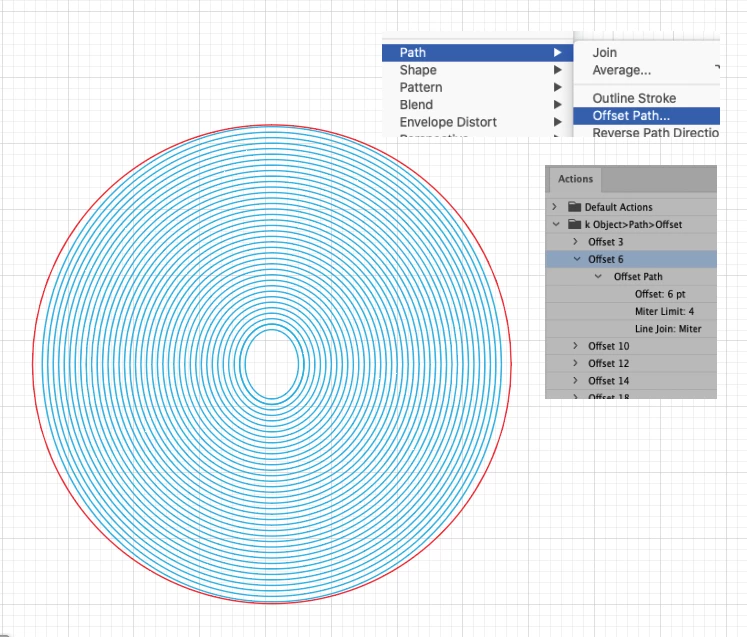
If you want equal spacing around an oval then I suggest you using Object>Path> Offset.

Here I used a simple Action I made. I kept hitting Play.

It will eventually create somewhat of a Circle. (A true Circle is shown in Red.)


K

4 replies

kphotopage
kphotopageCorrect answer
Legend
August 9, 2022

Garyhatt, Hi


If you want equal spacing around an oval then I suggest you using Object>Path> Offset.

Here I used a simple Action I made. I kept hitting Play.

It will eventually create somewhat of a Circle. (A true Circle is shown in Red.)


K

Anubhav M
Community Manager
Community Manager
August 8, 2022

Hello @garyhatt,


Thanks for reaching out. I hope the suggestions shared by Jacob helped resolve the problem. If not, kindly try the suggestions shared in this tutorial and check if it helps: https://www.youtube.com/watch?v=D1tADKOQZH0.


Looking forward to hearing from you.


Thanks,

Anubhav

Jacob Bugge
Community Expert
Community Expert
August 8, 2022

Gary,


Object>Path>Add Anchor Points is your friend (on the oval path/Blend Spine). You can try out how few times you need (in each case with varying Handle lengths, if any, and depending on step distance).


Mylenium
Legend
August 8, 2022

Show us a screenshot and your blend settings. You may need to tweak the tangents of the spine's anchor points for a more graceful distribution.


Mylenium