Flawless_life5C4D
Known Participant
June 8, 2018
Answered

Blur effect on one side only

  • June 8, 2018
  • 2 replies
  • 4662 views

Hello everyone,

I want to get this blur effect on illustrator as on screenshot belove:
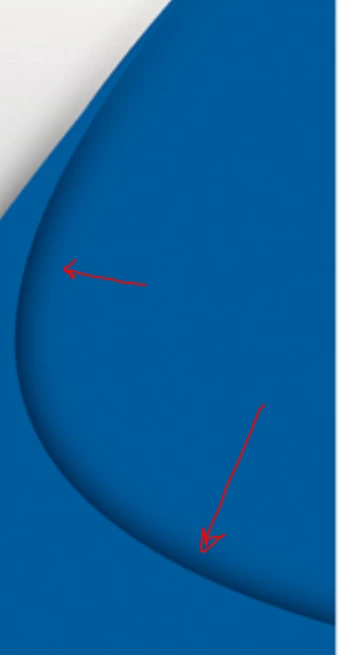
Could someone please help me?

Thanks,

Nico

    This topic has been closed for replies.
    Correct answer Jacob Bugge

    Nico,

    As I (mis)understand it, you may:

    1) Select the path on the top right (the one with the arrows on it), then Object>Path>Offset Path with a negative offset equalling the width of the colour transition, then have both paths in solid colour, the narrower offset path in the paler general colour and the original wider path in the much darker colour at the edge;

    2) Object>Blend>Blend Options, set Spacing to Smooth and Orientation to Align to Path, then select both paths from 1) and Object>Blend>Make.

    2 replies

    Jacob Bugge
    Community Expert
    Jacob BuggeCommunity ExpertCorrect answer
    Community Expert
    June 8, 2018

    Nico,

    As I (mis)understand it, you may:

    1) Select the path on the top right (the one with the arrows on it), then Object>Path>Offset Path with a negative offset equalling the width of the colour transition, then have both paths in solid colour, the narrower offset path in the paler general colour and the original wider path in the much darker colour at the edge;

    2) Object>Blend>Blend Options, set Spacing to Smooth and Orientation to Align to Path, then select both paths from 1) and Object>Blend>Make.

    Myra Ferguson
    Community Expert
    Community Expert
    June 8, 2018

    I can't tell exactly how you have it constructed, so you might have to do some adjusting. If the shape with the curve is the lower right piece, then you can select it, go to Effect > Stylize > Drop Shadow... and adjust the settings there. The reason I mention how the shape is constructed is that Illustrator will apply the shadow to the entire shape selected and you might not want the shadow all the way around.

    Myra Ferguson
    Community Expert
    Community Expert
    June 8, 2018

    Whoops. I just noticed the title of your post. So you do want the shadow only on one side. Here's what you can do. Still do the above where you make the drop shadow. Then go to Object > Expand and then ungroup the result. You'll wind up with the original shape and an image which is a transparent image of the shadow. Select the shadow and go to Object > Crop Image to crop off the edges you don't want. (If you have your workspace set to Essentials Classic, you can go to the control bar above the artboard to Crop Image.)