jonathonlt1_2
Participant
December 4, 2018
Question

Bounding Box Changed in 2019 Update (Screen Shot Included)

  • December 4, 2018
  • 4 replies
  • 1030 views

Hi all!

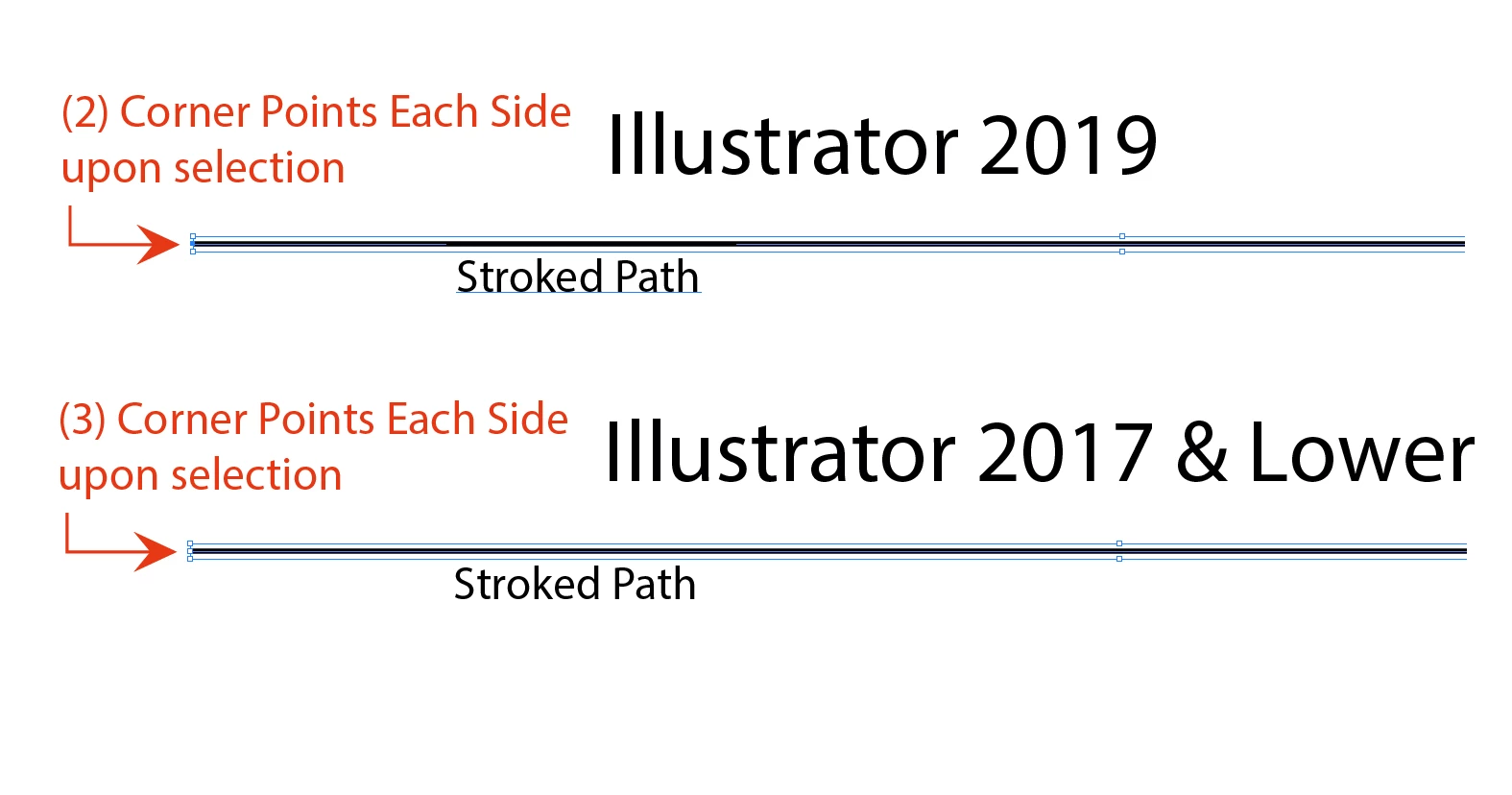
I have searched this topic up and down and have went through my preferences front to back and I can't figure this out.  If you look at my attached screenshot, it explains what I mean.  In the most recent update to 2019, the stroke bounding box was changed for some reason, and I can't figure out how to get the "3-point anchor display" back.  It used to be so easy to scale strokes horizontally.  Instead, I now have to use the Direct Selection arrow (while holding shift) to keep it absolutely straight.  It seems like there should be an easier way to bring this back.  What am I missing??

Thank you! 
This topic has been closed for replies.

4 replies

Participant
August 6, 2019

This same issue you are having drove me CRAZY. I finally went back to the 2018 versions (you can reinstall from the CC app), and got back the old feature to scale horizontally. I suggest you do the same. You'd think a newer version would make issues better, but in this case it made it worse!

Ton Frederiks
Community Expert
Community Expert
August 6, 2019
tromboniator
Community Expert
Community Expert
January 11, 2019

Isn't it just as easy to select the Direct Selection tool as the Selection Tool? Then, if you have Smart Guides enabled, just click and drag on an anchor point at the end of the line segment, and you get the Line Extension annotation and – the lengthening line segment snaps to the existing direction, so you don't have to hold the shift key. And it works at any angle, not just horizontal and vertical.

Peter

barbara_a7746676
Community Expert
Community Expert
December 4, 2018

When the path is very narrow, only two anchor point will show.

If I use that same path and make it taller, three anchor points will show.

Or, if you zoom in more closely on the narrower path, you will see the three anchor points.

jonathonlt1_2
Participant
December 4, 2018

This is only in regards to stroked paths, not objects.  What you're saying for objects when you zoom in is correct.  That same action does not apply to stroked paths.  I can be at 6400% Scale and still, only (2) corners show on a stroke. 

John Mensinger
Community Expert
Community Expert
January 10, 2019

Okay well, here's what I see (in 23.0.1 running WIN 7)...

Path with 0.25 pt stroke @ 64000% zoom:

Choose select tool (black arrow), and select:

Deselect, choose Direct Select tool (white arrow), and select:

Still selected, choose select tool (black arrow):

For what it's worth, I do remember seeing the 2-end-handle condition shown by the OP, but I can't seem to make it happen.