
Participant
March 7, 2023
Answered

Bounding box problem

  • March 7, 2023
  • 3 replies
  • 1765 views

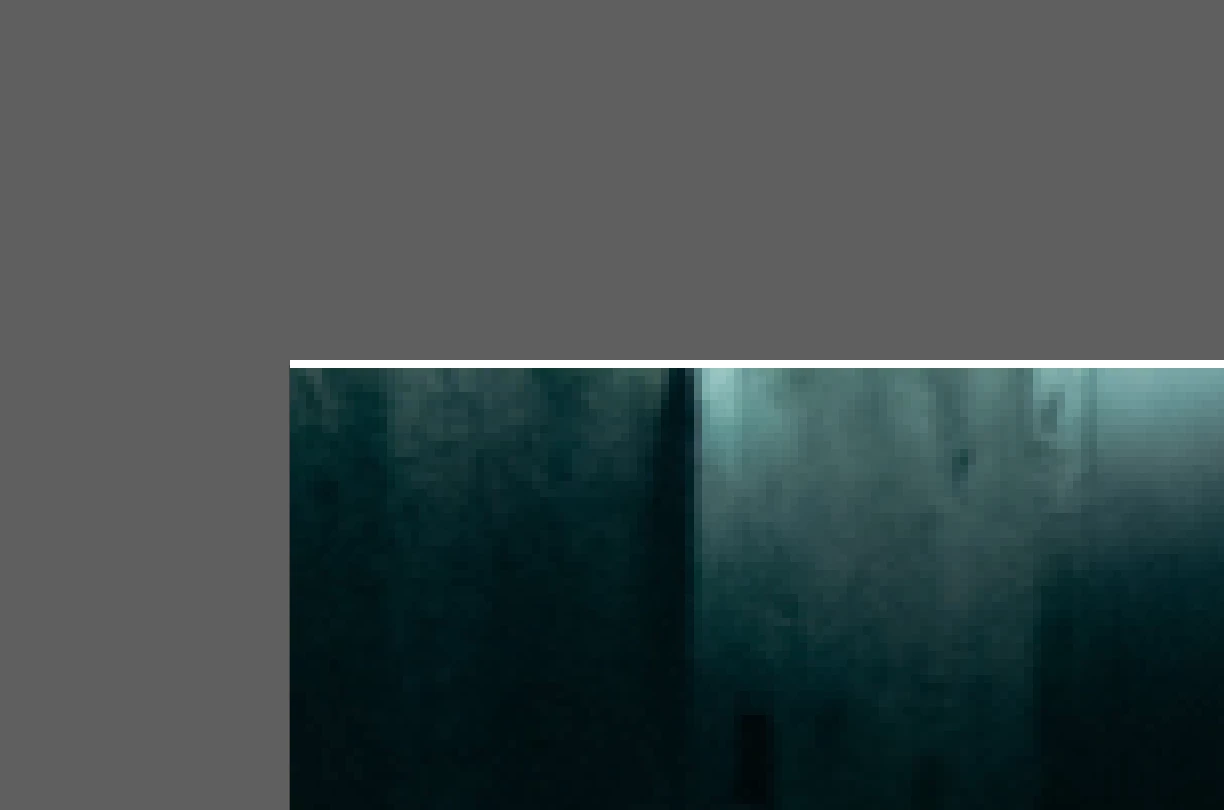
Hello, I've ran into problem with bounding box, which doesn't match with the edge of a shape, as you can see in a screenshot nr 1. 

 It causes an unsatisfactory result after exporting selection in PNG format.

Where can be the problem and how to fix it?
Correct answer Ton Frederiks

Im working not on artboard, but in "grey zone" and then exporting the selection. Size is 1640x624 px, coordinates upper left X: 316,424 Y: 1490,7427

There is another problem. After I crop the image, it adds a white stroke on 1-2 edges:

 So it looks like it is a bug in my Illustrator, I should reinstall or something.


Please change the X/Y coordinates to round numbers, fractional values will lead to rounding and can cause additional pixels. Cropping images can also introduce white pixels. Use clipping masks instead of cropping.

3 replies

Participant
September 15, 2025

I have the same problem but it doesn’t work for me. See XY coordinates.

Zoom is set to 6400. I need to make it seamless for a pattern. Does anyone have any ideas? 

Ton Frederiks
Community Expert
Community Expert
September 15, 2025

Try setting your units to pixels (right click in the Ruler), mm do not translate very well to rounded pixels.

Double click the Pattern and check the size in pixels in the Pattern maker.

Ton Frederiks
Community Expert
Community Expert
March 7, 2023

How much are you zoomed in?

Does changing Preview help? (Cmd or Ctrl E)

Is this a large document file?

Participant
March 7, 2023

I need to zoom in almost maximum in order to see the mismatch. But the artwork after exporting looks like this (has strokes around):

 In preview mode everything is fine, but the export is still broken.

Document size only 7,2 MB

Monika Gause
Community Expert
Community Expert
March 7, 2023

Just making the black rectangles larger than the artboard is not an option?

Imaginerie
Community Expert
Community Expert
March 7, 2023

Can you post a screenshot of the appearance panel alongside your artwork when it happens? Just in case there's something we've missed (a stroke hidden somewhere, an effect of some kind etc...)
Also, just to make sure, can you check you haven't got the snap to pixel ticked in the view menu?


in fact you can test with pixels and grids and see if it changes anything. I had the snap to pixels annoying me in the past...

Participant
March 7, 2023

 Nope, it's a simple rectangle. And no masks.

  Only snap to glyph is ticked. It's strange as I didn't have such problem before 😕😕