
theresay8795263
Participant
April 8, 2017
Question

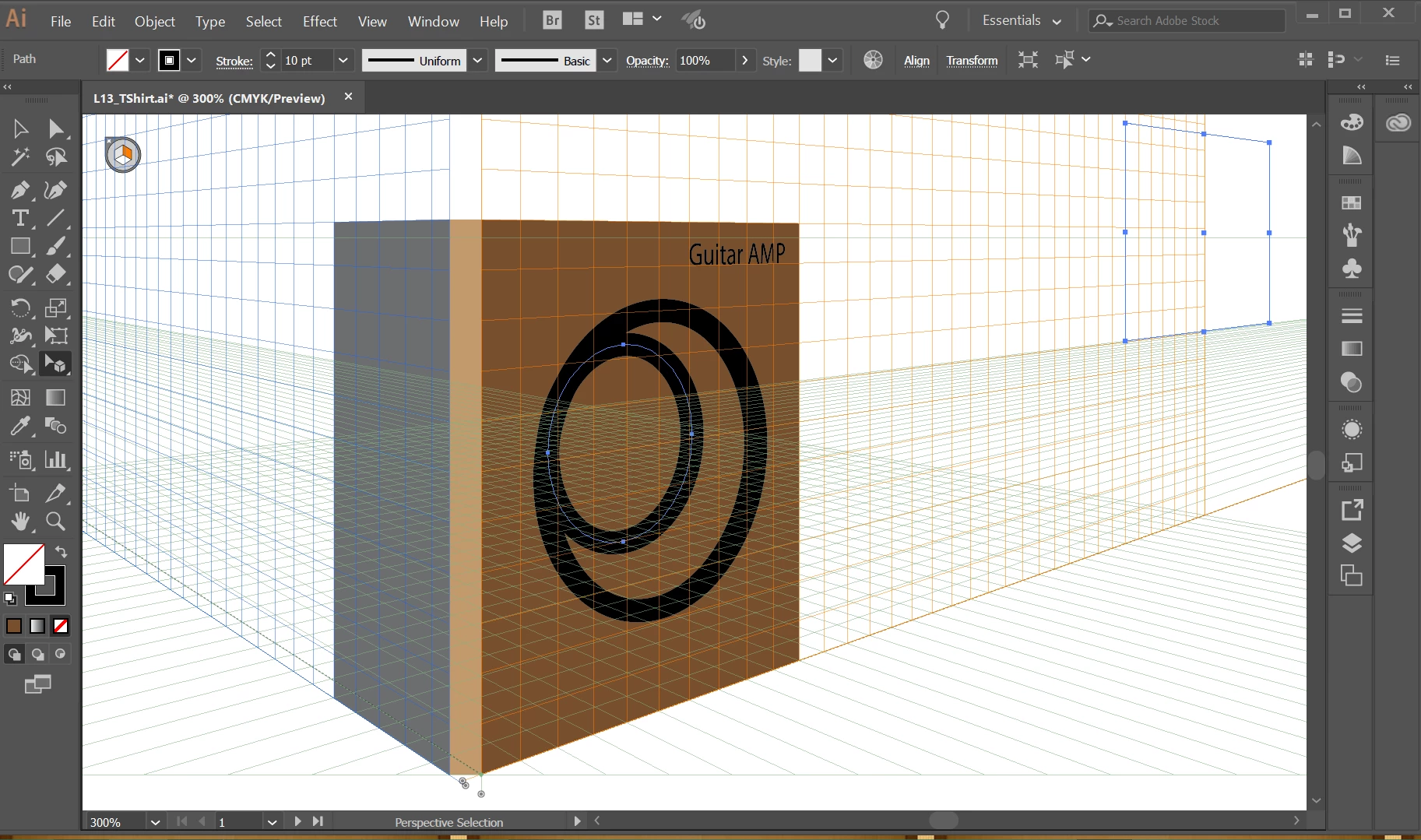
bounding box when using perspective selection tool is offset and prevents actions

  • April 8, 2017
  • 2 replies
  • 1389 views

I working through a Classroom in a Book for CC in Lesson 13. Since starting the section with the perspective tool, I've run into the same problem repeatedly - when I click on a object with the Perspective Selection Tool, the bounding box appears off to the right. I thought it was supposed to despite the picture in the book not showing it like that. Problem is that when I click Transform in the Control panel, and change the 'x' value, my object moves all over the place in seemingly random positions (increasing then decreasing the number does not move it back, but to a new location). I was supposed to resize the object not move it. After many tries, and undoing them, I selected the Select Tool, then the object, then the Perspective Selection Tool. This time I didn't try the Transform link in the Control Panel, but tried moving the anchor points on the object. It worked but as soon as I let go, the bounding box re-appeared off to the right and I had to do this each time I was to scale an object. Now, I'm supposed to choose my object, and go to Object > Perspective > Move Plane to Match Object. When I click the Perspective Selection Tool, the bounding box always shows right where it should be, until I try to do something and then it moves off to the right. This time even going back to the Select Tool is not resetting it. I looked up several forums and have tried what I could find. Going to Object > Transform > Reset Bounding Box resets it but nothing happens when I Move Plane to Match Object and the bounding box immediately re-appears off to the right again. Please help! I've been searching online for quite a while with no solutions.
This topic has been closed for replies.

2 replies

jane-e
Community Expert
Community Expert
April 8, 2017

I ran into identical issues last night, also in Lesson 13 in Classroom in a Book, using the Perspective Selection tool.

Turning off all the pixel snapping options did not help.

jane-e
Community Expert
Community Expert
April 8, 2017

theresay8795263

I started a new document: Letter, Landscape, and so far am not having the issues. I went back to Lesson 13 and the issues reappear immediately. Last night I got so frustrated that I went to bed and gave up. This issues were not in the 2015 CIB.

I reset Preferences, but I don't think that's the issue, as the problem is still in the Lesson 13 file and not in the new file.

For now, try the exercise in a new document and see if that works. Please post back.

theresay8795263
Participant
April 8, 2017

Hi Jane-e --thanks!! I did run into some problems in the new document when it decided it was open elsewhere or locked (it wasn't) but I wonder if that is because I tried to duplicate too much from the lesson document. I started a new file again and, lo and behold, NO ISSUES!! Thank you so much for sharing about running into the same problems with that lesson and what you found. Saved my sanity.

Monika Gause
Community Expert
Community Expert
April 8, 2017

This issue is happening here and there and there are quite a few threads on it (search for "Bounding box offset")

When did you last restart the computer?

theresay8795263
Participant
April 8, 2017

Hi Monika - I actually had restarted my computer and then updated Illustrator (it said it needed one) just before starting this lesson. I also had checked several threads and tried their suggestions but nothing had worked. After trying it in a new document as Jane-e suggested, everything worked as expected so I suspect that as Jane-e suspects, that the file is corrupted.