Participating Frequently
October 13, 2018
Answered

Can anyone help me clean up a file?

  • October 13, 2018
  • 6 replies
  • 3397 views

Hello!

I usually pride myself in organizing my Illustrator files. But I have one that is a mess! I don't know how much of a problem it is (or would be for print, etc), but the clipping mask makes this file full of layers and makes me feel overwhelmed! I need to deliver the final file to my client today and I don't feel comfortable sending it like this. Can anyone take a look and give me any advice. I don't know how to share a file on here, but I'm sure theres a way?

Thank you so much!!!!

Rebecca

This topic has been closed for replies.
Correct answer christof_hoste_BE

Hi, i looked at your logo and did some things to get rid of the hairlines.

If you look to the outline version of the logo you see a lot of paths on the original (right) and less on the edited one (left).
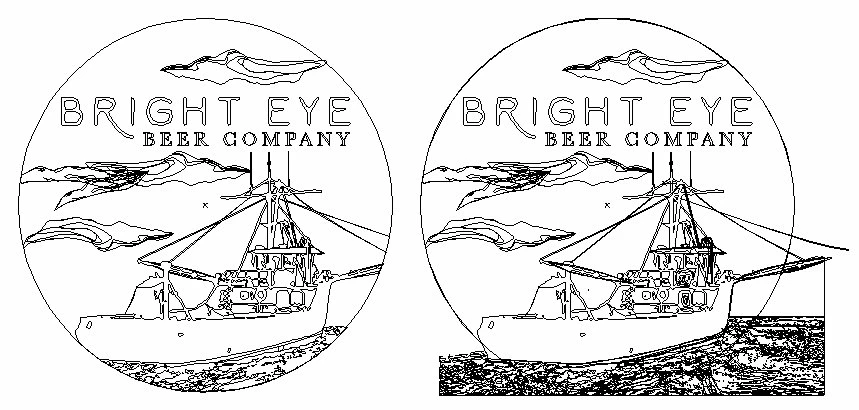
To clean up the file i did following things:

Clean up the paths: crop the logo to the cikel

– select the cirkel path and the whole logo and in the pathfinder select crop

Clean up the colors: (to many, if you want less path, you need less colors) (less = more :-) )

Select the dominate colors and hide them, by select 1 color >> go to select > select same fill >> Object > Hide.

I did this with the blue and 4 shades of grey. All the others > sellect all > set to white.

Some of the path where part overlapping, others didn’t. So i did a combination of the Pathfinder tools Divide and Merge. At the end i selected the paths of the same color and made a Compound path of each color. (less path, easy to manage) (dont forget to delete the paths with no fill/stroke color after you apply a merge or divide)
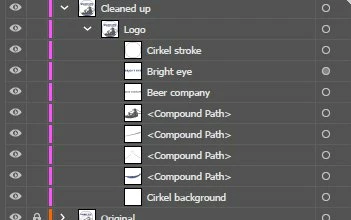
If you going to let the logo printed, it will always be better to eliminate colors, the blue is build up in 4 colors, i made an example in the workfile with the blue build up without the yellow, your printer will apreciate it :-) even better would be replace the blue by an Pantone color.

Hairlines in PDF preview comes (mostly) from the transparency flattener and in most cases they are harmless and only visible on screen, however: some of the renderstations used by printers can enlarge those hairlines, cause they will be treathed as paths and get trapped, and you dont want that… It’s my opinion, to avoid those hairlines, edit your artwork and get rid off all the settings wich are causing flattening by applying alternative settings with the same results.

For example: The clouds in the workfile are build up in various shades of grey ( K19%), above that transparency opacity of 40 % = Flattening = hairlines… You could set the transparency opacity of the cloud back to 100% and reduce the grey to K7,6% in the colorpallet = same result = no flattening = no hairline.

Dropbox - BrightEyeBeerLogo_edit.ai

6 replies

Participating Frequently
October 16, 2018

I am so sorry I disappeared. I had 2 jobs due and had a few issues.

Here is the link. Maybe I am making a bigger deal out of this than I should. I just feel like it is a messy file. Hopefully everyone says I'm wrong. Lol

Dropbox - BrightEyeBeerLogo.ai

If you wouldn't mind answering this question too... I saved a file in a few different formats, and the jpeg saved as a very bright royal blue when the actual color was a deep navy. I've never had this happen before. Slight color variations, yes. But this is drastic. Any reason that would happen?

Thank you so much!! I truly appreciate the help!

Ton Frederiks
Community Expert
Community Expert
October 16, 2018

It should not be too difficult to clean up the objects outside the clipping mask.

Probably easiest with the Eraser tool, just lock the background.

The color shifts are explainable. The document does not have a color profile.

Just assign one: Edit > Assign Profile

It may be good to convert the document to RGBm if you want to use the jpeg on the web.

christof_hoste_BE
Inspiring
October 14, 2018

Hi Rebecca, i have a lot of experience in making files "print ready", if still needed i will take a look at your document, normaly the use of cliping path is not an issue, even the use of many layers and in some cases the use of extra layers eliminate transparency issues. Instead of using the clipping path you can always use Mask, depending on the situation. Regards, Christof

ceyhun_akgun
Legend
October 13, 2018

Clipping masks are created in documents that are saved in lower versions. If you want to save a flexible PDF, you can choose Illustrator Defaults.

Graphic Designer Educator / PrePress Consultant
Monika Gause
Community Expert
Community Expert
October 13, 2018

ceyhun_akgun  schrieb

Clipping masks are created in documents that are saved in lower versions. If you want to save a flexible PDF, you can choose Illustrator Defaults.

Saving to lower versions won't usually create clipping masks. It will expand artwork but that doesn't necessarily cause clipping masks.

The Illustrator Default PDF also might not be suited for all kinds of output. Depending on where you send the PDF, quite the contrary. In my part of the world it will cause an awful lot of warning messages from your print service provider.

ceyhun_akgun
Legend
October 13, 2018

From the upper version, the subroutine is saved. If the other party opens the document with the lower version, it sees both the effects used and the use of these breaking masks in the places used.

Graphic Designer Educator / PrePress Consultant
Ton Frederiks
Community Expert
Community Expert
October 13, 2018

Or put it in your Creative Cloud Files folder and Right click or Ctrl Click to Share Link (and post the link here).

barbara_a7746676
Community Expert
Community Expert
October 13, 2018

If your print vendor will accept PDF files, you could save the Illustrator as Adobe PDF. Choose PDF/X-4-2010. That should give them a clean file to work with.

Monika Gause
Community Expert
Community Expert
October 13, 2018

You can upload it to Dropbox or the like and post a link here

