Known Participant
April 17, 2024
Answered

Can I get help?
  • April 17, 2024
  • 6 replies
  • 1167 views


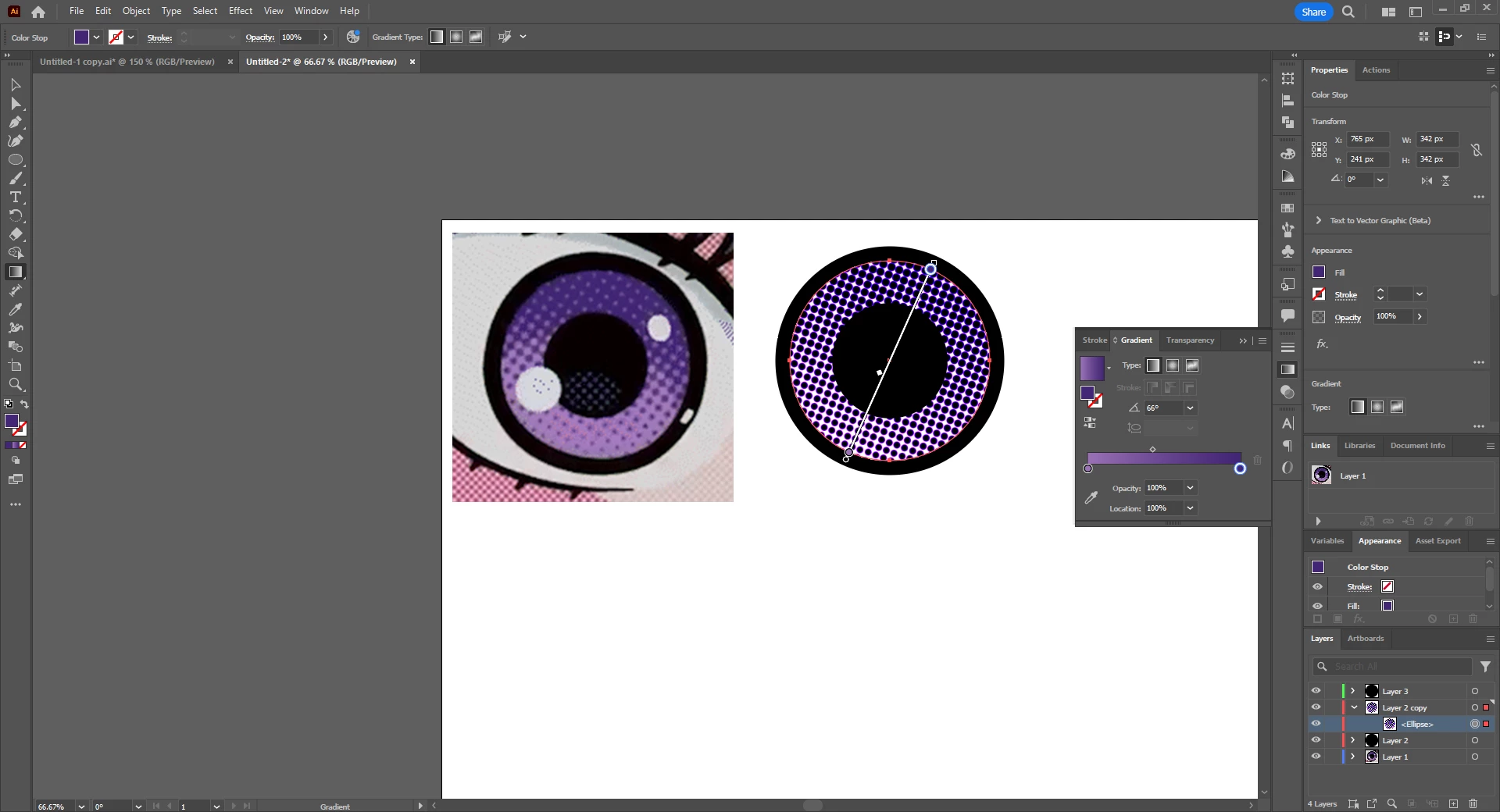
I tried to imitate a halftone effect like the eye on the left, but it ended up with black spots like the result on the right and ended up in a very different shape. Is there a way?

This topic has been closed for replies.
Correct answer Monika Gause

Make two rows of dots.

Group each of them

Object > Blend > Make

Double click the blend tool

Make a clipping mask


Like this?

https://youtu.be/B2so6LSDO_w 

6 replies

Inspiring
April 17, 2024

Illustrator used to create vector halftones, it would be a great tool if the geniuses brought it back.  Otherwise, it will require a third-party plug-in to achieve.  The gradient is set to "radial" to add to the illusion of roundness.  My 1-bit halftone is something that possibly could be traced, thereby converting it ( the file ) back to vector.

Known Participant
April 23, 2024

Thanks for the advice. It helped me a lot.

Community Expert
April 17, 2024

The easiest and most clean way to create vector halftone effects like that in Adobe Illustrator is by using Astute Graphics' Phantasm plugin.

Known Participant
April 23, 2024

thank you! When I looked into it, I found that it had a variety of functions.

Community Expert
April 23, 2024

It's a pretty cool plugin.

Inspiring
April 17, 2024

That is actually a radial gradient.  Not sure what size you are working at, but my approach is a little old school.  In Illustrator, create a circle, say 2.5" in diameter.  For your fill, use the radial gradient using black & white.  Set the black for approximately 80-85%, the white to around 20%.  Use the gradient tool to adjust the fill to go the way it appears in your sample ( sorry, offline so cannot show you screenshots ).  Open the gradient in Photoshop at 150ppi grayscale.  Use image > convert > 1-bit > halftone > shape = round > frequency around 25 LPi ( lines per inch ) > save as .tif > place in Illustrator and paint it purple over a light purple circle 2.5".  

Monika Gause
Community Expert
Monika GauseCommunity ExpertCorrect answer
Community Expert
April 17, 2024

Make two rows of dots.

Group each of them

Object > Blend > Make

Double click the blend tool

Make a clipping mask


Like this?

https://youtu.be/B2so6LSDO_w 

Known Participant
April 17, 2024

OMG! 
Did you make the video yourself?
I'm sorry to bother you because of me
what you told me was a great help
thank you for your kindness.

Monika Gause
Community Expert
Community Expert
April 17, 2024

You're welcome and I'm glad I could help you. If you want to further experiment with this you can apply different colors to the circles and see if this is useful for you.

Mike_Gondek10189183
Community Expert
Community Expert
April 17, 2024

First lets confirm am understanding your question correctly.

Looks to me like you are desiring to fil the dots group with a gradient from light purple to dark purple, but instead are getting all the dots filed with dark purple. That does not match the example on left where the dot size varies more to give the idea of a gradient getting darker at the top right.


I would remove all groups and fiulss adn mask. Then make a group of teh dots filed with none. Add a gradient at the group level. Wil be much quicker as your computer having a gradietn annotator for each dot will slow your computer.


Known Participant
April 17, 2024

It could have been cumbersome
but thank you so much for explaining it in such detail..

thank you so much
I salute you
thank you for your kindness.


Ton Frederiks
Community Expert
Community Expert
April 17, 2024

Photoshop creates those rasterdots.

Known Participant
April 17, 2024

Thank you for your response! But I'm worried that it's not a vector when I work in Photoshop..

Ton Frederiks
Community Expert
Community Expert
April 17, 2024

Yes, I misunderstood and thought you were talking about the way rhe rasterdots were different in your example.

Autotrace can do a good job when the image has sufficient resolution.

Here is the difference between Illustrator dots (left) and Photoshop dots: