Participating Frequently
November 21, 2022
Answered

Can someone help me replicate this pattern?

  • November 21, 2022
  • 3 replies
  • 1926 views

Hi! 

I'm pretty new to Illustrator, and I've been trying to replicate the "lacy" pattern that is happening in the attached image. Basically the "X's" happening behind the text, on the outer ring of the design. I don't really know where to start with this one. Any assistance would be appreciated. 


Thanks!

This topic has been closed for replies.
Correct answer kphotopage

Noah, See images below


Layers:

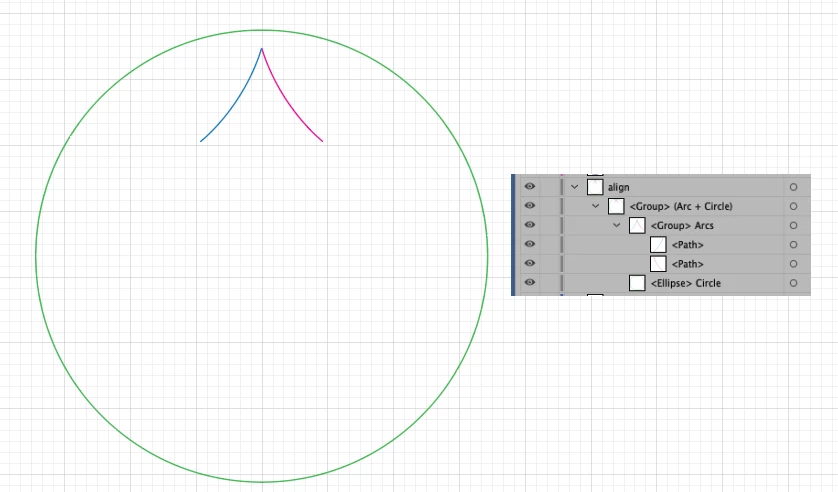
Arc. Dup and Flip. Group

Center inside a large circle. (Stroke color of None)

Group both the circle and arcs.


Select the Group

Apply Effect>Transform to that Group.

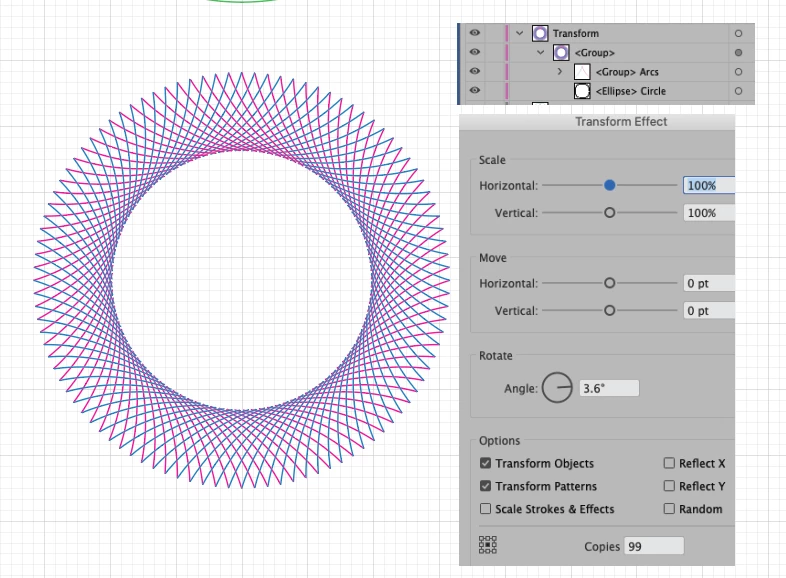
(I wanted 100 arcs. FYI, A Circle is 360 degrees. So 360/100=Angle 3.6)


I duplicated that. Put on different layer.

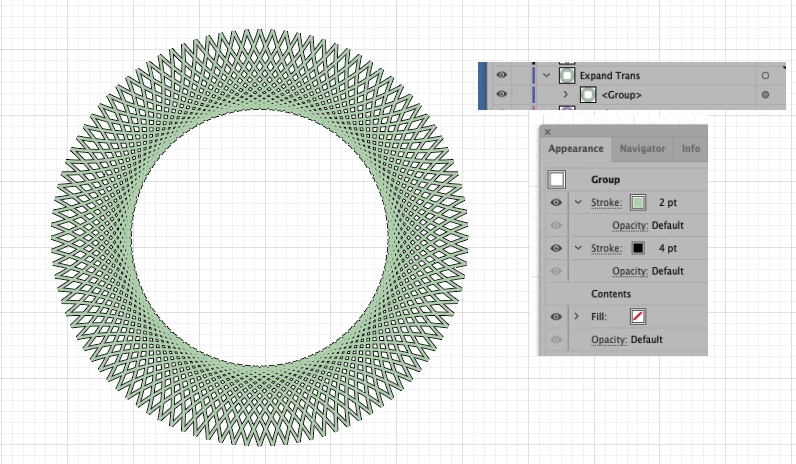
Expand Transform.

Select your Group.

Go to Appearance Panel. (Fly out menu- Add Stroke)

Select the top Stroke- I made green, 2pt

Select the bottom Stroke – I made black, 4pt


If you need any further assistance, members are here to help.


K

3 replies

kphotopage
Legend
November 22, 2022

Noah, Hi.


Here I started with two arcs. Group.

Then centered within a large circle. (Circle is colored green so you can see. Yours will be a stroke of Color none). Group

Effect>Transform

Expand Transform.

On that Group, Appearance Panel, Add two strokes.


K

Met1
Legend
November 22, 2022

Cool!

Ton Frederiks
Community Expert
Community Expert
November 22, 2022

Create a curve and add 2 strokes of different size and color in the Appearance panel. Set the bottom Opacity item in the Appearance panel to Lighten blend mode.

Click once with the Pen tool to add a single anchor point (no fill/stroke) right below the lower right of the curve. This will act as your rotation point.

Group the curve and the single anchor point

In the Appearance panel add a Distort & Transform > Transform effect and rotate multiple copies around the lower right transformation point.

Add another Transform effect to reflect a copy from the center along the X axis.

You can modify everything afterwards, direct select the curve to change the strokes, select the group to change the angle and the number of copies.

Edit: To avoid problems with the Screen blend mode when the object is placed on a background, check Isolate Blending in the transparency options for the Group.

Dave Creamer of IDEAS
Community Expert
Community Expert
November 22, 2022

Nice! I'm impressed.

David Creamer: Community Expert (ACI and ACE 1995-2023)
Ton Frederiks
Community Expert
Community Expert
November 22, 2022

Thanks David!

chrisg11235813
Participating Frequently
November 21, 2022

with strokes, draw an "X" pattern.

play with the stroke thickness, then "Outline stroke" - the strokes will become filled objects.

Use the pathfinder tool to merge the shapes.

Make the stroke of the new shape Black (or whatever colour) make the fill "None"

Now maybe play with the Warp effects.