Inspiring
February 12, 2014
Answered

Can't find "dimensions" info/control in Illustrator CC

  • February 12, 2014
  • 5 replies
  • 22746 views

In previous versions of Illustrator, there was a small window on the upper "toolbar" that displayed the dimensions of the selected item on the artboard. You could also use the H and V dropdowns to adjust dimensions manually, or you could type in the boxes to change the selected item's size, both proportionally or not, depending on whether the little "chain" link was clicked.

Here's a screenshot from Illustrator CS4 of the feature I'm talking about:

I've searched far and wide in Illustrator CC to find a way to toggle this panel on. Does anyone know where it is? It's NOT the Info palette, as that just gives you the dimensions of the selected item without any interactive controls.

TIA for pointing out what isn't obvious, at least to me...
    This topic has been closed for replies.
    Correct answer Doug A Roberts

    is that panel there at all? if not, Window > Control

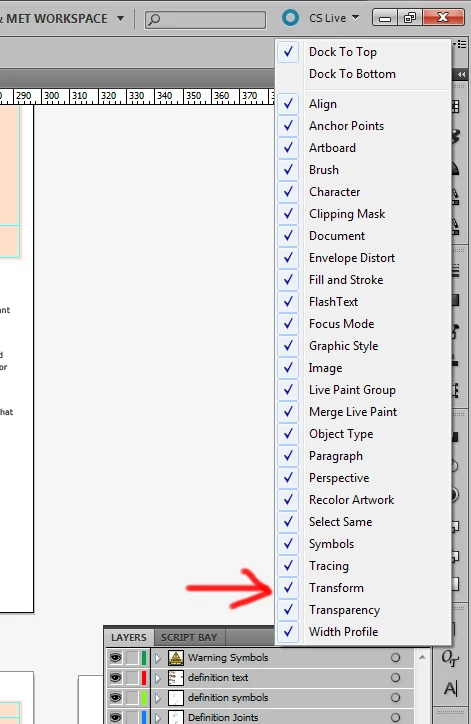
    if it is there but with no transform controls, have a look at the panel's drop down menu:

    i'm relying on not a lot having changed since CS5. if none of this helps, I can't be much more help

    5 replies

    Participant
    November 29, 2018

    If you disable Object Type in Dock Menu works fine, because you got a monitor space to option show up.

    Participant
    August 30, 2018

    Here you go!

    Under the Window tab.

    Participant
    August 14, 2018

    Did you ever figure out how to get the "toolbar" to display the dimensions of the selected item on the artboard? I cannot!!!  Can you help?

    Monika Gause
    Community Expert
    Community Expert
    August 14, 2018

      schrieb

    Did you ever figure out how to get the "toolbar" to display the dimensions of the selected item on the artboard? I cannot!!!  Can you help?

    Please see post #2

    Participant
    August 14, 2018

    I have the newest Illustrator and that is not an option for me. Unless that is something I am missing!

    Known Participant
    November 6, 2014

    If you want it as it was before you have to uncheck "Shapes" in the panel menu

    Participant
    October 15, 2015

    Thank you!

    Doug A Roberts
    Community Expert
    Doug A RobertsCommunity ExpertCorrect answer
    Community Expert
    February 12, 2014

    is that panel there at all? if not, Window > Control

    if it is there but with no transform controls, have a look at the panel's drop down menu:

    i'm relying on not a lot having changed since CS5. if none of this helps, I can't be much more help

    Inspiring
    February 12, 2014

    Thanks - it was there, all right. But I guess in CC the word "Transform" on the top bar is now a clickable link, which leans to the controls I'm looking for. If there's a way to make it appear expanded all the time, I dunno where that thing might be. After all, Opacity (also a clickable link here) shows the most commonly used control, the Opacity percentage, but somehow the Transform controls are now hidden in a panel that only appears when you click on the word "Transform".

    Not so convenient, and, in the traduition of Adobe interface control "tinkering", probably customizable somewhere or other. This issue is discussed here: http://forums.adobe.com/message/5160738, but without and definitive answer, I think. BUT, that discussion gave me a hint, which proved to be the answer!

    The "default" configuration of the top bar's included features, as selected from it's dropdown at the far top right, includes "everything" - some 25 different tools. If you deselect "enough" of them, voilá ! Back comes the display of whatever the interface "thinks" it has room to show!  I just deselected tools until the Transform controls returned from the Land of Interface Invisibility. This is especially dumb, as there is plenty of apparent physical space on the bar to display the Transform controls. Of course, if you're running an enormous monitor at very high resolution, all of this stuff just goes away...

    Thanks again for your suggestions!

    Doug A Roberts
    Community Expert
    Community Expert
    February 12, 2014

    yeah i thought the range of stuff it decides to display there expanded was just dependent on screen real estate. if you haven't changed monitors between version i'd guess it's just some interface tweaking they've done.