

Participant
Feb 12, 2020 3:14 PM UTC
Answered

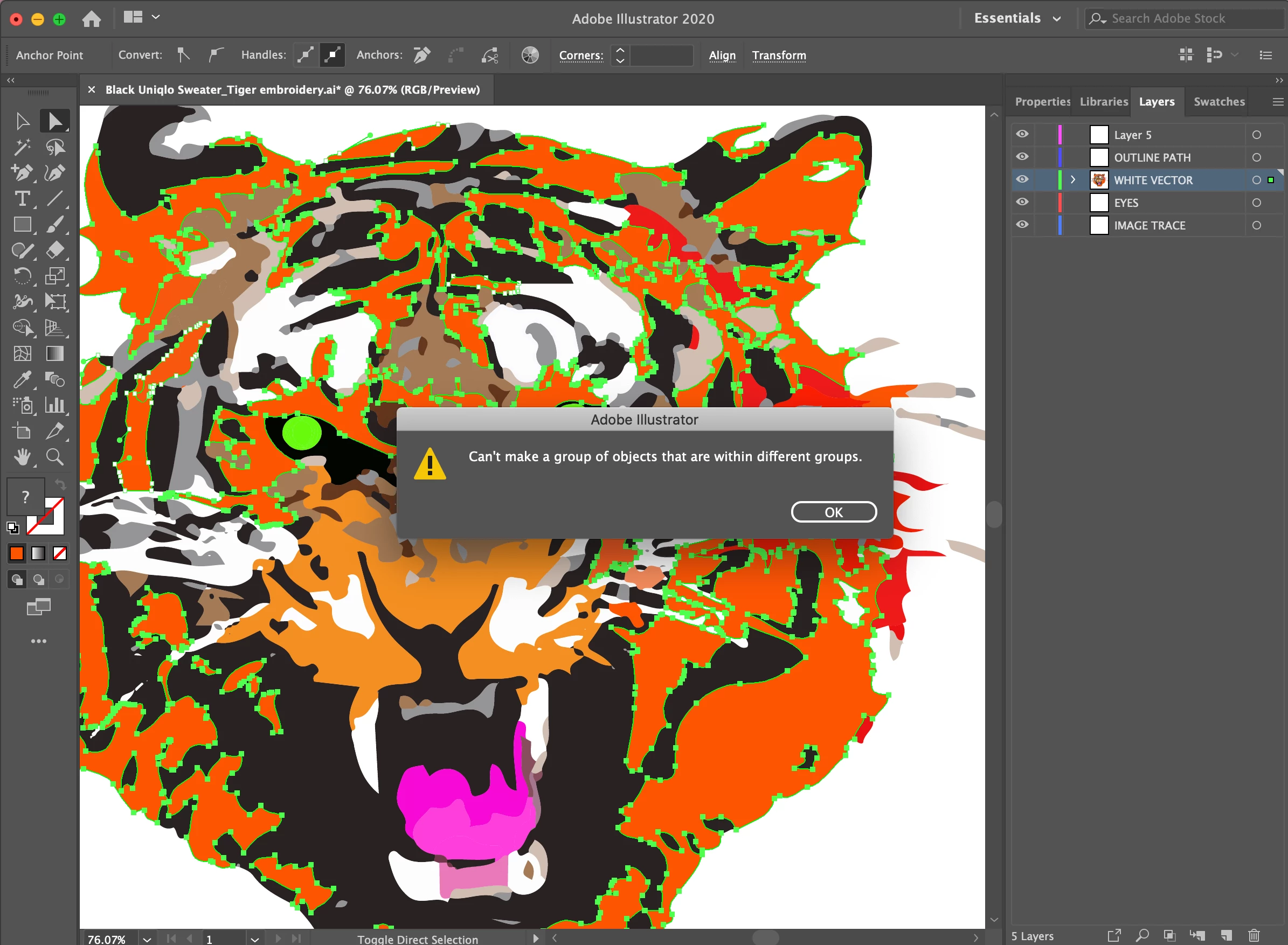
"Can't make a group of objects that are within different groups"

The error message when I try to group all the orange vector shapes together. WHAT DO I DO? 


When I try to group them all together.


I image traced the image 
 

Disposition_Dev
Disposition_DevCorrect answer
Legend
Feb 12, 2020 3:49 PM UTC

be careful. Jacob's suggestion of ungrouping COULD be destructive and you might not even notice.. it would probably be fine in this specific instance, but in other situations this strategy could mess up the artwork.


I've gotten into the habit of just cutting and pasting the artwork in place, then grouping. 

cmd/ctrl + x

cmd/ctrl + shift + v

cmd/ctrl + g 

8 replies

Peter Villevoye
Community Expert
Community Expert
Feb 23, 2025 1:07 PM UTC

Next time, when you use the Image Trace feature, deselect the recently added "Group automatically" option. This will try to let parts cleverly belong to certain groups, i.e. have the mouth, ears, and nose, separately grouped, on top of a solid underlying black shape. So some red parts might belong to the one group, and others to another...


Translate
Participant
Jun 5, 2022 3:54 PM UTC

I hope I'm not too late to the party but.... here's a solution.

Make sure to unhide all the hidden layers first then you'll be able to group them. Hope this helps!

Translate
Participant
Aug 6, 2020 2:39 PM UTC

Hi! Did you solve this problem becuase I am having the exakt same issue? I have removed all groups and this message still shows up. I am a total beginner so I have no idea what to do.

Translate
Monika Gause
Community Expert
Community Expert
Aug 6, 2020 4:38 PM UTC

Open the layers panel and check the structure of your file.

Translate
Disposition_Dev
Disposition_DevCorrect answer
Legend
Feb 12, 2020 3:49 PM UTC

be careful. Jacob's suggestion of ungrouping COULD be destructive and you might not even notice.. it would probably be fine in this specific instance, but in other situations this strategy could mess up the artwork.


I've gotten into the habit of just cutting and pasting the artwork in place, then grouping. 

cmd/ctrl + x

cmd/ctrl + shift + v

cmd/ctrl + g 

Translate
Participant
Sep 15, 2020 2:08 AM UTC

Thank you for the tip

Translate
Jacob Bugge
Community Expert
Community Expert
Feb 12, 2020 3:18 PM UTC

devac,


How about selecting everything and then Shift+Ctrl/Cmd+G to Ungroup first, then (re)Group (the Groups you wish to have)?


Or if you wish, you can use Select>Save Selection (which also works across Layers).


Translate