
Participating Frequently
October 27, 2017
Answered

Can't merge sublayers with Illustrator CC 2017

  • October 27, 2017
  • 5 replies
  • 71462 views

Hi everyone, I am selecting three sublayers within one layer. When I click the Layers submenu to merge these sublayers into a group, the "Merge Selected" option is grayed out. These are simple geometric shapes without anything fancy. It's just a test file. Nothing within the file is grouped before I try to merge the selected sublayers. The Merge Selected option is available if I'm merging layers, but that's not what I'm trying to do. Thanks for any help you can give!
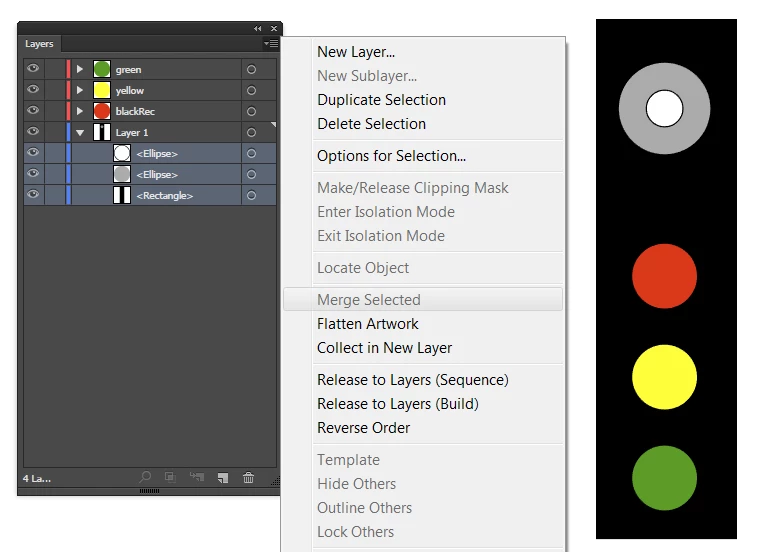
    This topic has been closed for replies.
    Correct answer draganv

    I've had the same problem and I just found out a solution. First open "window -> pathfinder". Then select "direct selection tool". Now shift click on the colored part and also shift click the white part. In the pathfinder menu select "trim", click away, click the white part and delete it. Problem solved!

    5 replies

    draganv
    draganvCorrect answer
    Participant
    June 3, 2018

    I've had the same problem and I just found out a solution. First open "window -> pathfinder". Then select "direct selection tool". Now shift click on the colored part and also shift click the white part. In the pathfinder menu select "trim", click away, click the white part and delete it. Problem solved!

    happie_97
    Community Expert
    Community Expert
    October 27, 2017

    You're welcome.

    happie_97
    Community Expert
    Community Expert
    October 27, 2017

    The article below might help clear your confusion with layer groups and sublayers, especially with flatteniung and grouping.

    How to use layers in Illustrator

    Consolidate layers and groups

    Merging and flattening layers are similar in that they both let you consolidate objects, groups, and sublayers into a single layer or group. With merging, you can select which items you want to consolidate; with flattening, all visible items in the artwork are consolidated in a single layer. With either option, the stacking order of the artwork remains the same, but other layer-level attributes, such as clipping masks, aren’t preserved.

    • To merge items into a single layer or group, hold down Ctrl (Windows) or Command (Mac OS) and click the names of the layers or groups that you want to merge. Alternatively, hold down Shift to select all listings in between the layer or group names you click. Then, select Merge Selected from the Layers panel menu. Note that items will be merged into the layer or group that you selected last.Layers can only merge with other layers that are on the same hierarchical level in the Layers panel. Likewise, sublayers can only merge with other sublayers that are within the same layer and at the same hierarchical level. Objects can’t be merged with other objects.
    • To flatten layers, click the name of the layer into which you want to consolidate the artwork. Then select Flatten Artwork from the Layers panel menu.
    Participating Frequently
    October 27, 2017

    Thank you!

    happie_97
    Community Expert
    Community Expert
    October 27, 2017

    Hi Katie,

    Merge selected is for selecting layers. You have all three items on one layer. Try placing them on separate layers and then you will be able to merge them.

    Kurt Gold
    Community Expert
    Community Expert
    October 27, 2017

    Well, one could do that, but you could just do nothing at all because you would get the same result as shown in the initial post …

    happie_97
    Community Expert
    Community Expert
    October 27, 2017

    True Kurt.

    Kurt Gold
    Community Expert
    Community Expert
    October 27, 2017

    They are not (true) sublayers. They are objects, that's why the command is not available.

    Why not just group them?

    Participating Frequently
    October 27, 2017

    Thanks for everyone's input. I think it will help if I step back and explain my purpose in grouping anything in AI. My goal is to create an AI file that animates properly in After Effects. In the example I initially used, I want to animate the red, yellow, and green lights separately from the rest of the file. For some reason I thought I needed to group the sublayers in the Background layer to have that layer properly display as an individual layer within After Effects. Having done more trial and error, I don't think that's going to be necessary. I think I can simply import the AI file without grouping the sublayers and everything will be fine.