

agapesmile516
Known Participant
July 22, 2022
Answered

Can't seem to use Direct Selection tool on Text wrap points around a photo

  • July 22, 2022
  • 3 replies
  • 737 views

I am sure that I have been able to do this in the past. I'm using CC2021 now... I have placed a cutout photo on my illustrator file and made a text wrap... I am sure that I used to be able to select the direct selection tool to manipulate the individual points of the text wrap so that I can get the text to wrap correctly.... when did it stop working?

In my photo attachment, I want to adjust the text wrap points so that the "We" moves to next to "recognize"....
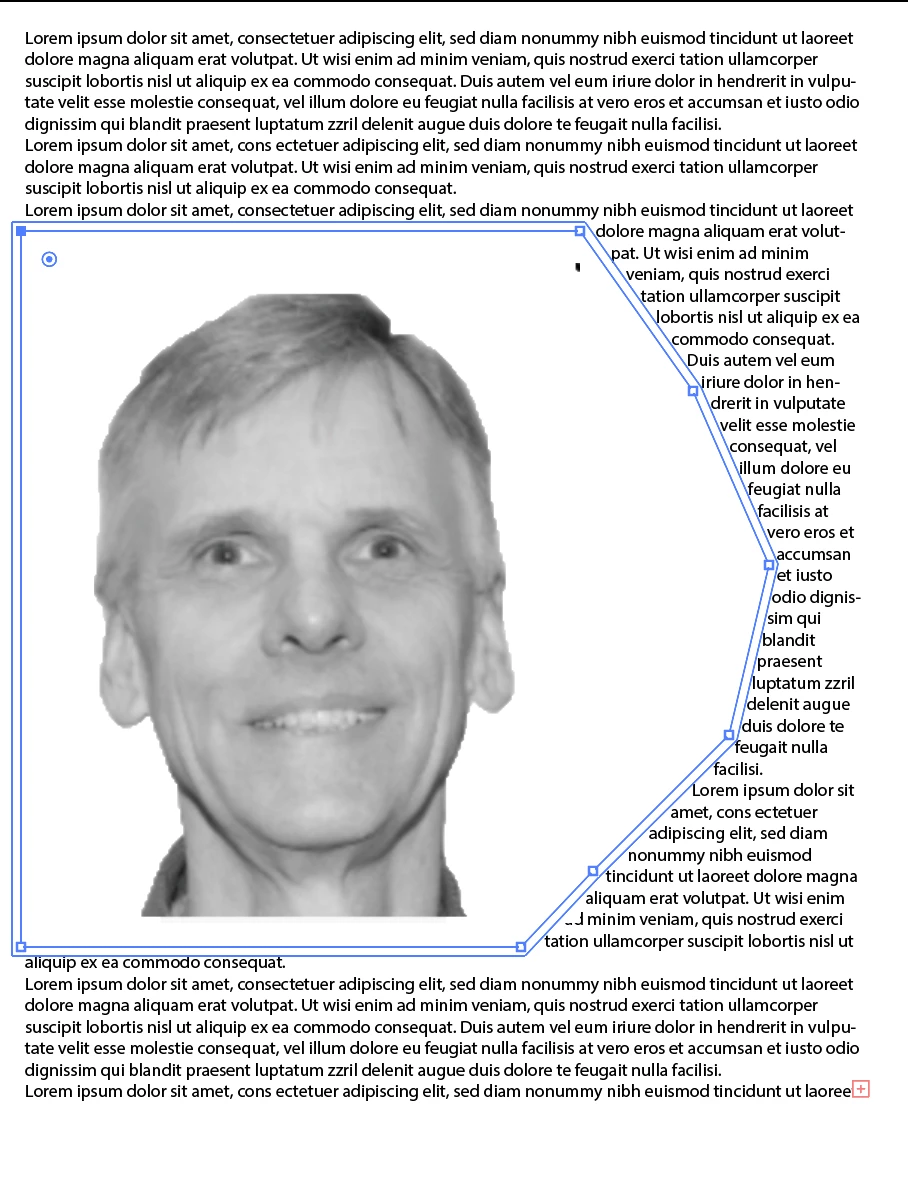
This topic has been closed for replies.
Correct answer barbara_a7746676

Use the Direct Selection tool to carefully click on the edge of the text wrap, and it should work.

When I have a complex text wrap, sometimes I fnd it easier not to create a text wrap on the photo itself. Using the Pen tool I create a separate shape with no fill no stroke and apply the wrap to that.

3 replies

barbara_a7746676
Community Expert
barbara_a7746676Community ExpertCorrect answer
Community Expert
July 23, 2022

Use the Direct Selection tool to carefully click on the edge of the text wrap, and it should work.

When I have a complex text wrap, sometimes I fnd it easier not to create a text wrap on the photo itself. Using the Pen tool I create a separate shape with no fill no stroke and apply the wrap to that.

Anshul_Saini
Community Manager
Community Manager
July 23, 2022

Hi @agapesmile516,


Sorry to hear about the trouble you are facing. In addition to @Mike_Gondek10189183, suggestion you may try and check out the following workflow, click once on the anchor point using the direct selection tool wait for a second, and click again to move it.


If that doesn't help, would you mind sharing the file with us? We'll check it at our end.


Looking forward to your response.


Thanks & Regards,

Anshul Saini

Mike_Gondek10189183
Community Expert
Community Expert
July 23, 2022

How did you get to where you are with the path?


You can  select the image

Object >> flatten transparency

Select the entire path

Cut the Path to clipboa rd

paste in front, and set a text wrap on the path


I grabbed the top point and moved up