

Flamboyant_Genie1549
Participant
November 2, 2017
Question

Challenge: How do you make this shape?? (Filling shapes with stripes)

  • November 2, 2017
  • 3 replies
  • 803 views

Hi Illustrators! I have run into a seriously vexing problem, and I wonder if anyone out there can help me. I am trying to recreate a bitmap image in Illustrator, and the original file contains these lines.
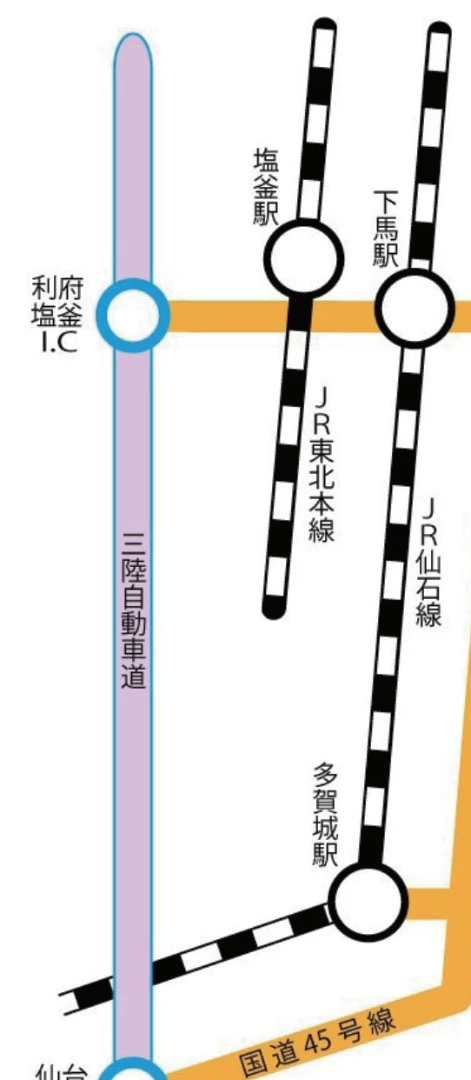
How would you go about recreating these things in Illustrator? My thought was to first use the Rounded Rectangle Tool, to draw the line itself. Next it's simple enough to put a stroke around it, but the ultimate trick is the fill! How would you go about filling the inside of a shape so it's striped like a candy cane?

I tried filling it with a pattern in my swatches, so it came out like this (mine's that little one that doesn't look quite right):
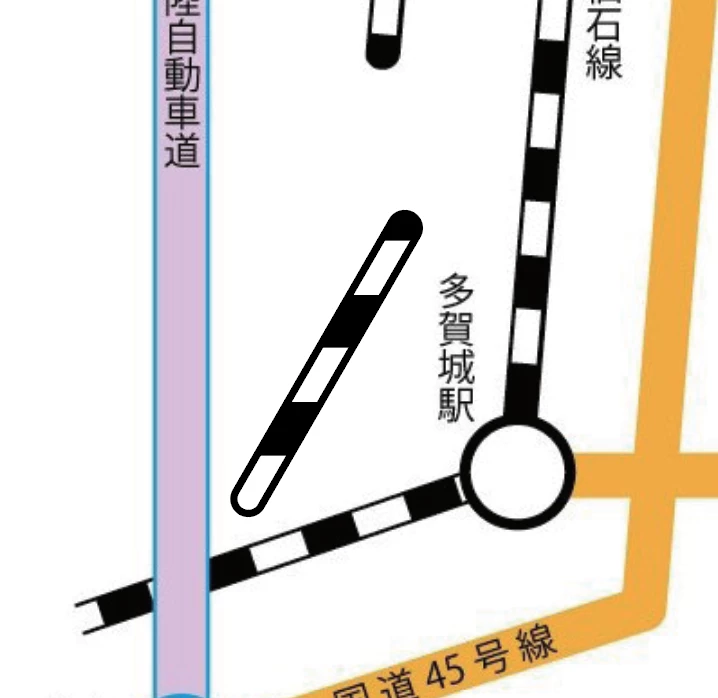
Close, but you'll notice that the stripe pattern isn't following the direction of the line; it's maintaining the original direction of the stripes pattern I had in my swatches, because of course it would; that's the nature of a fill.

So, what am I missing here? How would you make this?? Any advice? I keep wracking my brains over this, and all I'm coming up with is a headache. I welcome any and all suggestions! Thanks so much, everyone!

This topic has been closed for replies.

3 replies

Flamboyant_Genie1549
Participant
November 3, 2017

You guys, I am feeling completely embarassed; I was clearly thinking too hard about this. Thank you so much for your help. I’m gonna try this right away when I get into the office!

Doug A Roberts
Community Expert
Community Expert
November 2, 2017

much simpler: a path with two strokes, one dashed with butt caps, one solid and with rounded caps:

the dimensions I used in this case were 4mm dashes, 3mm gaps, with ' align dashes to corners and path ends' turned on for even-ness.

Flamboyant_Genie1549
Participant
November 4, 2017

Doug, your way was especially helpful, and I got it to work. Thank you so much for your advice!!

Adobe Employee
November 2, 2017

Hi Tai-kun,

Thanks for asking in the forum. Hope, we would be able to help you.

You can draw it using art brush very easily. Please see the steps mentioned below.

1. Draw a line , provide stroke value to the line as per the thickness required using stroke panel . (Menu: Windows -> stroke)

2. Copy the line and paste in front (shortcut : Ctrl/Cmd +F)

3. Provide stroke cap as a round from the stroke panel.(Menu: Windows -> stroke)

4. Expand the line present in front and switch the value of fill and stroke color using (shortcut: Shift + X) or swap fill and stroke button present with stroke and fill proxy in tools panel . Now the path would be NO fill and only stroke.

5. Select the line present behind . Enable dashed line button from stroke panel (Menu: Windows -> stroke). Provide value to dash as per requirement .

6. Now arrangement is ready . Select both and create an art brush out of it using brush panel.

7. Ready. Now can draw any line from line tool or pen tool and apply the brush onto it. Also you can draw any non straight path with pencil tool and apply the created art brush.

Regards

Ashutosh Gupta