Participant
January 3, 2024
Answered

Change Illustrator TextFrameItem aspect

  • January 3, 2024
  • 2 replies
  • 633 views
Using ExtendScript for Illustrator, I need to create programmatically AI documents from scratch, with stroked texts.

I created texts with the following code:


textFrame.contents = 'foo'
textFrame.textRange.characterAttributes.textFont = textFont
textFrame.textRange.fillColor = black
textFrame.textRange.stroked = true
textFrame.textRange.strokeColor = white
textFrame.textRange.strokeWeight = 0.75


but I am getting cropped glyphs because stroke is drawed above the text fill.
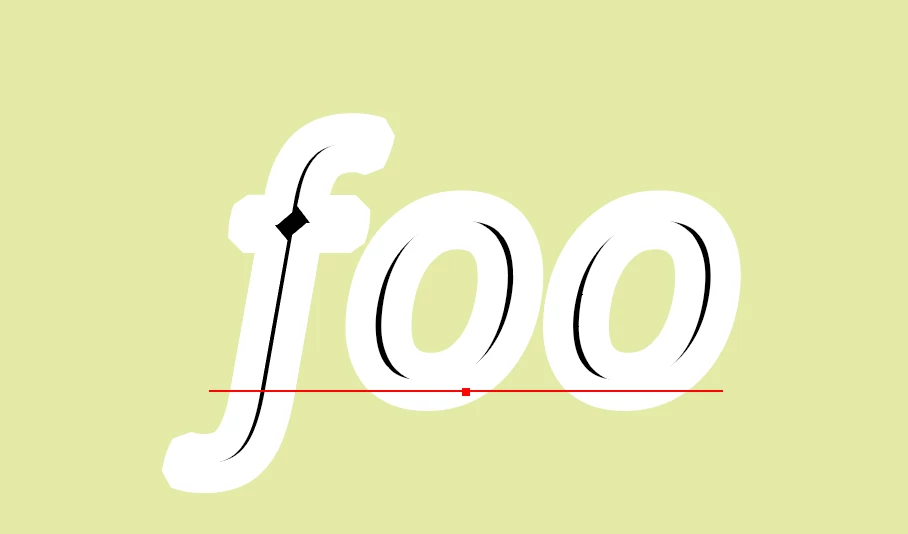
So I would like to be able to add fill and stroke "aspects" like in Illustrator user interface, then put stroke aspect bellow fill aspect. I didn't find how to manage aspect with ExtendScript Illustrator API. Does anyone know how to do that?

Creating text outline is not an option because I want to keep texts editable. Neigher creating 2 texts one on top of the other for the same reason.

This topic has been closed for replies.
Correct answer jduncan

I'm not sure you can do what you are wanting via the API. My suggestion would be to create default Graphic Style(s) beforehand and apply those to the text ranges you create in your script. Example below.


(function () {
  // grab a reference to the current document
  var doc = app.activeDocument;

  // find the correct graphic style
  var style;
  for (var i = 0; i < doc.graphicStyles.length; i++) {
    if (doc.graphicStyles[i].name == "customStrokeStyle") style = doc.graphicStyles[i];
  }
  if (!style) {
    alert("Style not found. Exiting script.");
    return;
  }

  // make your text frame
  var textFont = app.textFonts[0];
  var textFrame = doc.textFrames.add();
  textFrame.contents = "Example Text";
  textFrame.textRange.characterAttributes.textFont = textFont;
  textFrame.textRange.fillColor = new NoColor();
  textFrame.textRange.stroked = false;

  // apply the graphic style to your text frame
  style.applyTo(textFrame);
})();


2 replies

Sergey Osokin
Inspiring
January 3, 2024

In ExtendScript, you won't find standard methods for controlling the Appearance panel. For example, you can't set a fill above the stroke for the appearance of editable text.

Participant
January 4, 2024

Thanks for your answer, I understand this top level feature is not available from scripts. So I need to use an alternative such as using Graphic Styles.

jduncan
Community Expert
jduncanCommunity ExpertCorrect answer
Community Expert
January 3, 2024

I'm not sure you can do what you are wanting via the API. My suggestion would be to create default Graphic Style(s) beforehand and apply those to the text ranges you create in your script. Example below.


(function () {
  // grab a reference to the current document
  var doc = app.activeDocument;

  // find the correct graphic style
  var style;
  for (var i = 0; i < doc.graphicStyles.length; i++) {
    if (doc.graphicStyles[i].name == "customStrokeStyle") style = doc.graphicStyles[i];
  }
  if (!style) {
    alert("Style not found. Exiting script.");
    return;
  }

  // make your text frame
  var textFont = app.textFonts[0];
  var textFrame = doc.textFrames.add();
  textFrame.contents = "Example Text";
  textFrame.textRange.characterAttributes.textFont = textFont;
  textFrame.textRange.fillColor = new NoColor();
  textFrame.textRange.stroked = false;

  // apply the graphic style to your text frame
  style.applyTo(textFrame);
})();


Participant
January 4, 2024

Thank you for your reply, Graphic Styles sounds like a good alternative. So I can't create stroked texts from scratch since I need to start from an existing document, what is possible in my workflow.

jduncan
Community Expert
Community Expert
January 4, 2024

So, first make a custom document profile preset for Ai. Basically make a standard Ai file, setup the specs just as you need them (although you can adjust many with your script).


Next, create the custom Graphic Style(s) you need to access and drop them into the Graphic Styles palette of your custom preset file.


Finally, save your custom preset inside of your Ai application folder. For me (I'm on a Mac) it is at the path `/Applications/Adobe Illustrator 2024/Support Files/New Document Profiles/en_US`.


Then you can create a new document with your script using your custom preset and easily access the graphic style(s) you created. I have updated the example script to show how it would work. You'll need to change the "settings" to match whatever you name your custom preset and custom graphic style.


Let me know if you have any trouble? Cheers!


(function () {
  // settings
  var customPreset = "customPresetName";
  var customGraphicStyle = "customGraphicStyleName";

  // make a new document with your preset
  try {
    var doc = app.documents.addDocument(customPreset);
  } catch (e) {
    alert("Custom document preset not found. Exiting script.\n" + e);
    return;
  }

  // find the correct graphic style
  var style;
  for (var i = 0; i < doc.graphicStyles.length; i++) {
    if (doc.graphicStyles[i].name == customGraphicStyle) style = doc.graphicStyles[i];
  }
  if (!style) {
    alert("Style not found. Exiting script.");
    return;
  }

  // make your text frame
  var textFont = app.textFonts[0];
  var textFrame = doc.textFrames.add();
  textFrame.contents = "Example Text";
  textFrame.textRange.characterAttributes.textFont = textFont;
  textFrame.textRange.fillColor = new NoColor();
  textFrame.textRange.stroked = false;

  // apply the graphic style to your text frame
  style.applyTo(textFrame);
})();