


cspvoa
Inspiring
June 6, 2019
Answered

Change length of rotated line to an exact value from one anchor point without moving it for changing angle

  • June 6, 2019
  • 6 replies
  • 8991 views

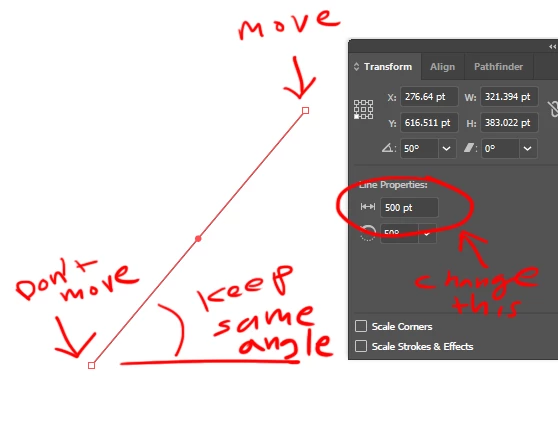
Hi all, I would like to put an exact numerical value for the length of an rotated line, from one anchor point, without rotating the line or moving that one anchor point. So the other anchor point would move while maintaining the line angle to the exact length of the line. When I change line properties, it always scales from the mid point of the line. Here is photo for reference. Thanks!
This topic has been closed for replies.
Correct answer Jeff Witchel, ACI

Hmm! Interesting.

With the way everything in your screenshot is set up, you would think that it would work exactly the way you want.

But if you look closely at the Transform panel, the Reference Point is in a different section of the panel than the length field, so it is not applying to the length.

You may want to request this as a feature in User Voice: Adobe Illustrator Feedback

6 replies

Jacob Bugge
Community Expert
Community Expert
June 6, 2019

cpvoa,

Just a small addition to what Mike said,

The transform effect can do this by percentage (sorry you cant enter the length, but hope this helps).

Since you know the current length and the desired length, you can get the exact length by setting the percentage to 100*[Desired length]/[Current length], by entering:

[Desired length] with 00 added (or the decimal point moved two places to the right for decimal values) followed by /[Current length]

Illy (job description Adobe Illustrator) perfectly understands the insertion of any simple two part operation (*, /, +, -).

cspvoa
cspvoaAuthor
Inspiring
June 6, 2019

Thanks all for the different suggestions! I submitted a feature request as well.

Jacob Bugge
Community Expert
Community Expert
June 6, 2019

cpvoa,

Apologizing for my persevering, since you know the current length and the desired new length of the line, I believe the simplest temporary solution is to use their quotient or their reverse quotient (whichever is accurate/most convenient) directly in the Transform palette as it is shown in your OP (original post) screenshot as the second part of an operation in the W or H box.

Here is how for a few possible desired changes:

A) If you wish to go from 500 to 300, you can add *0.6 (=300/500) to the W or H box and Ctrl/Cmd+Enter

B) If you wish to go from 300 to 500, you can add /0.6 (=300/500) to the W or H box and Ctrl/Cmd+Enter

As you can see, B) corresponds to adding *1.6667 (~ 500/300), but is accurate.

Jacob Bugge
Community Expert
Community Expert
June 6, 2019

cpvoa,

Or, failing other ways, unless it is too simple, you can (re)create with the Line Segment Tool, simply setting the desired length and angle, then (deselect and) ClickDrag the line by its lower end Anchor Point to snap to the original one, then (if needed temporarily lock/hide the new one and) delete the original.

How to draw simple lines and shapes in Illustrator

meganchi
Legend
June 6, 2019

In your transform palette, if you select the checkbox "scale corners", then select the point, hold down shift key, you can drag your point along the same angle.

I can't see a way where you can input a specific value, though.

Mike_Gondek10189183
Community Expert
Community Expert
June 6, 2019

The transform effect can do this by percentage (sorry you cant enter the length, but hope this helps). They should update the line tool reference point to work the same way

I started out with the same line length on both lines, incase my screenshot is not making sense.

Jacob Bugge
Community Expert
Community Expert
June 6, 2019

cpvoa,

As long as it is the present way, you may use different more or less silly roundabout ways, a simple one being, starting out with what you have in the screenshot/photo:

1) Change the Rotate value to -50,

2) Set the desired (new) W value (change from 500),

3) Change the Rotate value back to 50.

Kurt Gold
Community Expert
Community Expert
June 6, 2019

Jacob,

I think your suggestion won't work with lines that are (live) shapes, because the actual angle doesn't matter in that case.

It will work well if the (live shape) line is converted to a common path.

Jeff Witchel, ACI
Community Expert
Jeff Witchel, ACICommunity ExpertCorrect answer
Community Expert
June 6, 2019

Hmm! Interesting.

With the way everything in your screenshot is set up, you would think that it would work exactly the way you want.

But if you look closely at the Transform panel, the Reference Point is in a different section of the panel than the length field, so it is not applying to the length.

You may want to request this as a feature in User Voice: Adobe Illustrator Feedback

Russ1642
Participant
April 7, 2020

It is absolutely baffling that you can't change the length of a line properly in Illustrator. This is the equivalent of a "Hello World!" program.

Participant
April 7, 2020

You can if you resort to plugins. VectorScribe contains the Extend Path tool which can extend linear and Bezier paths to precise lengths, or multiples.


https://astutegraphics.com/plugins/vectorscribe